
Your role at a glance
What your login can see and do, and a simple daily routine.
You are the owner
You see every page, including people, branches, roles, billing and the audit log. Only you can add users and decide what others may see.
- Morning: open Command centre, then Alerts. Call the customers at risk and the drivers who stopped reporting.
- Daytime: let your manager run trips; check Profitability and Close trips once a day.
- Weekly: look at Documents for expiring papers and Safety for driver scores.
- When someone joins or leaves: add or suspend them in Users the same day.
Give every person their own login with the right role. Never share yours.
You are the manager
You run the day: trips, drivers, alerts, upkeep and money pages. You do not see users, roles, branches, billing or the audit log; ask the owner for those.
- Start of shift: Alerts, then Dispatch to see who is on duty and free.
- Plan the day's trips in Trips and give them to drivers.
- Through the day: watch the Live map, answer driver Messages, approve delivery proofs.
- End of day: Close trips that are finished and check Work orders.
You are a branch supervisor
Your login works like a dispatcher's: you run trips, the dispatch board and driver messages, and see upkeep and safety. Settlement, driver cash, costs, invoices, the roster and admin pages are not in your menu.
- Pick your branch in the All branches list on the live map and dispatch board, so you see only your trucks.
- Begin each shift with Alerts and Dispatch.
- Handle breakdowns and inspections from your branch the same day.
Need a page you cannot see? Ask the owner to change your role in Roles.
You are the accountant
Your login covers settlement, driver cash (khata), costs, profitability, invoices and customers. You can view trips and the fleet but not dispatch drivers or message them.
- Every day: settle delivered trips in Settlement.
- Raise and issue bills in Invoices; export them to Tally.
- Keep driver cash straight in Khata.
- Weekly: review Costs and Profitability.
Everyday basics
Things that work the same on every page: search, dark mode, the menu, and loading lists from a spreadsheet.
Find anything fast
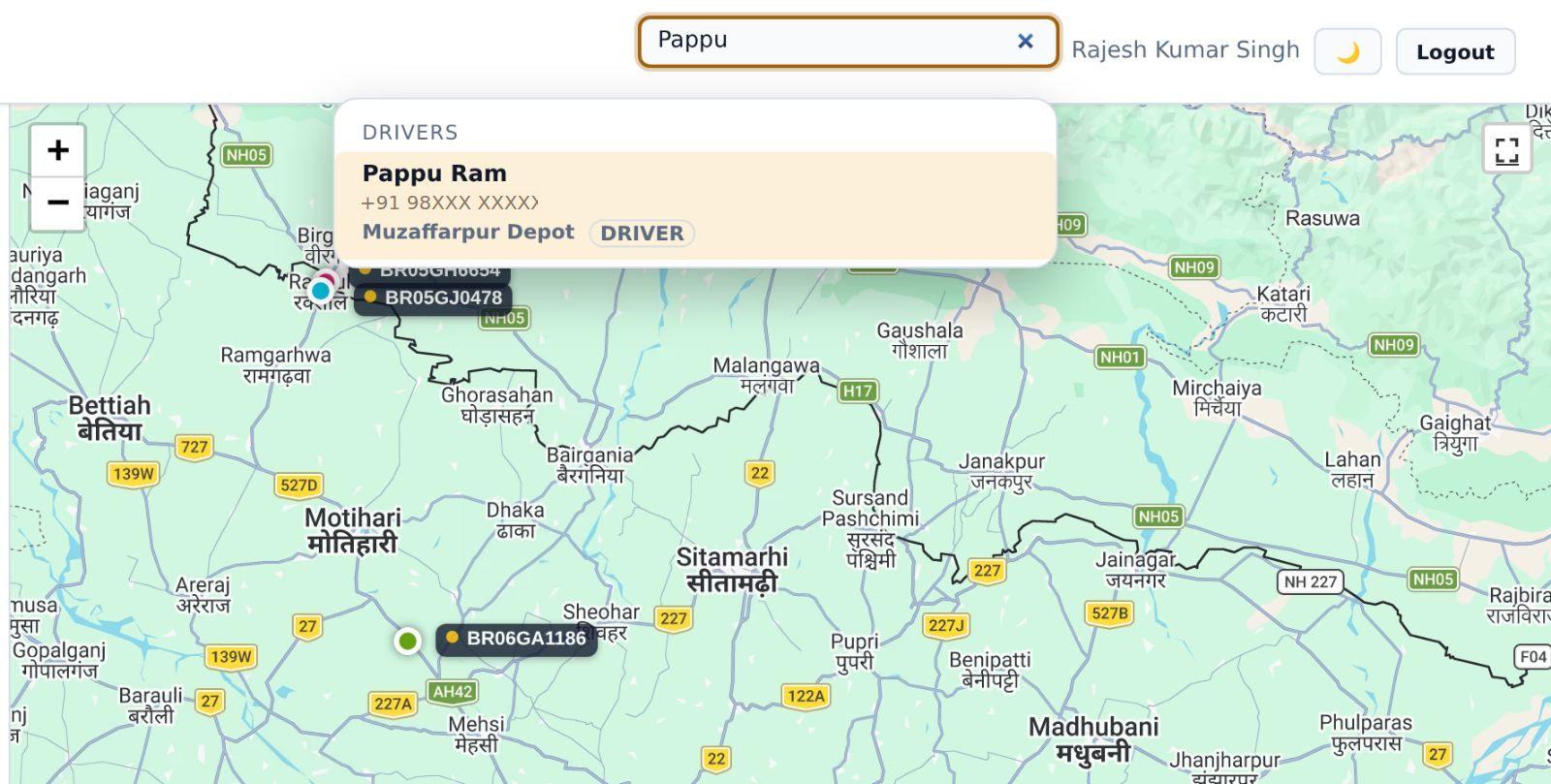
The search box at the top finds trucks, drivers, people, customers, trips, consignments, work orders and incidents from any page.
- Press / on the keyboard, or click the search box.
- Type part of a registration, a name, or a trip, LR or invoice number.
- Results are grouped by kind. Use the arrow keys and Enter, or click, to open one.
You only see results your role is allowed to open.
Dark mode, the menu and signing out
Small controls you will use every day.
- Press 🌙 next to your name to switch between light and dark. Garuda remembers your choice on this computer.
- The menu on the left is grouped: Overview, Operations, Fleet, Compliance, Workshop, Money, Admin and Help. On a phone, open it with ☰.
- Help in the menu opens this manual.
- Press Logout when you leave a shared computer.
Load a list from a spreadsheet
Add many trucks, customers or master items at once instead of one by one.
- Press Bulk import and Download the CSV template.
- Fill it in Excel or Google Sheets, one row per item, and save it as CSV.
- Choose the file and press Preview. Garuda shows which rows are fine, which already exist and which have mistakes, before anything is saved.
- For rows that already exist, choose Skip them, Update them or Treat as an error, then import.
Your daily overview
Three screens tell you how the business is doing before you make your first call of the day: the Command centre, the live map and the trip list. The examples show Shree Balaji Roadways, a demo company with ten trucks in Bihar.
Before you start: sign in
- Open garuda.anamay.org/app in Chrome on your computer or phone.
- Type your email or mobile number and your password, then press Sign in. Tick Show password to check what you typed.
- If you have turned on two-step sign-in, a box asks for the 6-digit code from your authenticator app. Type it and press Verify and sign in.
Forgot your password? Ask your company's administrator to reset it from Users. Never share your password with drivers or staff; give each person their own login.
Start your day at the Command centre
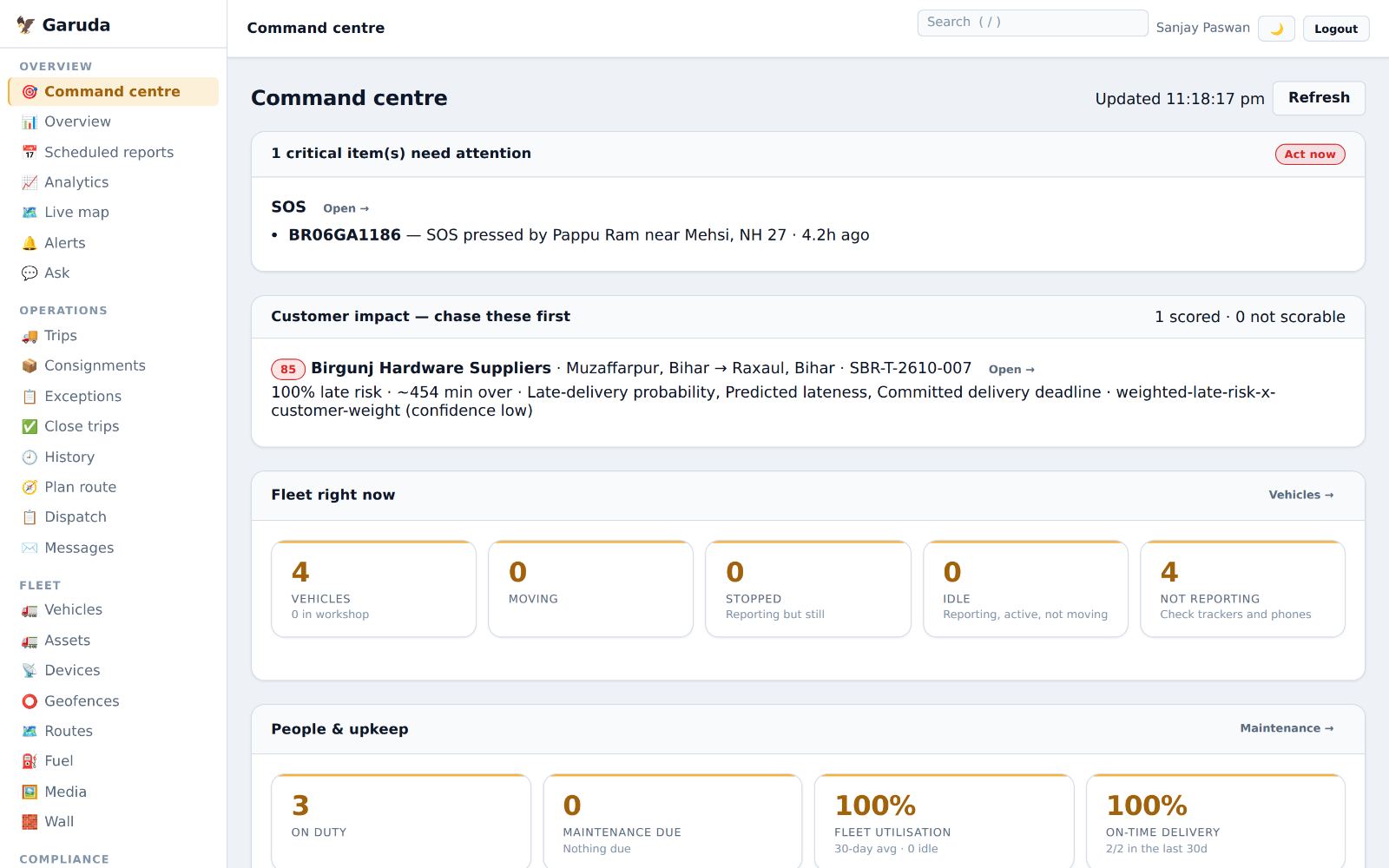
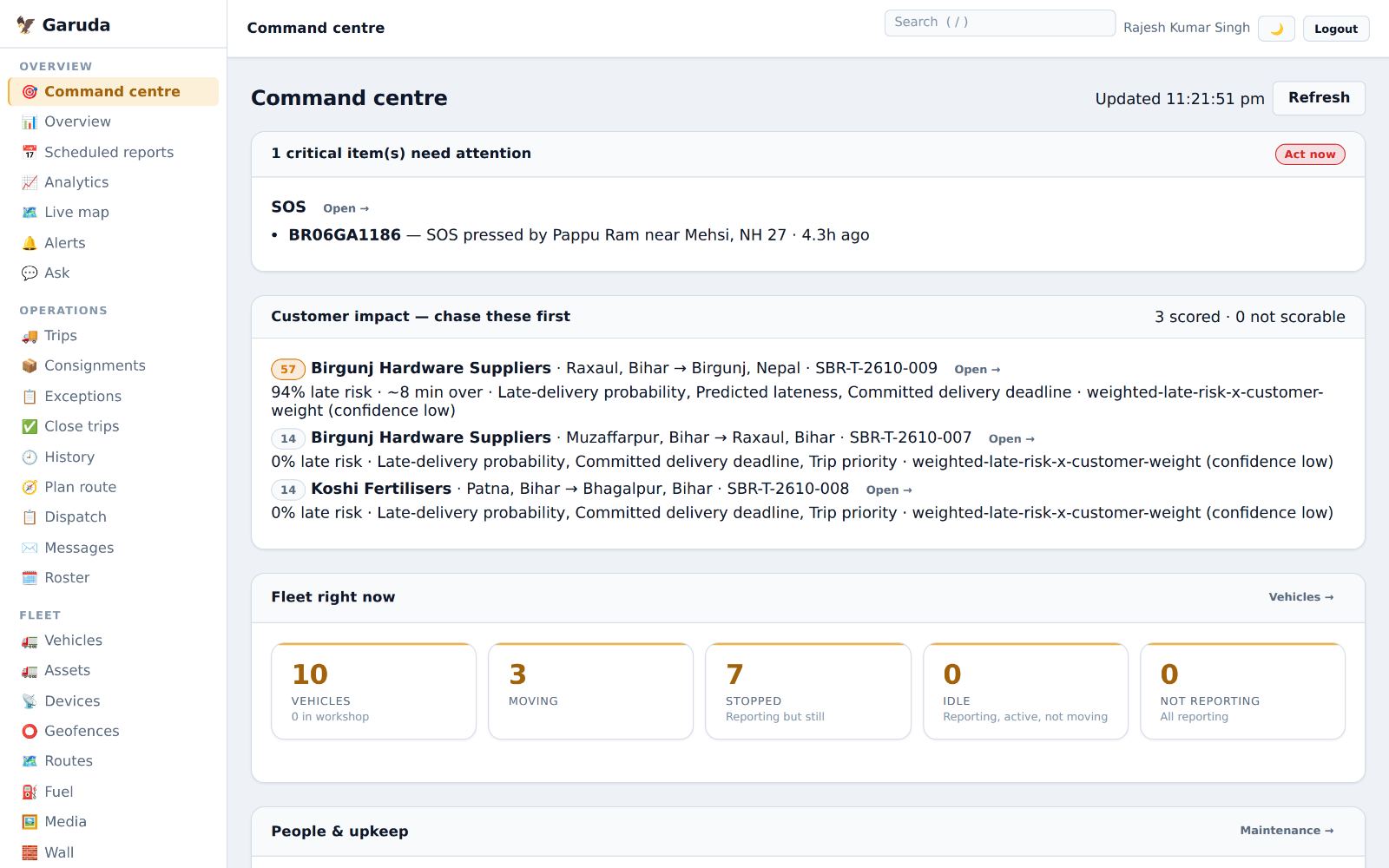
One page with what needs your attention now. Anything critical, such as an SOS, sits at the very top marked Act now.
- Open Command centre from the menu. Press Refresh to update the figures at any time.
- Customer impact lists running deliveries most likely to be late, the riskiest first. Call these customers before they call you.
- Press Open → next to a delivery to see its trip, truck and driver.
- Fleet right now: how many trucks are moving, stopped, idle or not reporting.
- People and upkeep: drivers on duty, maintenance due, how much the fleet was used, and on-time delivery over the last 30 days.
A truck under "Not reporting" usually means the driver's phone is off, out of signal, or has Location switched off. Call the driver.
 1
2
3
4
5
See where every truck is
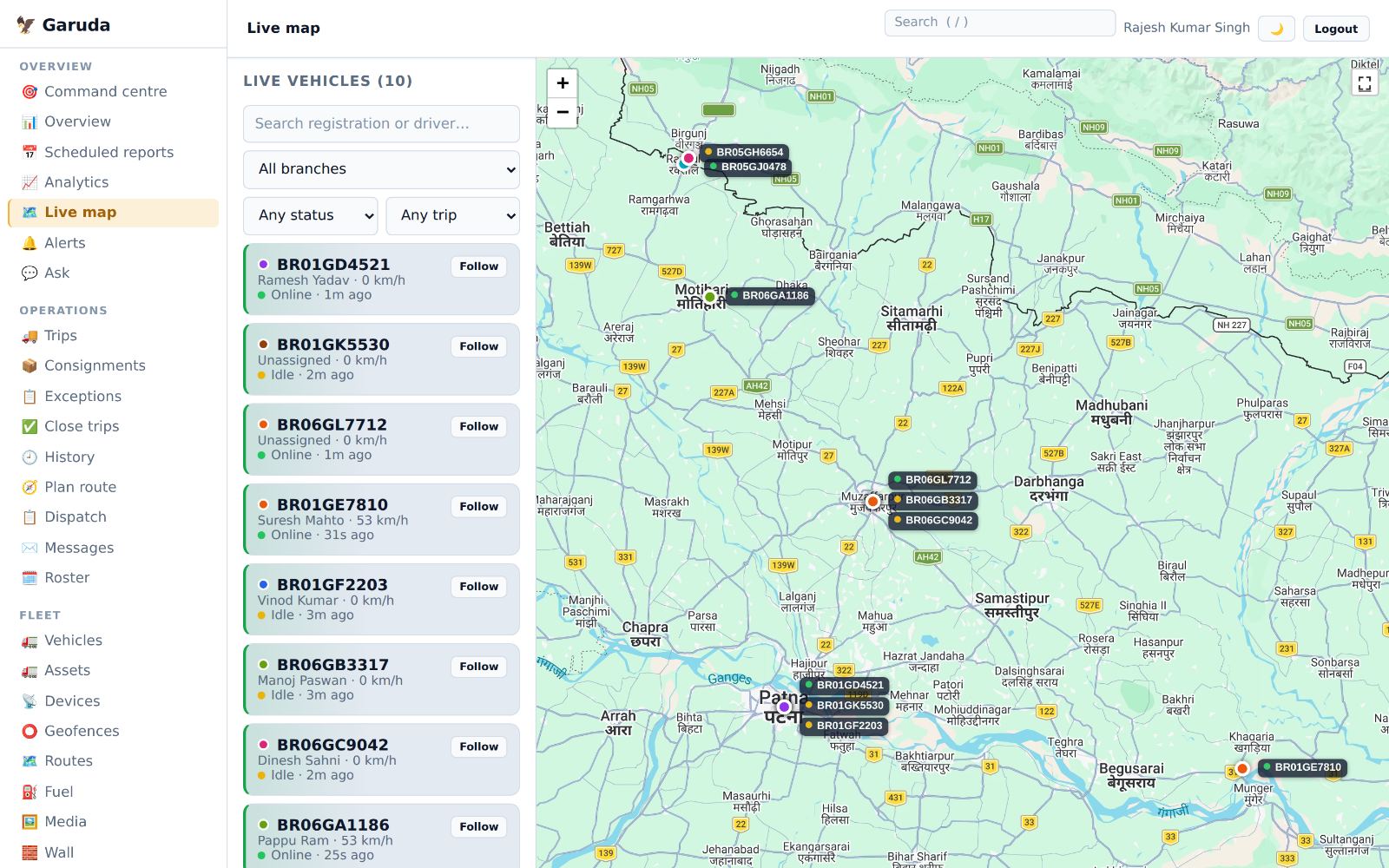
The live map shows each truck's last reported position on Google Maps.
- Type a registration number or driver name in the search box to find a truck.
- Use the branch list to see one depot's trucks only.
- Use the status and trip lists to show, for example, only trucks on a trip.
- Press Follow to keep the map centred on one truck as it moves.
- Each label on the map is a truck. A green dot means it reported in the last few minutes.
Speed and "1m ago" on each card come from the driver's phone. If a card says "4m ago" and 0 km/h, the truck is parked.
 1
2
3
4
5
Check today's trips
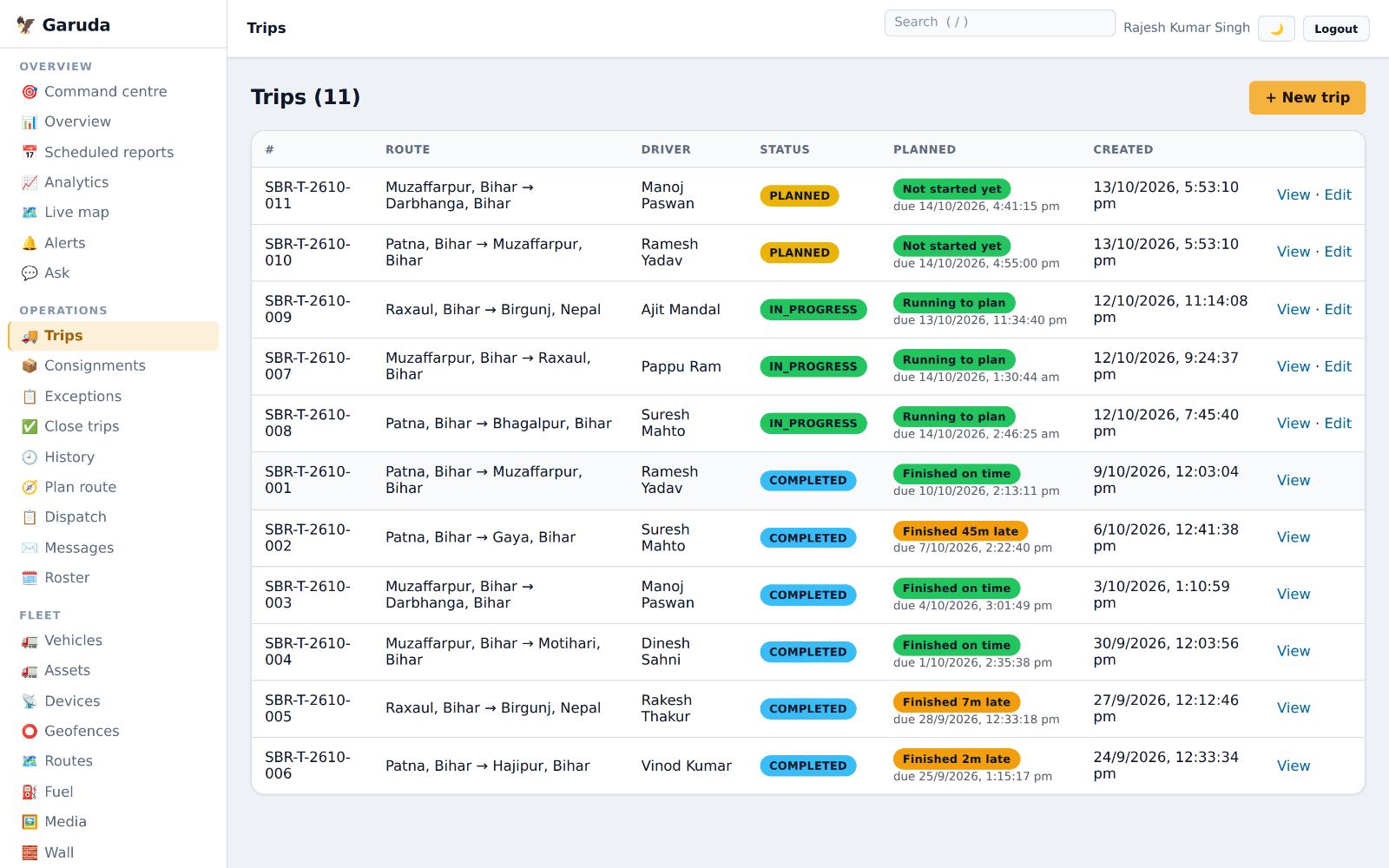
Every trip, newest first, with its route, driver and status.
- Press + New trip to plan a new trip. Chapter 2 shows each box.
- Each trip has its own number, for example SBR-T-2610-009. Quote it when you call the driver or customer.
- Status shows planned, in progress or completed. Planned tells you if it is running to plan or late, for example “Finished 45m late”.
- Press View to see the trip on the map with its stops and proof of delivery, or Edit to change a trip that has not finished.
 1
2
3
4
Alerts and day-to-day trips
What to do when Garuda raises an alert, and how a trip goes from plan to proof of delivery. The office plans the trip; the driver starts it and finishes it in the Garuda driver app; the office follows it and checks the proof.
Deal with alerts
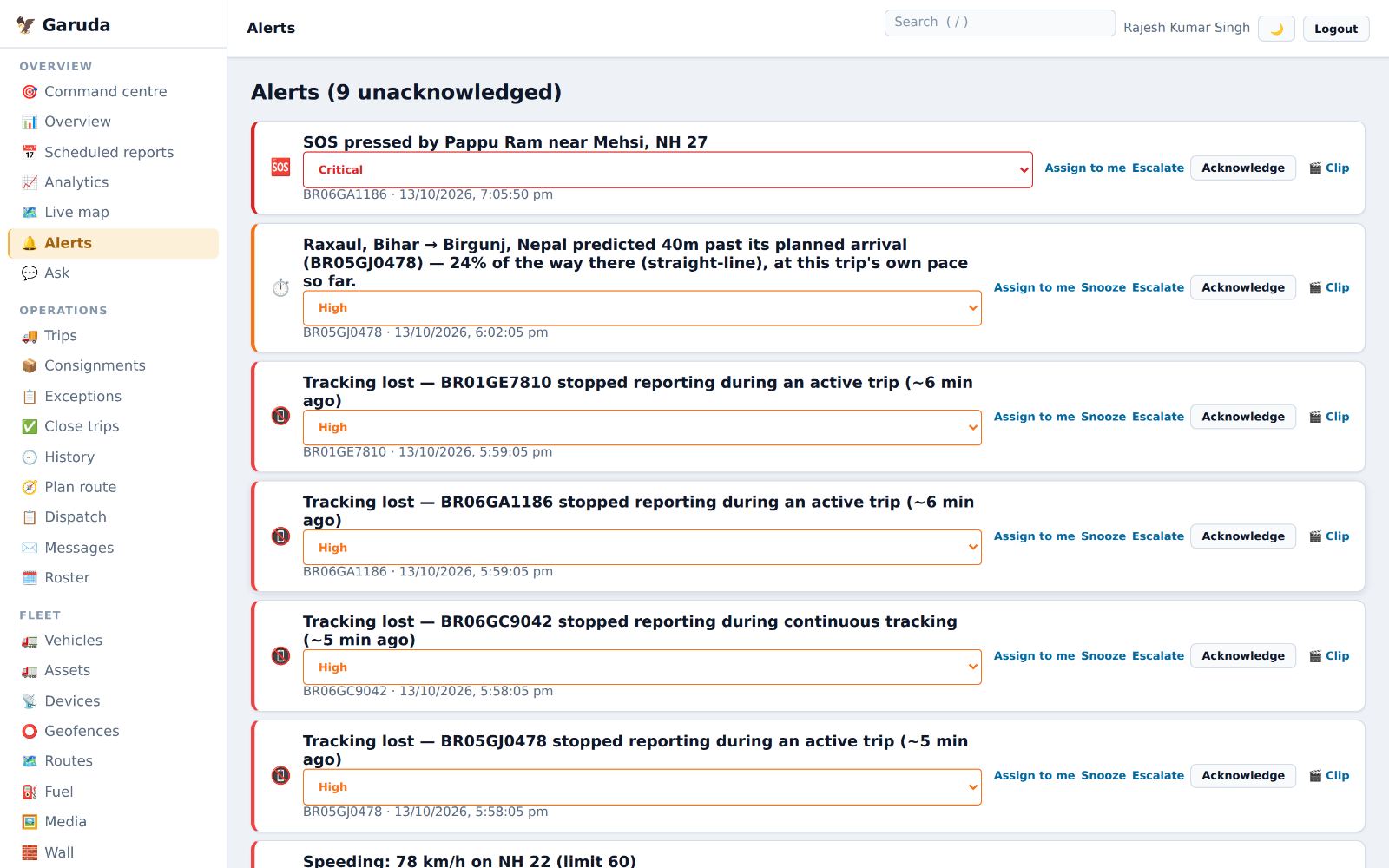
Alerts appear here as they happen: speeding, a truck entering or leaving a geofence, idling, a fuel drop, leaving the route, a phone going offline, an SOS from a driver, or a delivery about to be late.
- Unacknowledged alerts sit at the top, the most serious first: Critical, High, Medium, Low.
- Press Assign to me so your team knows you are handling it.
- Disagree with how serious it is? Change it in the small list next to the message.
- Need time? Snooze hides it for the hours you choose. Critical alerts cannot be snoozed.
- Escalate sends it straight to the contact set for escalations.
- When it is dealt with, press Acknowledge and write a short note on what you did. It moves down the list, marked acknowledged.
🆘 An SOS is always Critical. Call the driver first, then act. If a dashcam or phone clip exists, attach it with 🎬 Clip.
 1
2
3
4
5
6
Plan a trip
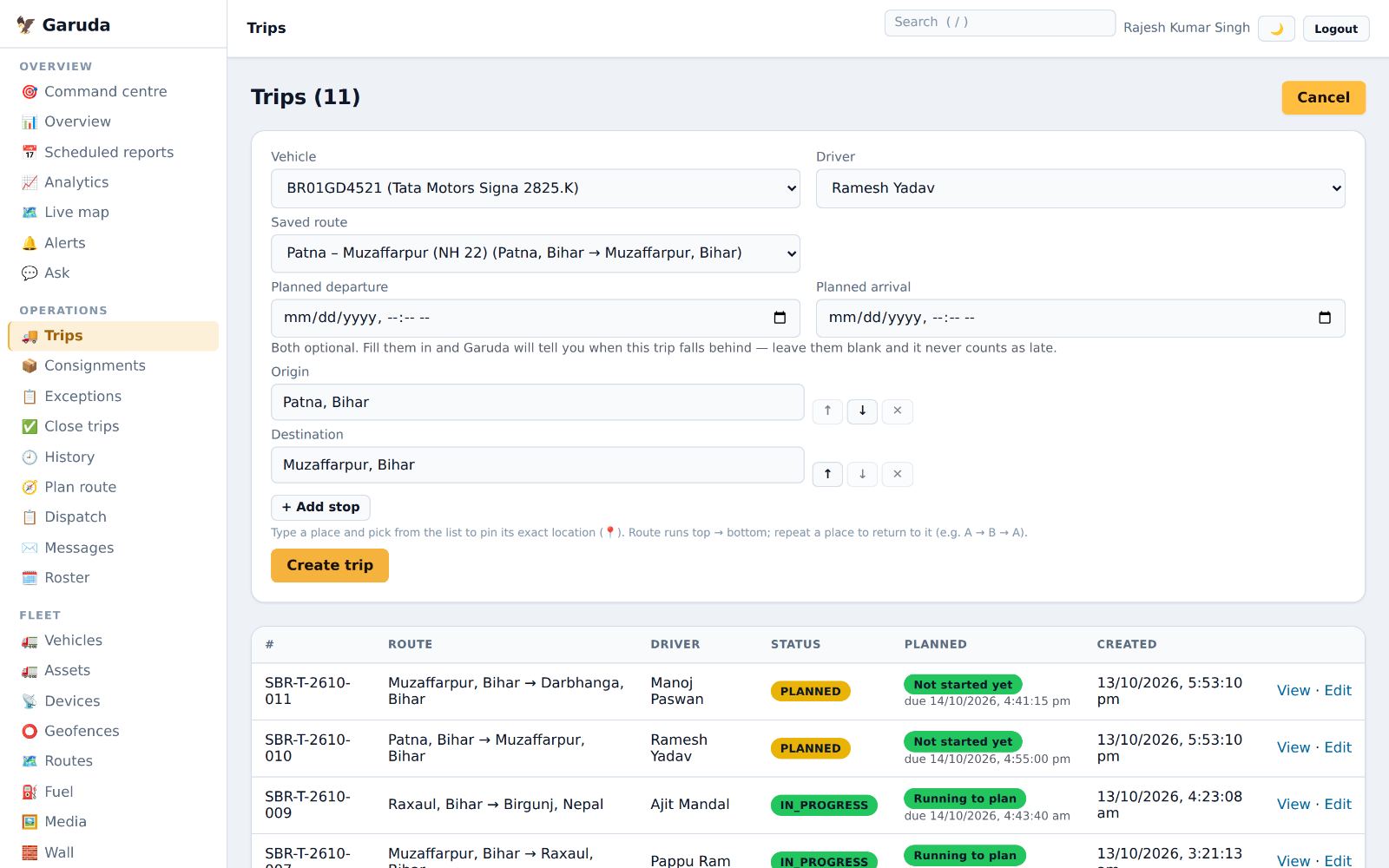
A planned trip tells the driver where to go and lets Garuda warn you if the trip falls behind.
- Press + New trip.
- Choose the Vehicle. Choose the Driver, or leave it on Leave unassigned to hand it out later from the dispatch board.
- Have a Saved route? Pick it and the stops fill themselves.
- Fill in Planned departure and Planned arrival. Both are optional, but without them Garuda can never tell you a trip is late.
- Type the Origin and Destination and pick each place from the list, so it is pinned (📍). Press + Add stop for stops in between; use ↑ ↓ to reorder.
- Press Create trip. The trip appears as Planned and on the driver’s phone.
The driver presses Start in the app when leaving. You do not need to start the trip from the office.
 1
2
3
4
5
6
Follow a trip on the road
Open any running trip with View to see how it is going.
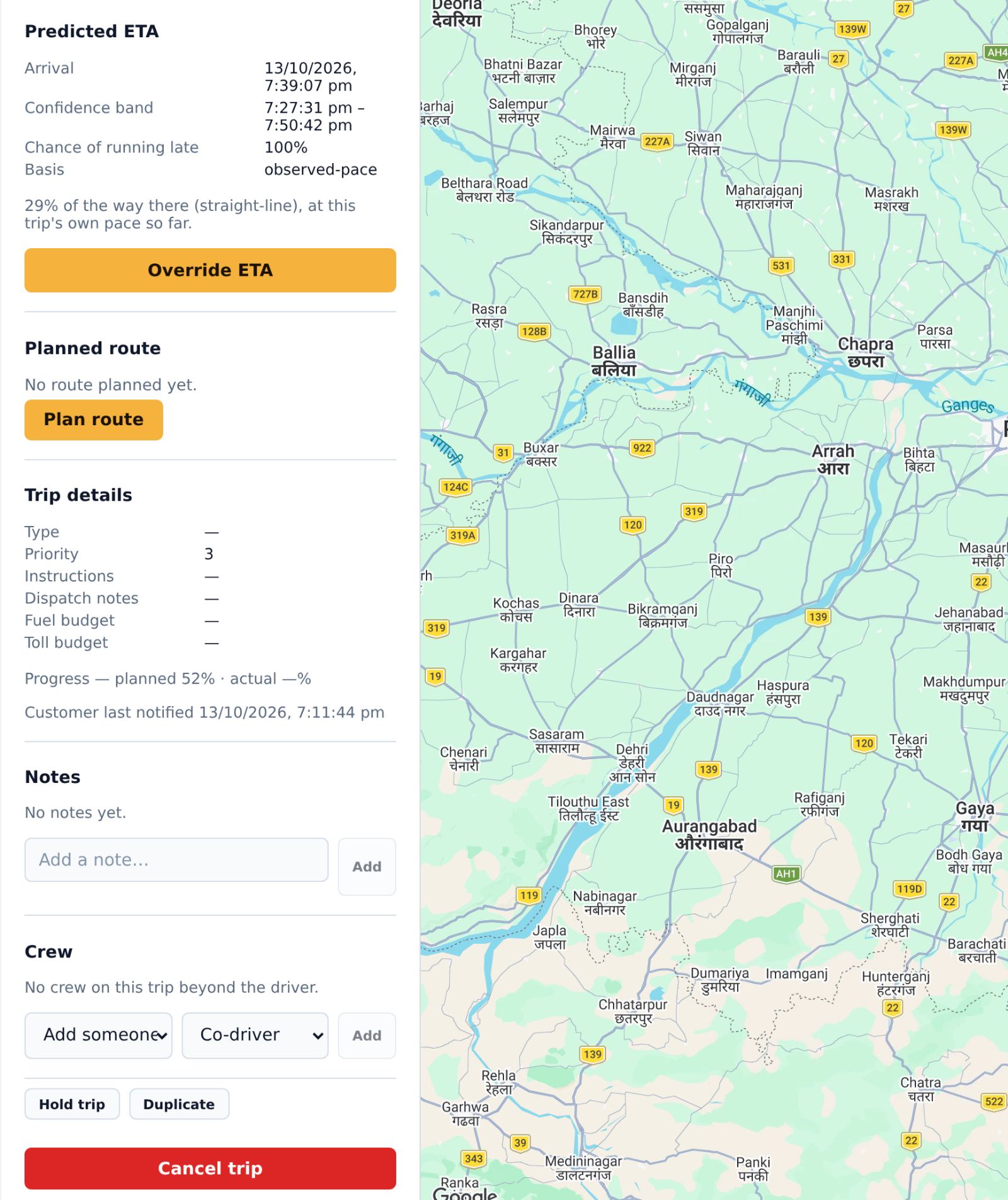
- Predicted ETA shows when the truck should arrive, a time window, and the chance of running late.
- Know something Garuda does not, such as a road closure or a customer call? Press Override ETA, set the new time and write the reason.
- Stop-by-stop shows each stop as reached or still ahead. When every stop is done you will see “✓ Every stop is done — this trip looks ready to complete.”
- Plans changed? Cancel trip asks for a reason and an outcome, so the record shows why.
Progress shows planned against actual percentage. Actual well behind planned means the trip is slipping; call the driver early.
 1
2
4
Check proof of delivery
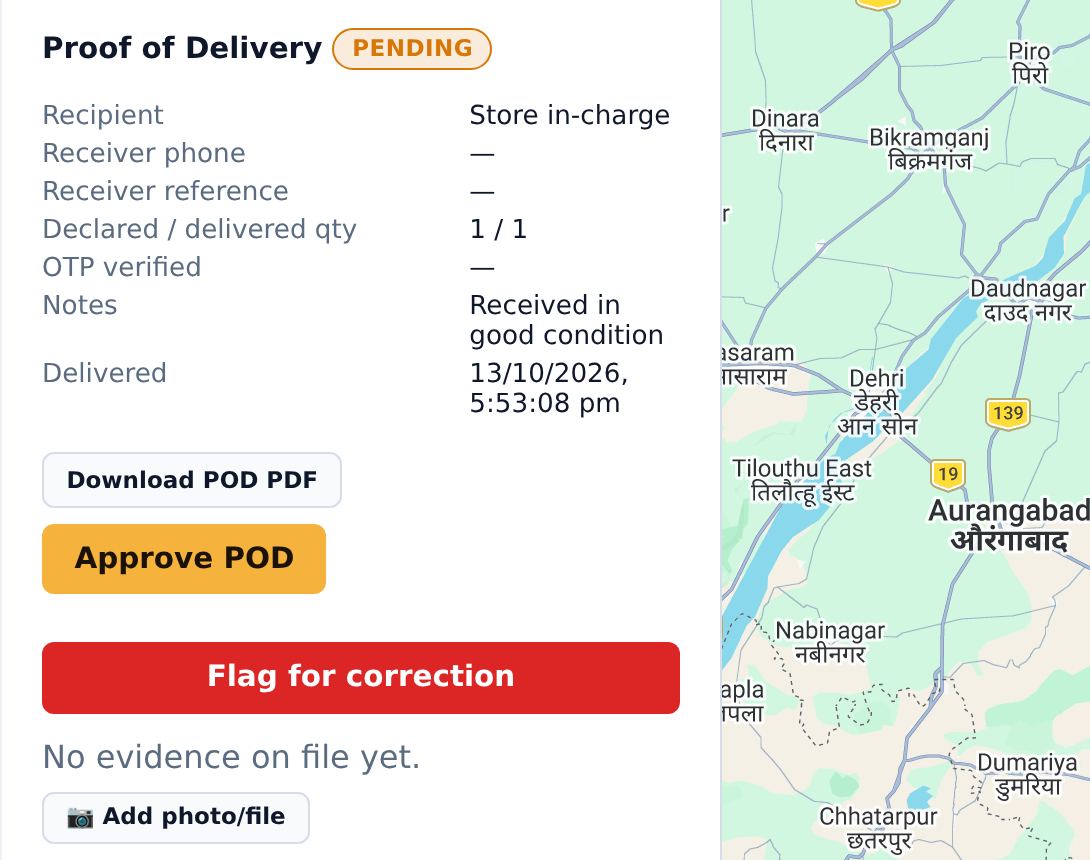
When the driver completes a trip in the app, the proof of delivery (POD) appears on the trip.
- See who received the goods, their phone number, the quantity declared and delivered, and whether the customer confirmed with an OTP.
- Press Download POD PDF to send it to the customer or keep it for billing.
- Everything in order? Press Approve POD. Something wrong, such as a short quantity or a missing name? Press Flag for correction and write what is wrong.
Approved PODs are what the Accountant bills against, so check them the same day.
 1
2
3
Inside a trip
Everything on a trip's own page beyond the map and arrival time: delay reason, papers, fuel, notes, crew, and holding or copying a trip.
Record why a trip was late
A short reason on the trip itself, so nobody has to ask again later.
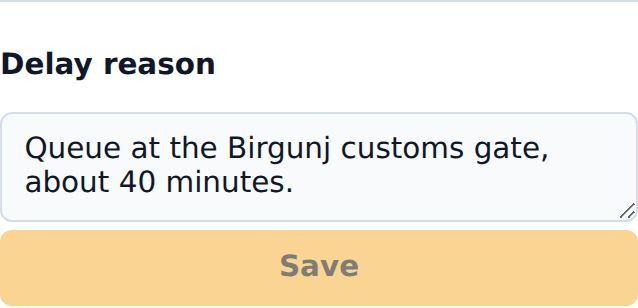
- Under Delay reason, write what happened: traffic, breakdown, customer delay, customs queue.
- Press Save.
- The reason shows to anyone reviewing the trip and to the Ask assistant, so "why was this trip late?" gets a real answer.
Check the trip's papers
Every paper the truck must carry, checked against the Document vault, and a log of who holds the original LR.
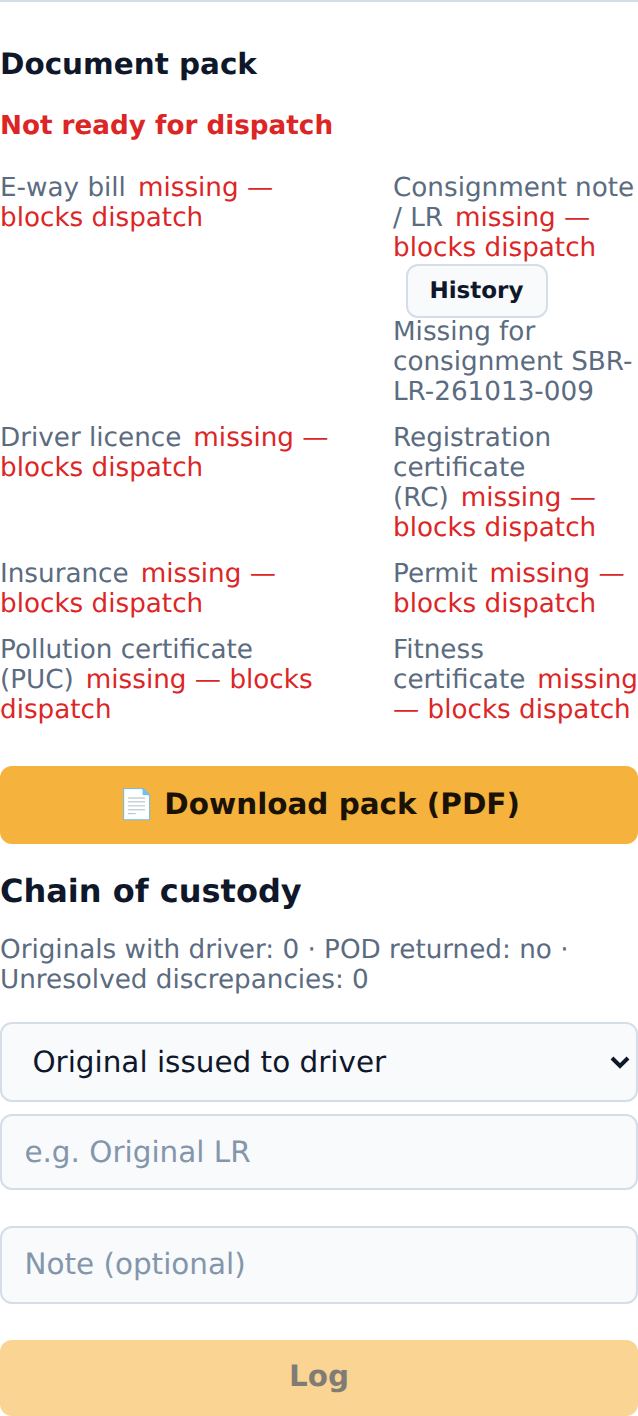
- Document pack lists the e-way bill, LR, driver licence, RC, insurance, permit, PUC and fitness, and says Ready for dispatch or what is missing.
- Add missing papers in Documents; they appear here at once. History shows each version of the LR.
- Press Download pack (PDF) to print everything for the driver or the border.
- Under Chain of custody, log Original issued to driver, Original returned, Signed POD/LR returned or a Discrepancy, with a label, then press Log.
The line above the form shows how many originals are still with drivers and whether the signed POD came back; billing waits on it.
Fuel forecast, fuel check and cost overrun
Before and after a trip, Garuda compares fuel and cost with what this truck and route usually take.
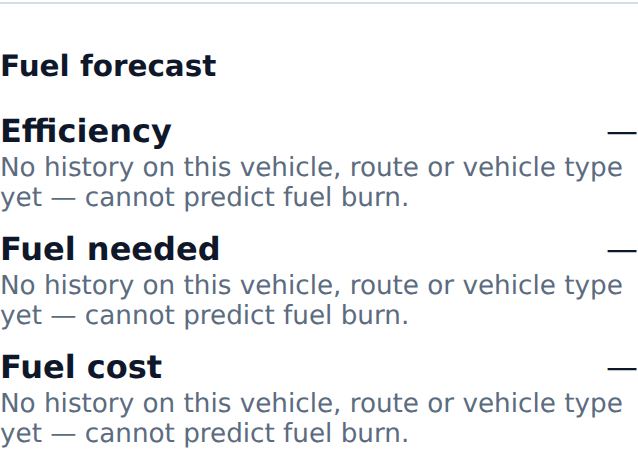
- Fuel forecast estimates km per litre, litres needed and fuel cost for this trip.
- After the trip, Fuel check sets the actual figure against the expected one and flags an anomaly only when there is enough history to trust.
- Cost overrun appears when a trip's costs have gone past its plan, with the reason.
A new truck or route shows "No history … cannot predict" until a few trips are done. That is honest, not an error.
Notes and crew
Keep the trip's conversation on the trip, and record who else is on the truck.
- Under Notes, type in Add a note… and press Add. Everyone who opens the trip sees it, with who wrote it and when.
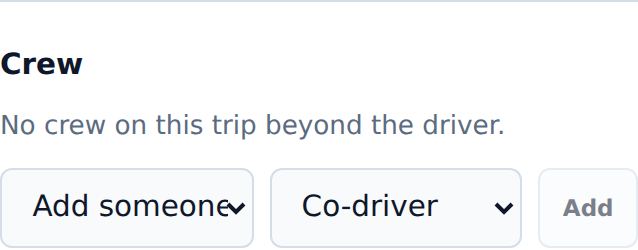
- Under Crew, pick a person in Add someone…, choose Co-driver, Helper or Cleaner, and press Add.
- Press Remove next to a crew member who is no longer on the truck.
Type, priority, instructions and budgets
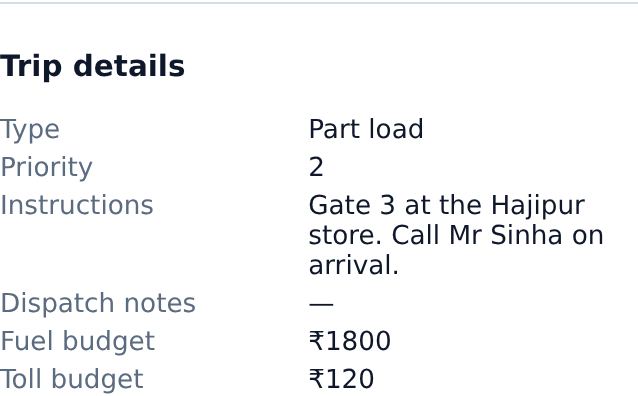
Optional details you set when planning a trip. They show in the trip's Trip details card.
- In the New trip form, open More details (optional).
- Type: your own label, such as FTL, part load or return. Priority: 1 is highest; 1 and 2 count as high priority on the dispatch board.
- Instructions: gate number, site contact, loading notes, for whoever handles the trip in the office.
- Fuel budget and Toll budget in ₹. After the trip, Fuel shows Planned vs actual fuel budget and Costs shows Toll budget variance.
The driver app does not show these instructions yet; tell the driver by message or phone.
Hold, copy, archive or cancel a trip
The buttons at the foot of a trip page.
- Hold trip pauses a trip and asks why, for example waiting for the customer's load. Press Release to carry on.
- Duplicate makes a new planned trip with the same truck, stops and route, with no driver yet: handy for a regular run.
- Archive tidies a finished trip out of the main list; Unarchive brings it back.
- Cancel trip asks for a reason and the outcome: Normal cancellation, Breakdown — trip aborted or Returned to origin. Press Confirm cancel.
More operations
Consignments, problems on delivery, closing trips, past routes, planning, the dispatch board, driver messages and the roster.
Book and follow consignments
A consignment is the load you carry for a customer, with its own LR number. One trip can carry several consignments.
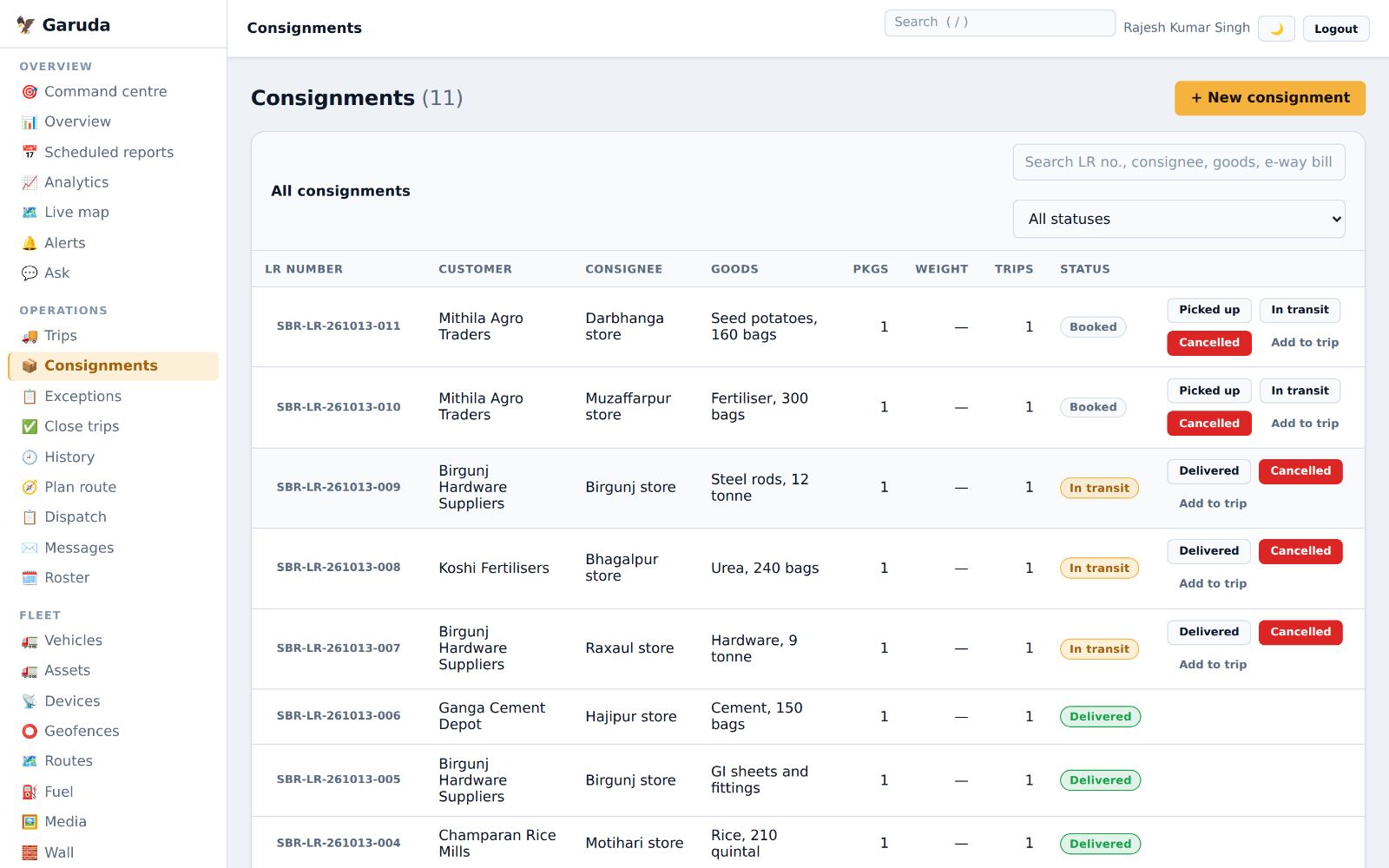
- Press + New consignment and fill in the customer, consignee, goods, packages and weight.
- Use Add to trip to put it on a truck.
- Move it along with the status buttons: Picked up, In transit, Delivered, or Cancelled. Drivers can do this from the app too.
- Filter the list with All statuses to see, for example, only what is in transit.
Customers with a portal login see their consignments and delivery proof themselves, so they call you less.
Record delivery problems
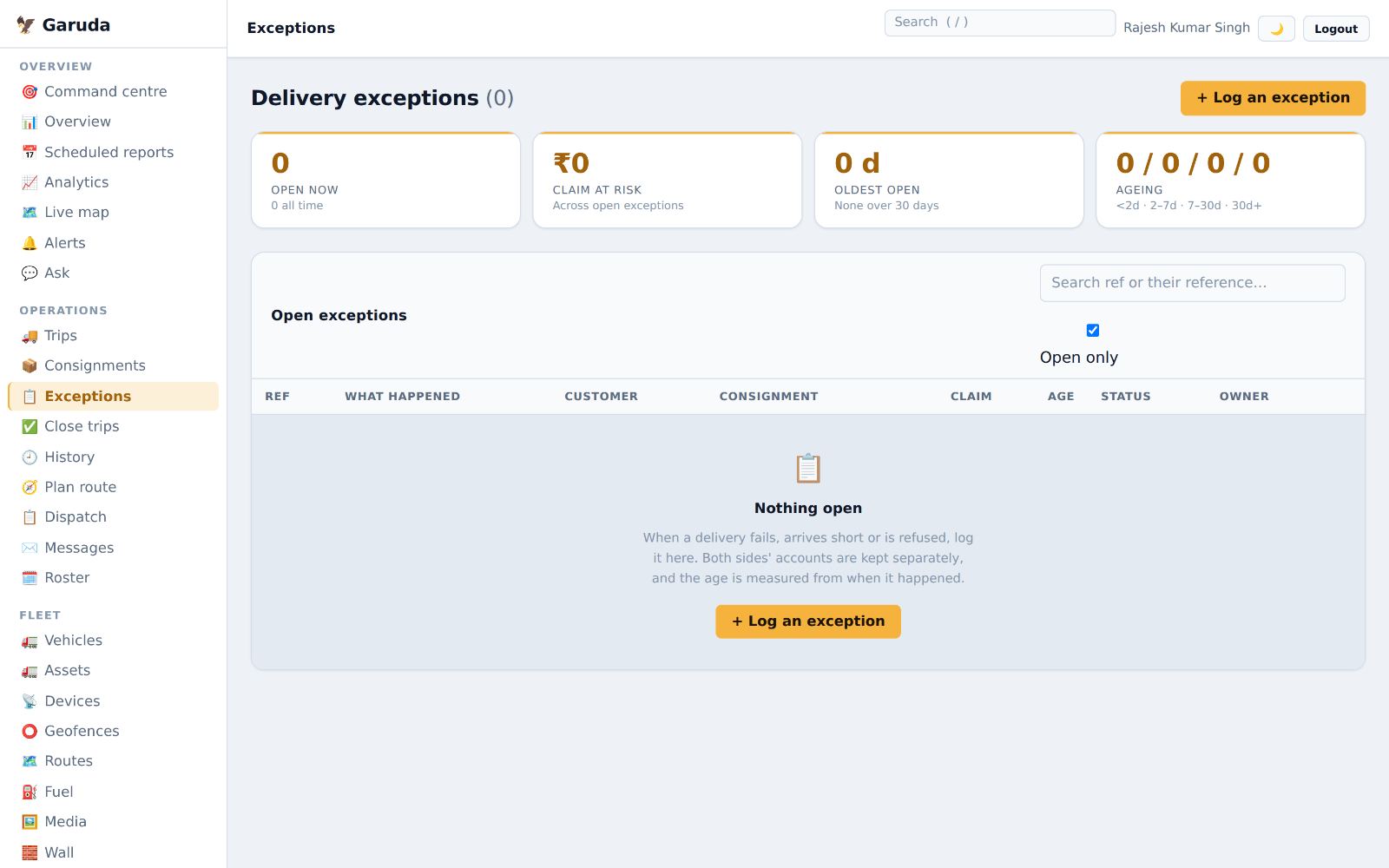
When a delivery fails, arrives short or is refused, log it here so it is followed up and any claim is not forgotten.
- Press + Log an exception and choose the consignment and what happened.
- The top tiles show how many are open, the money at risk and the oldest open one.
- Your side and the customer's side are kept separately. Close it when it is settled.
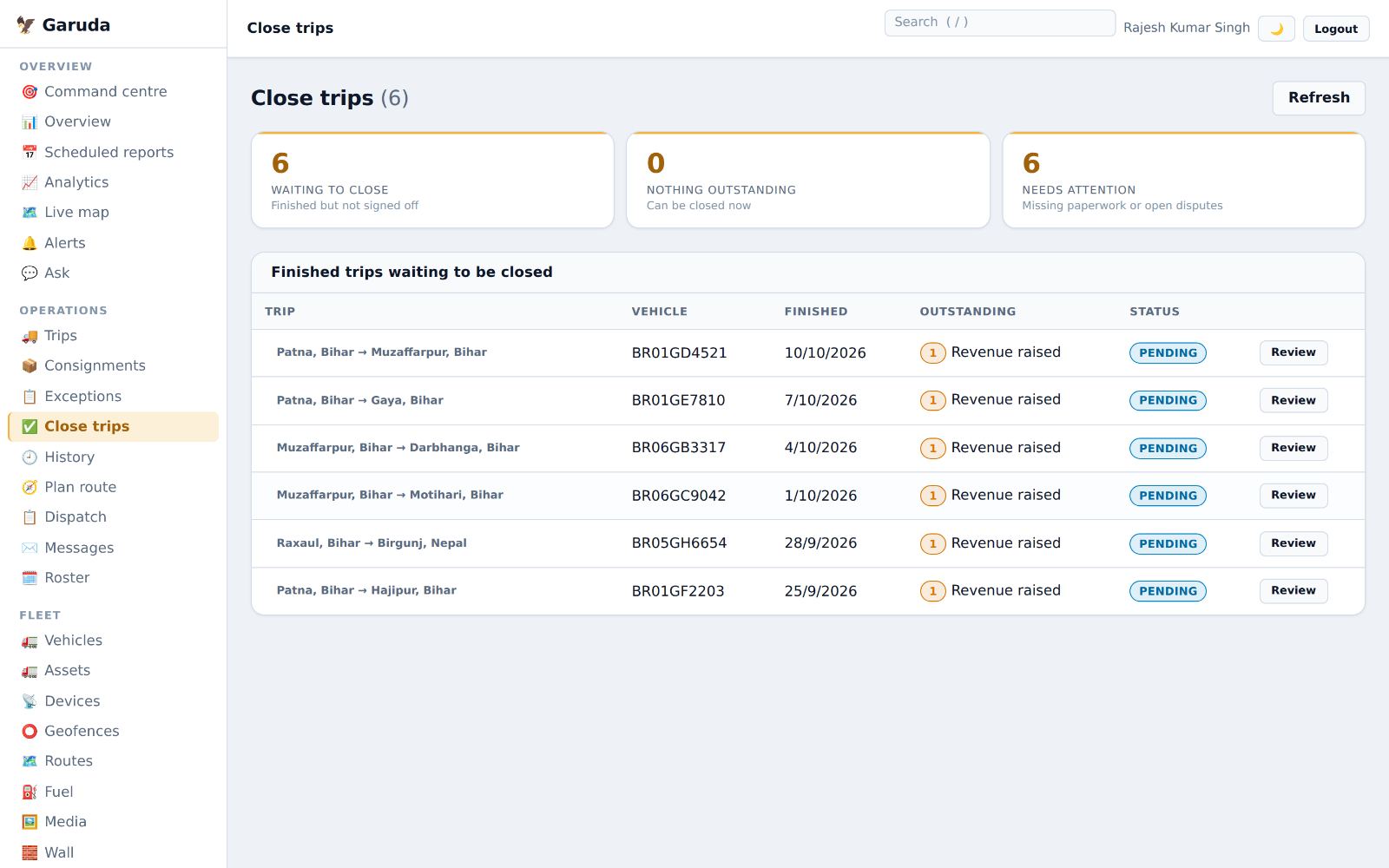
Close finished trips
A delivered trip is not finished until its paperwork and money are done. This page lists what is still outstanding on each one.
- Waiting to close counts finished trips not yet signed off.
- The Outstanding column says what is missing, for example revenue still to be raised.
- Press Review, clear each item, then close the trip.
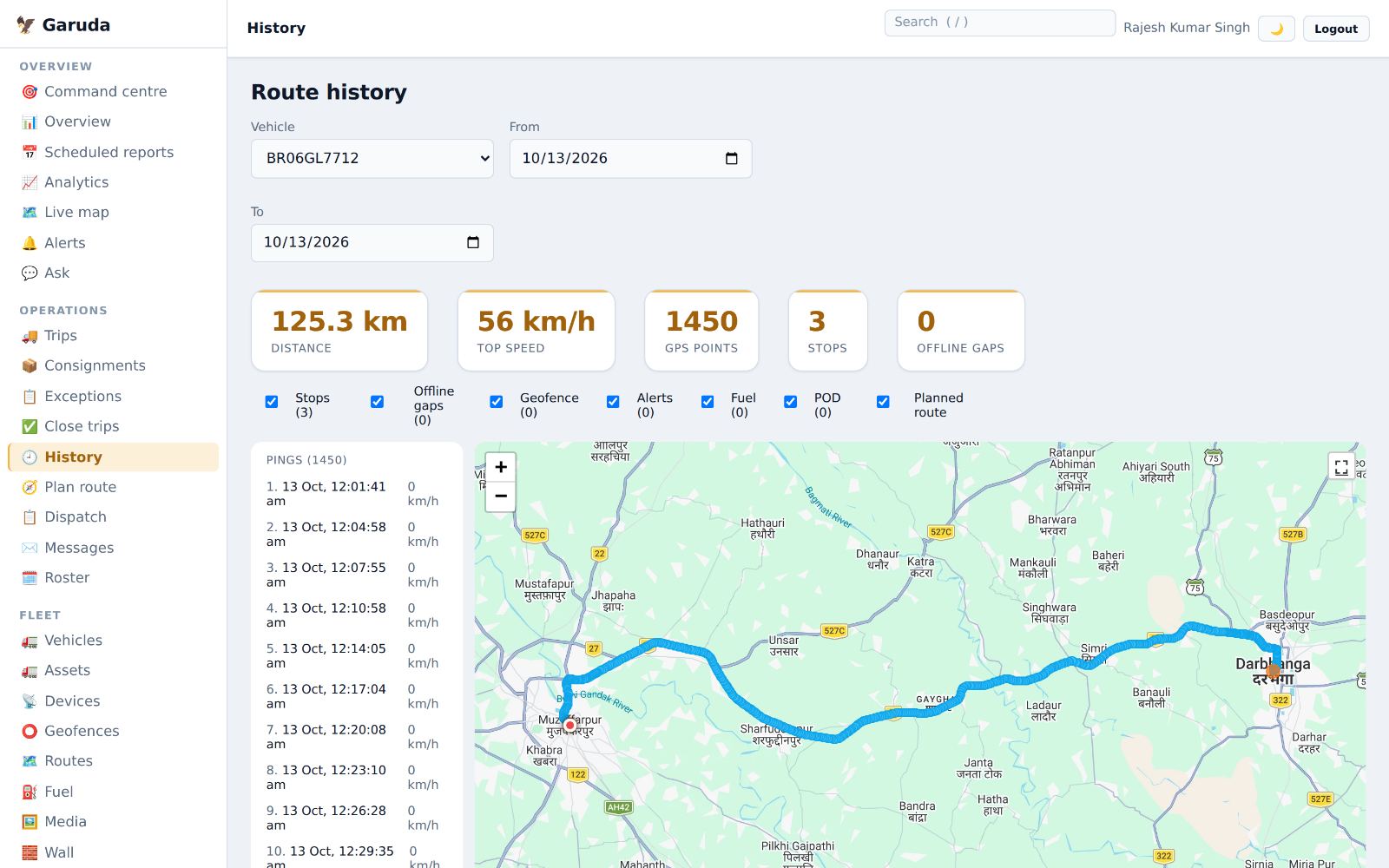
Replay where a truck went
Pick a truck and a time range to see its path, stops, offline gaps, alerts, fuel and deliveries on the map.
- Choose the Vehicle, then From and To.
- Read the totals: distance, top speed, GPS points, stops and offline gaps.
- Use the tabs (Stops, Offline gaps, Alerts, Fuel, POD) to jump to that moment.
Offline gaps usually mean the phone had no signal or location was off. Points saved during a gap are sent when the signal returns.
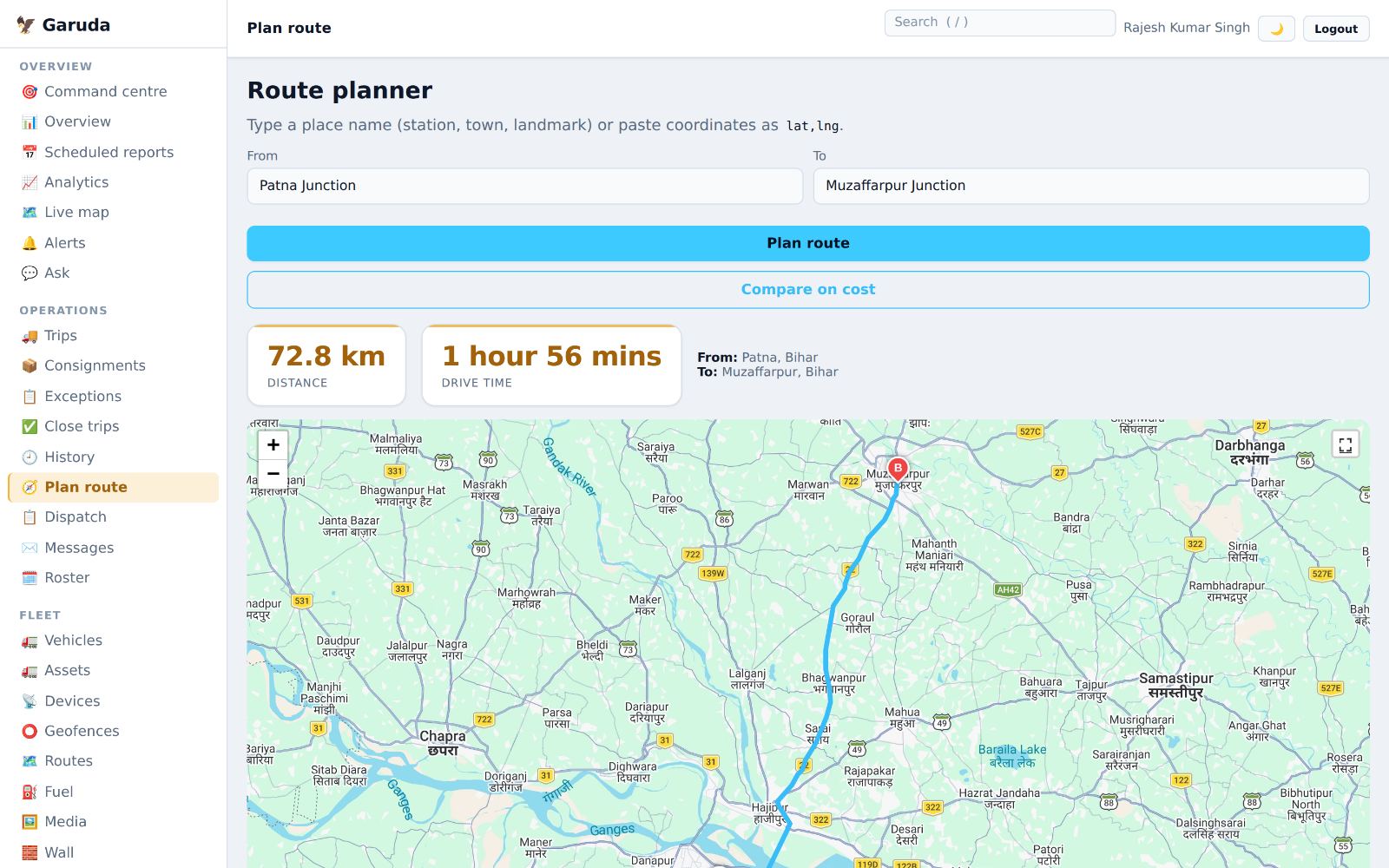
Plan a route
Check the road route, distance and driving time between two places before you quote a customer or plan a trip.
- Type From and To: a town, station or landmark, or coordinates as lat,lng.
- Press Plan route. The road route is drawn on the map with its distance and driving time.
- Press Compare on cost to see the route options side by side with their fuel and toll cost, and the cheapest one marked.
Cost per km comes from your own past fuel and toll records, so the comparison gets better as you use Garuda.
Set a trip's route and answer re-route requests
Give a trip its exact road route. The driver sees it in the app, and Garuda warns both of you if the truck leaves it.
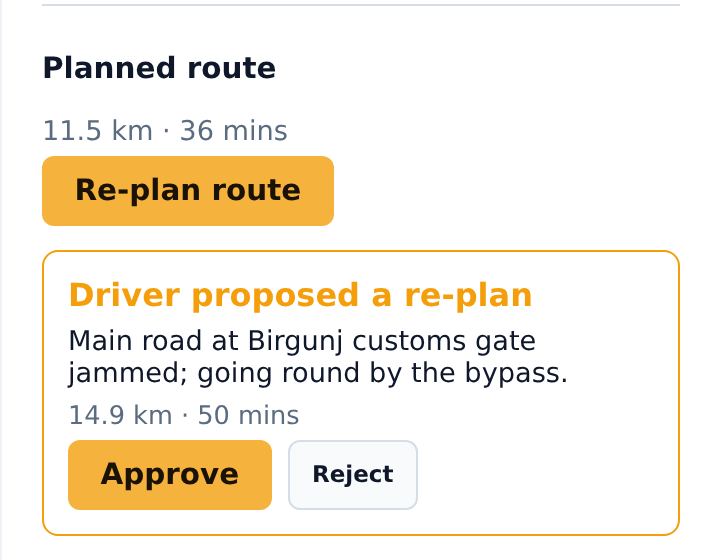
- Open the trip with View. Under Planned route, press Plan route. Its distance and time appear, and the route is drawn on the trip map.
- Plans changed before or during the trip? Press Re-plan route.
- If the truck goes more than the set distance off this route, a Route deviation alert is raised and the driver's app shows a warning.
- When a driver asks for a different route, the trip shows Driver proposed a re-plan with their reason and the new distance and time. Press Approve to make it the trip's route, or Reject.
Set how far off the route counts as a deviation in Masters (Route deviation, standard 500 metres).
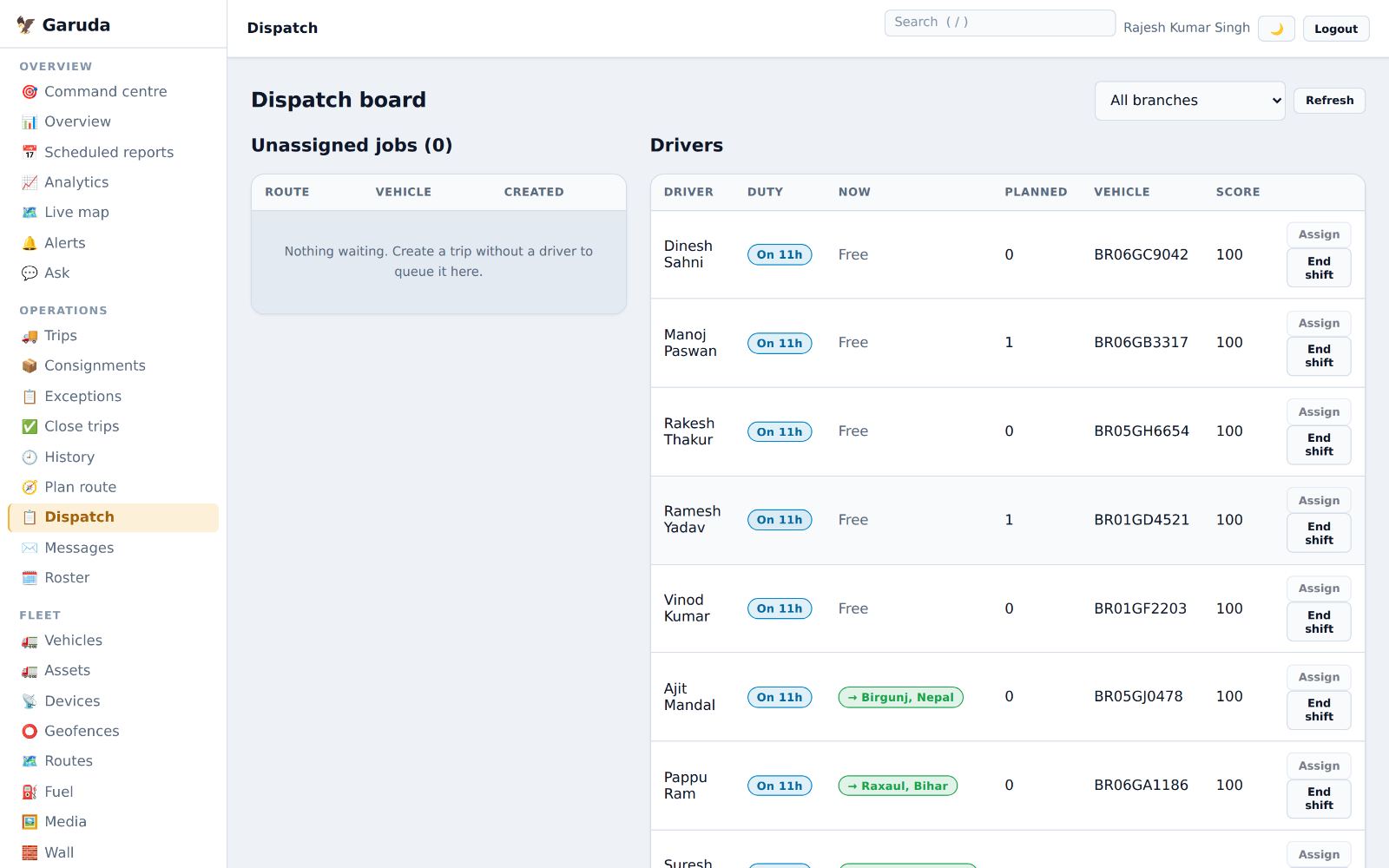
Give jobs to drivers
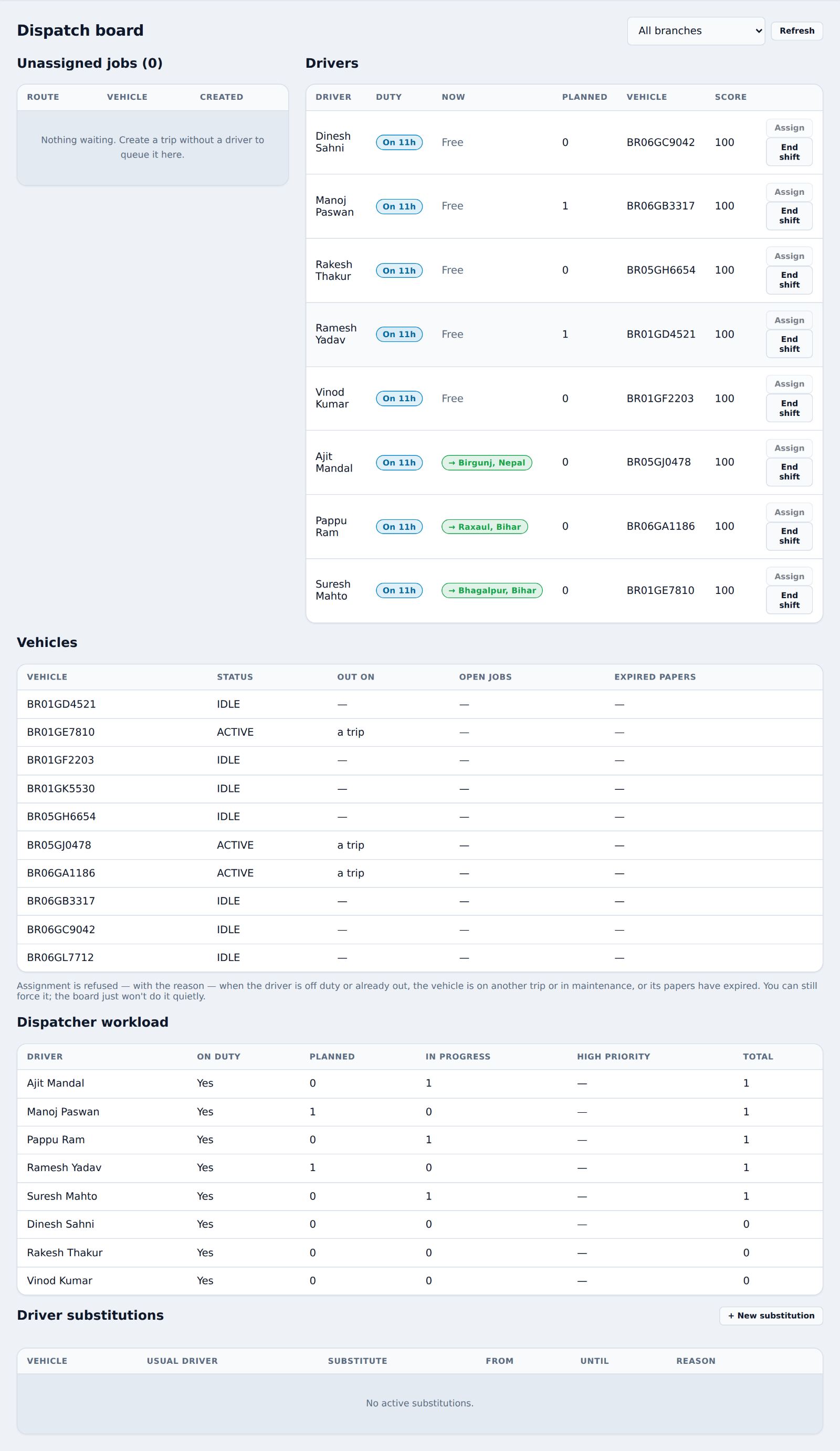
The dispatch board shows trips without a driver, every driver's duty status, and every truck, side by side.
- Unassigned jobs are trips created with "Leave unassigned".
- In Drivers, see who is on duty, for how long, and whether they are free or out.
- Press Assign next to a free driver to give them a job. Press End shift if a driver forgot to.
- Use All branches to see one depot only.
Garuda refuses an assignment, and says why, if the driver is off duty or busy, the truck is on another trip or in the workshop, or its papers have expired.
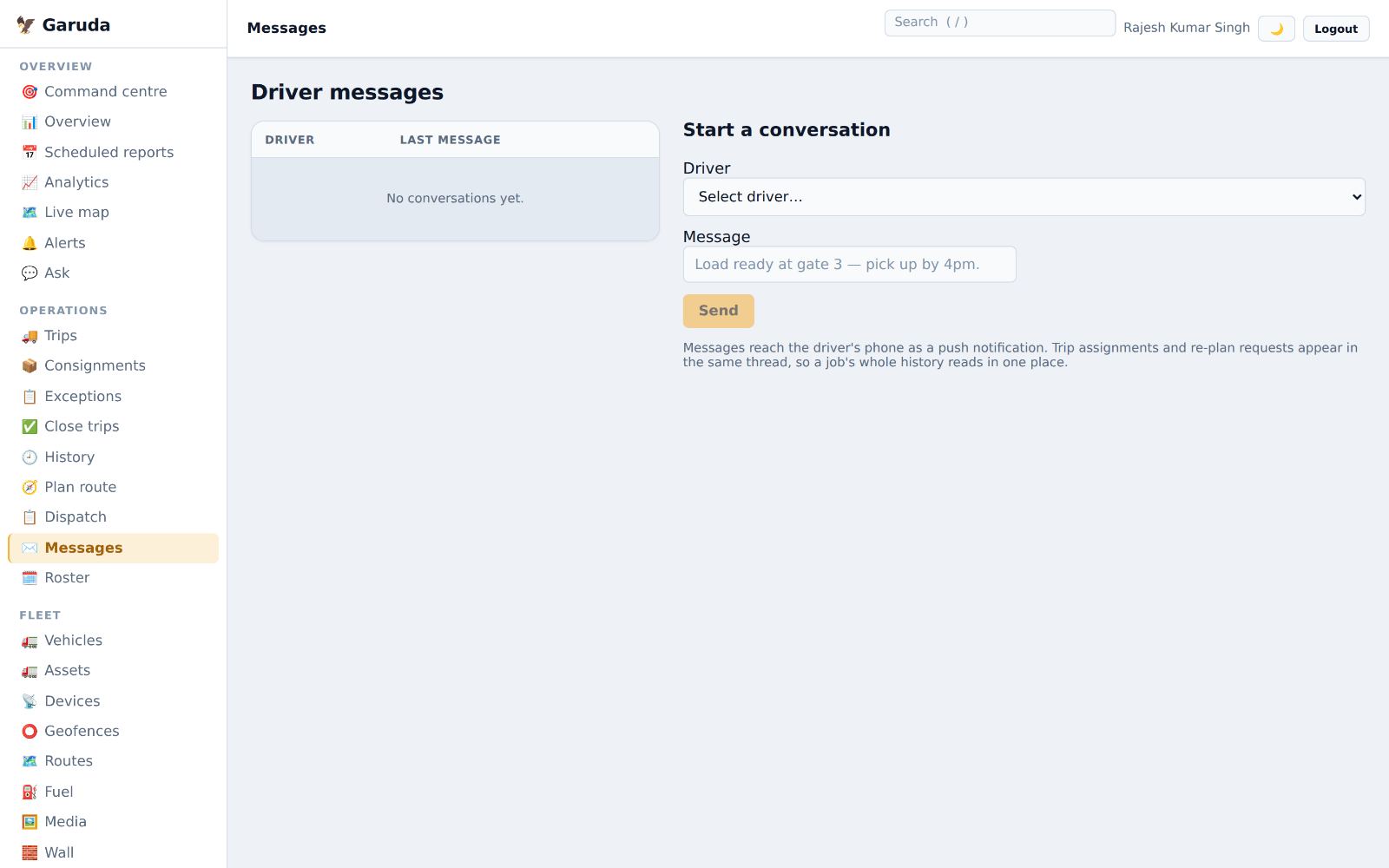
Message a driver
Messages reach the driver's phone as a notification. Trip assignments and route-change requests appear in the same thread.
- Under Start a conversation, choose the Driver.
- Type your Message and press Send.
- Open a conversation from the list to read the driver's replies.
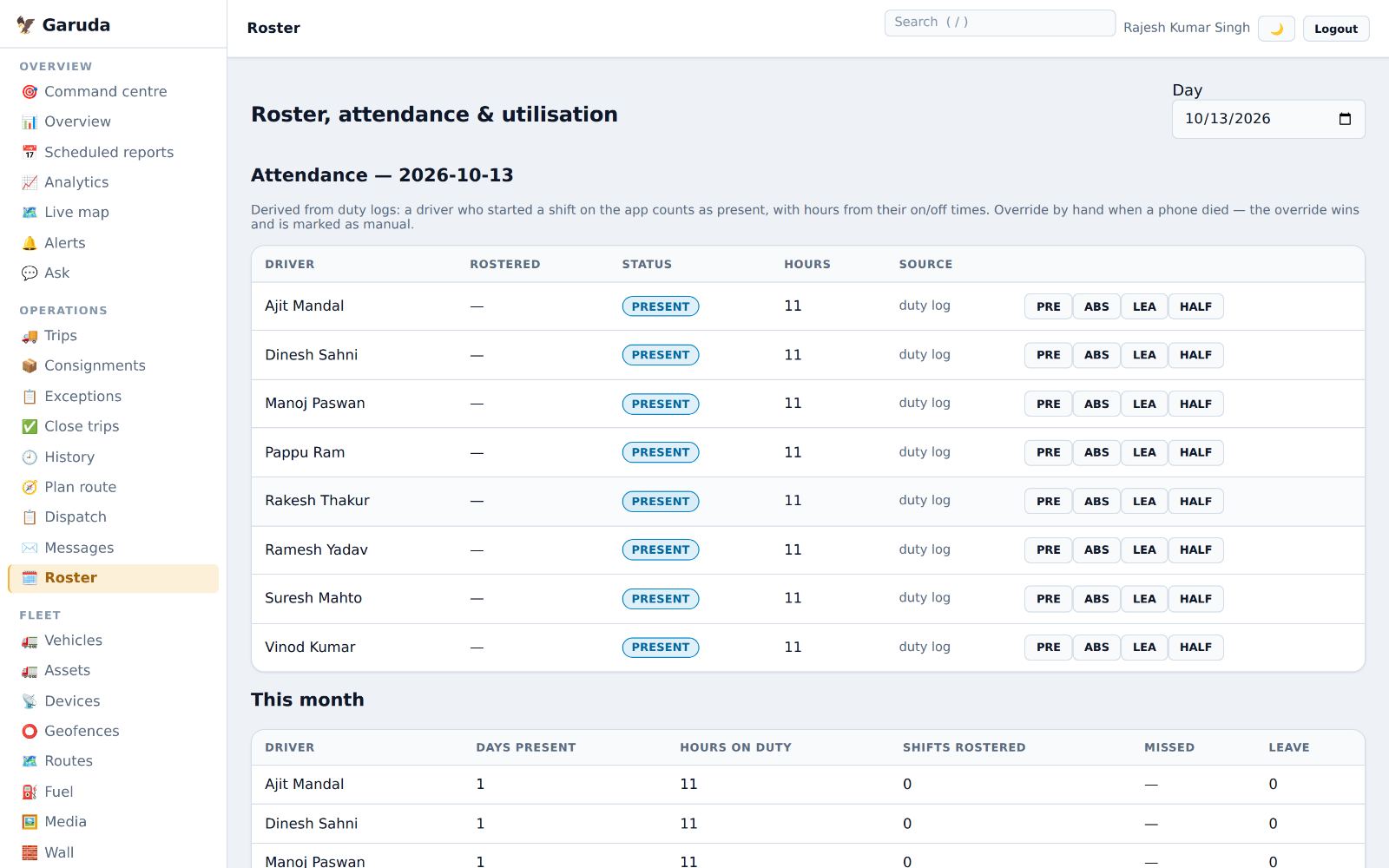
Roster and attendance
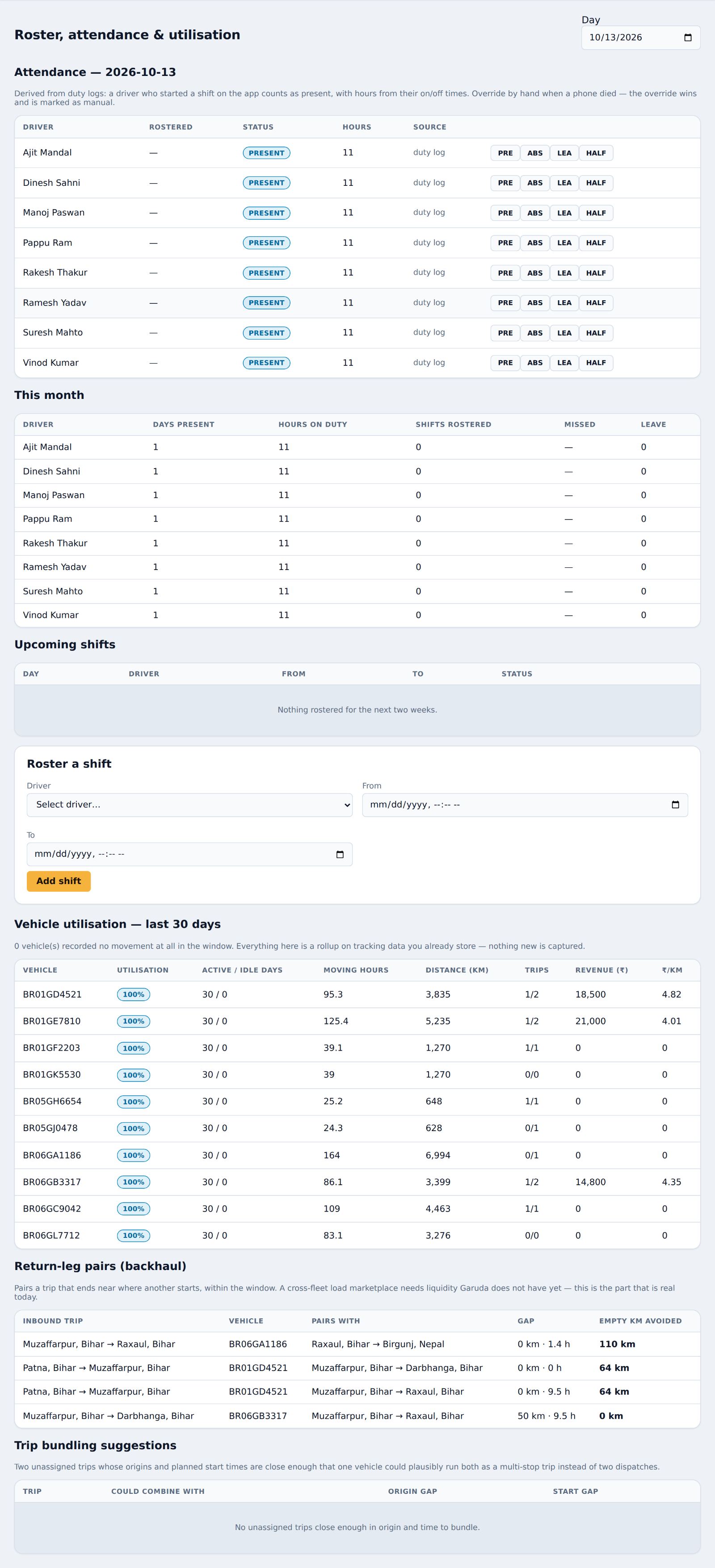
Attendance fills itself from the driver app: a driver who started a shift counts as present, with hours. You can also plan shifts ahead.
- Check today's Attendance. If a phone died, correct the status by hand with the buttons on the row; your change wins and is marked manual.
- This month totals days present, hours, missed shifts and leave per driver.
- To plan ahead, choose a driver, From and To under Roster a shift, then Add shift.
Driver workload and substitutes
See who is carrying too many jobs, and record a stand-in driver when someone is away.
- Dispatcher workload counts each driver's planned, running and high-priority trips.
- Under Driver substitutions, press + New substitution: pick the truck, the substitute driver, from and until, and why.
- The substitution stays on the list, with its reason, while it is active, so everyone knows who is driving which truck.
Return loads and combined trips
Garuda points out where an empty return run can be avoided.
- Return-leg pairs (backhaul) matches a trip that ends near where another one starts, with the gap and the empty kilometres saved.
- Give both trips to the same truck to save the empty run.
- Trip bundling suggestions shows two unassigned trips close enough in place and time for one truck to run both.
- Vehicle utilisation shows how many of the last 30 days each truck actually worked.
Your fleet
Trucks, trailers, devices, geofences, saved routes, fuel and camera pictures.
Add and edit trucks
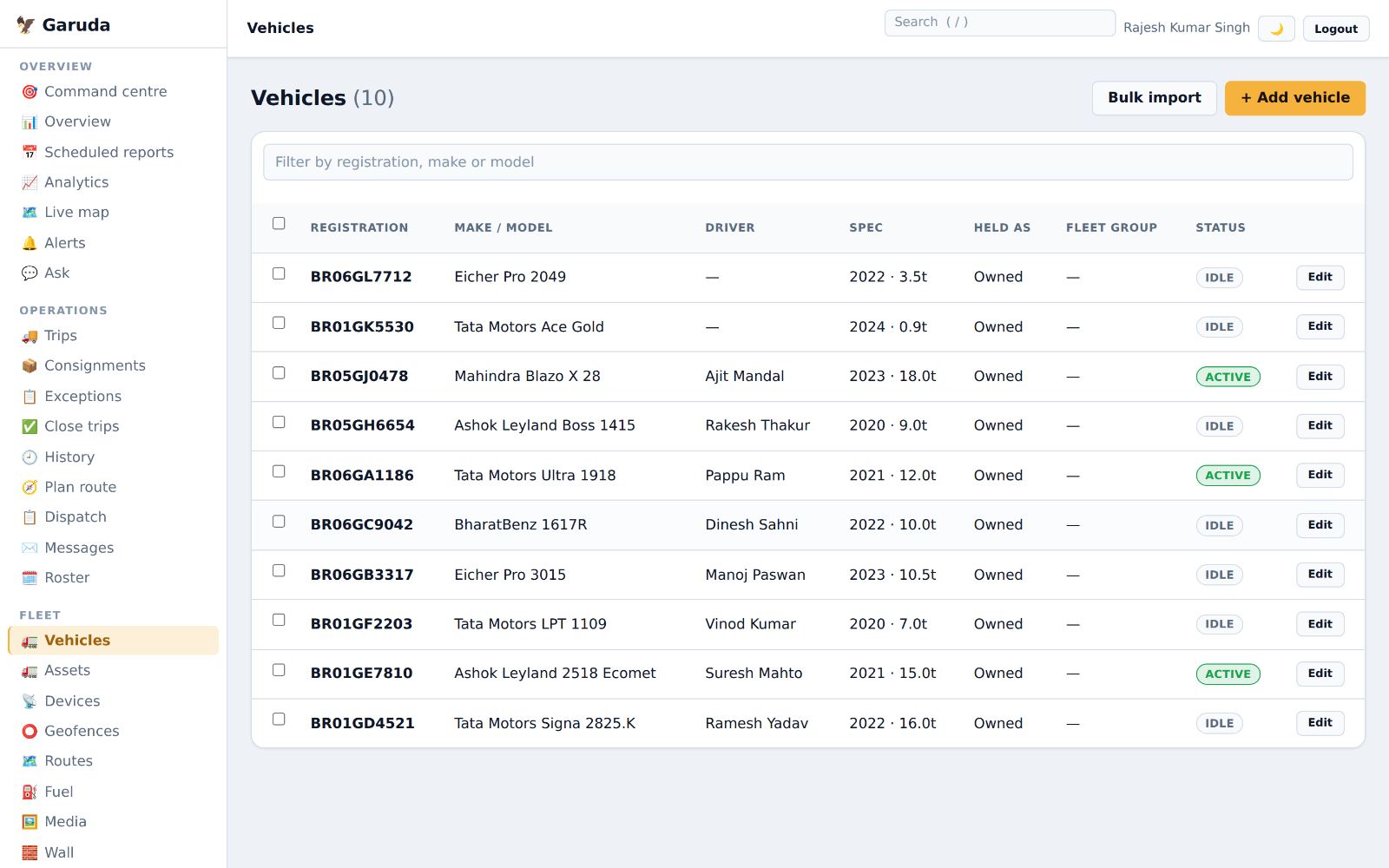
Every truck with its registration, make, driver, capacity, ownership and status.
- Press + Add vehicle for one truck, or Bulk import to load many from a spreadsheet.
- Press Edit on a row to change the driver, capacity or branch.
- Status shows Active (moving), Idle, or in maintenance.
Your plan sets how many trucks you can add; the Billing page shows how many are used.
Trailers and containers
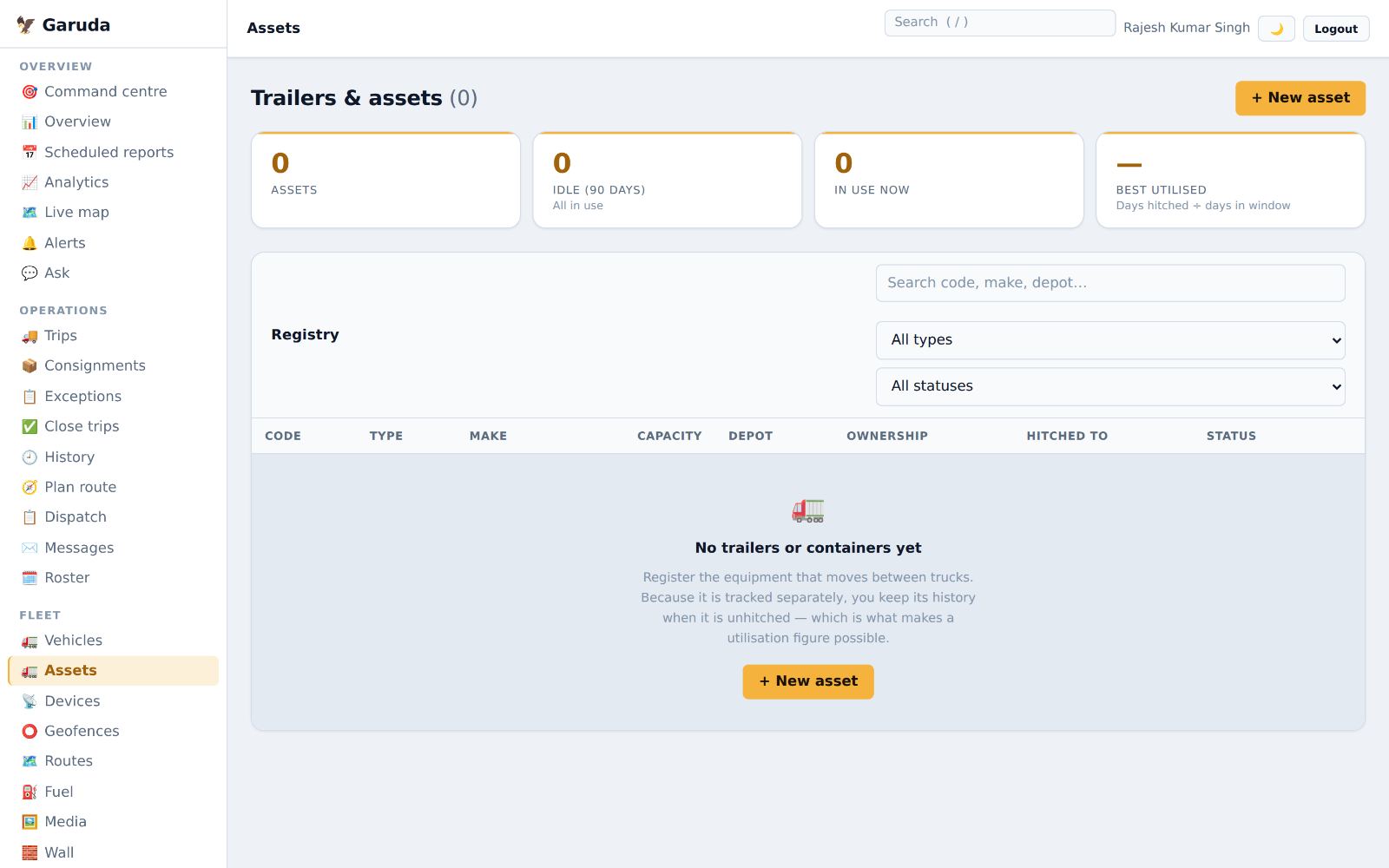
Register equipment that moves between trucks, so its history stays with it after it is unhitched.
- Press + New asset and choose its type: trailer, container, tanker, body or equipment.
- The tiles show how many are in use and which sat idle for 90 days.
- Filter by type or status to find one quickly.
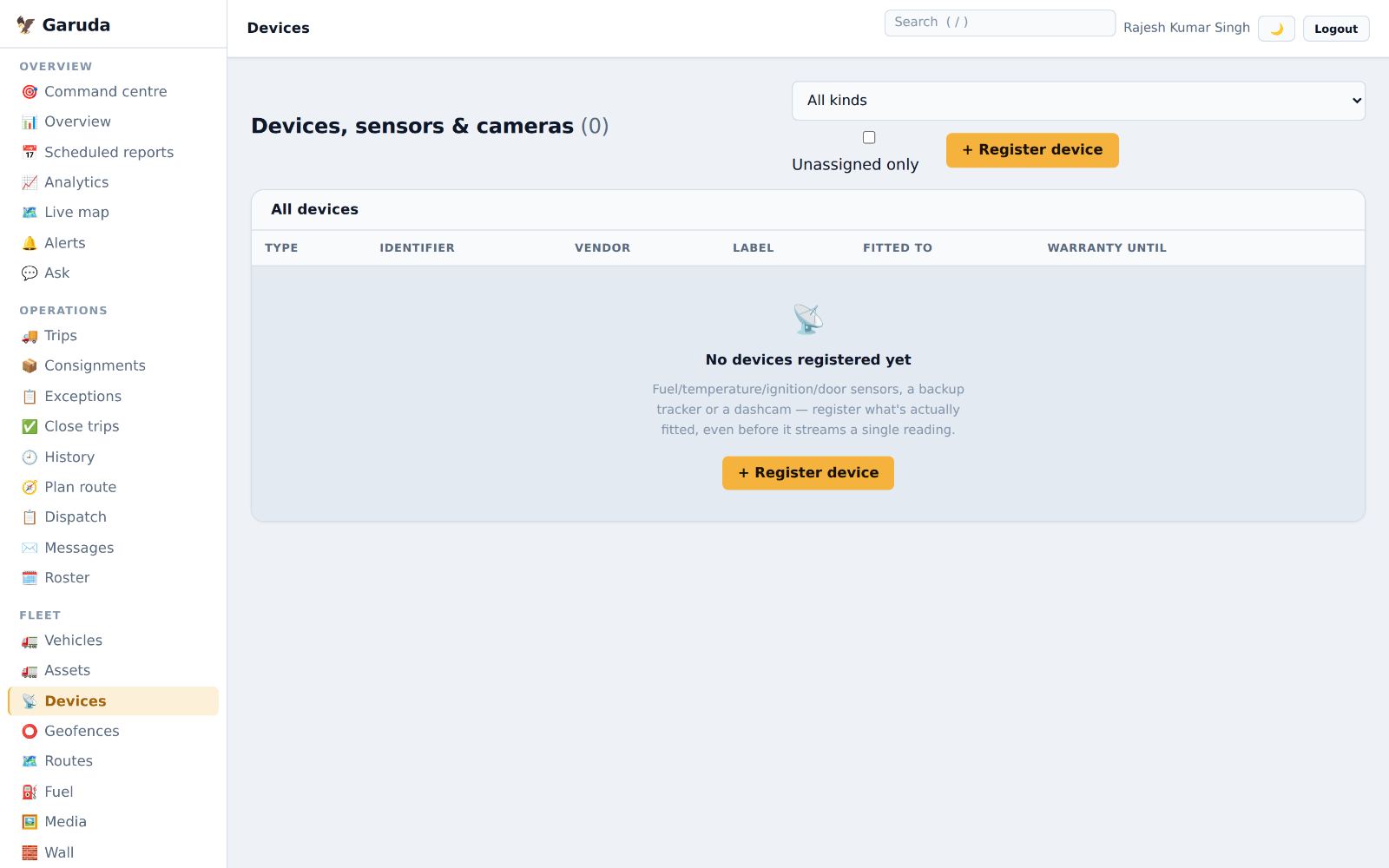
Sensors, trackers and cameras
Most trucks are tracked by the driver's phone alone. Register any extra hardware actually fitted: a backup tracker, fuel or temperature sensor, door sensor or dashcam.
- Press + Register device, choose the kind and type its identifier.
- Fit it to a truck and add the warranty date.
- Tick Unassigned only to find spare devices.
Mark depots and customer sites
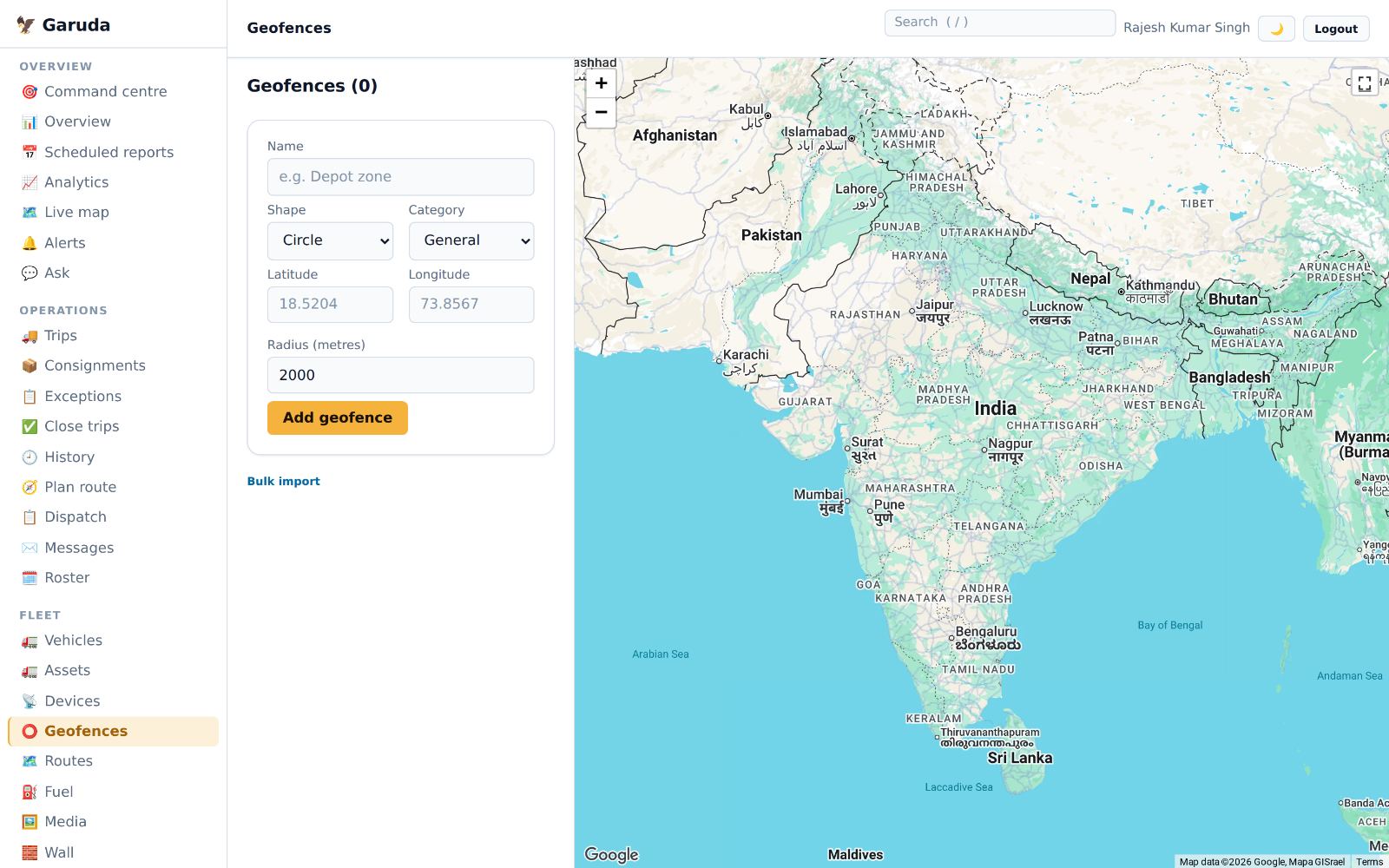
A geofence is an area on the map. Garuda raises an alert when a truck enters or leaves it, or stays too long.
- Type a name, for example "Patna depot".
- Choose the shape: Circle (a centre and radius), Polygon, Corridor along a road, or a whole State / district boundary.
- Press Add geofence. Use Bulk import for many sites at once.
Set how long a stay counts as too long under Settings → Masters (Geofence dwell alert).
Save regular routes
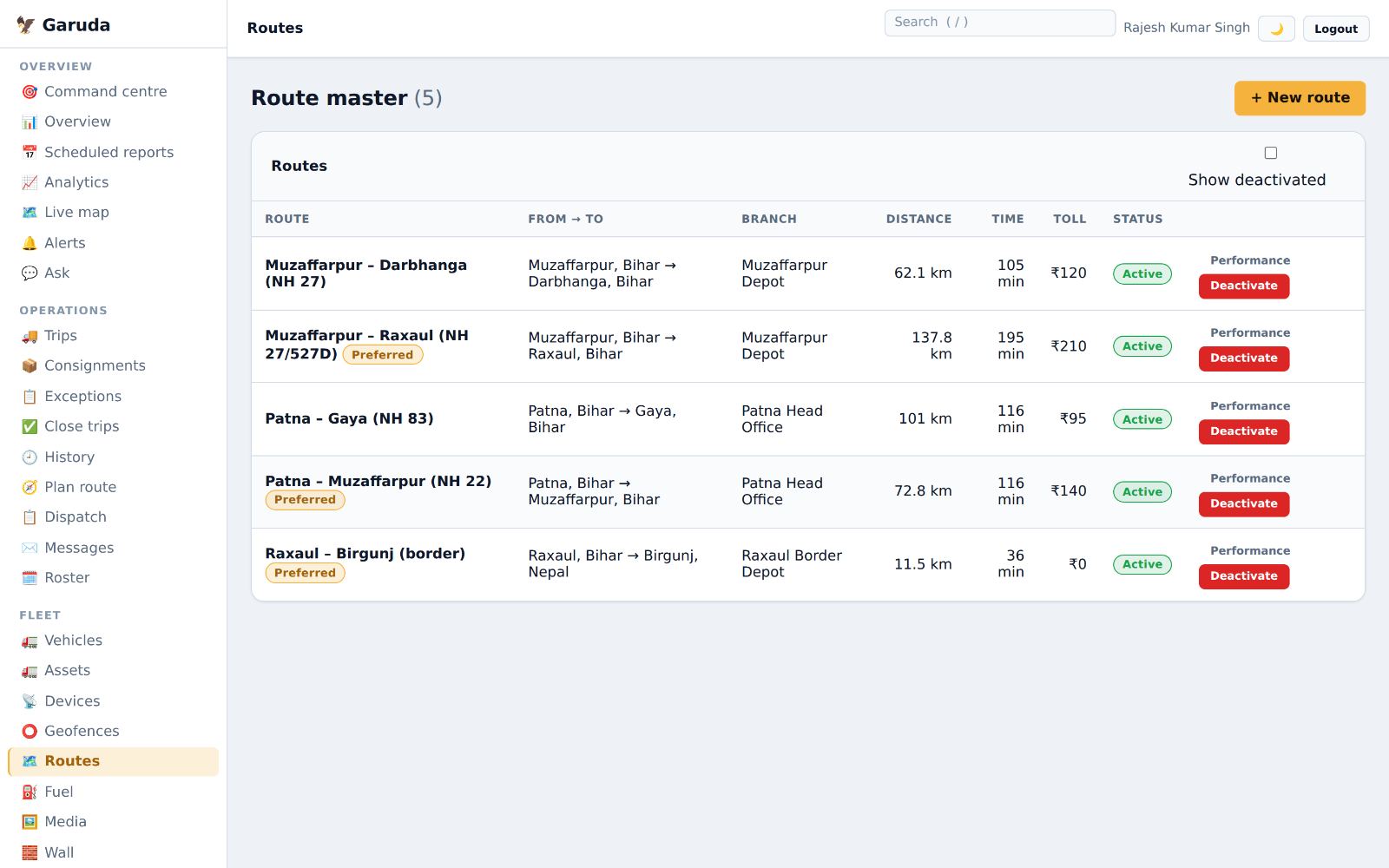
Save a route once and its distance, time and toll are ready every time it is driven again. Saved routes fill in a new trip's stops.
- Press + New route, name it, and add the from and to places.
- Check distance, time and toll, then save.
- Mark the route you want used as Preferred. Performance shows the finished trips on it: how many, their average time, and average fuel and toll cost.
- Press Deactivate for a route you no longer use; tick Show deactivated to see it again.
Fuel spend and theft checks
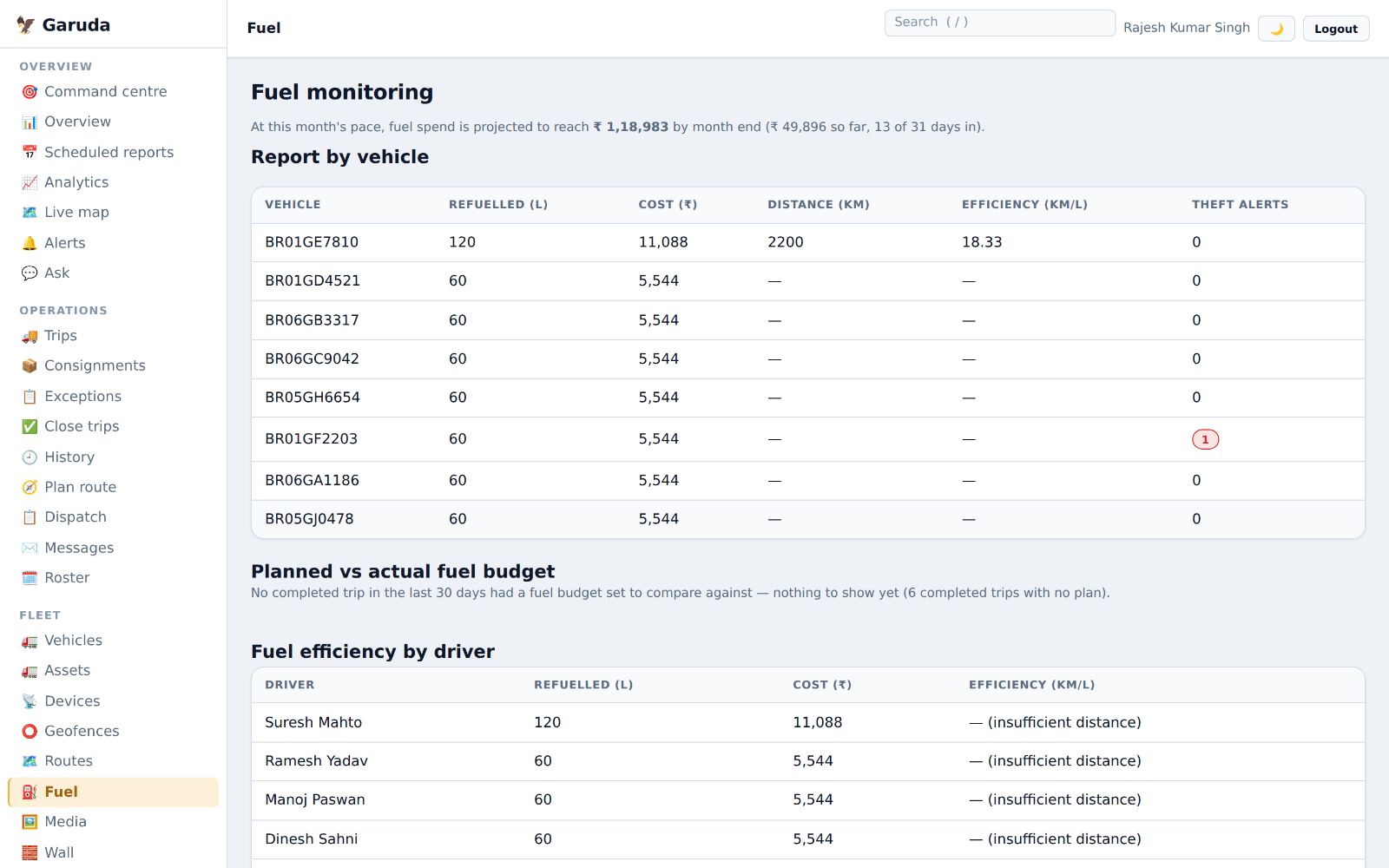
Fuel spend so far and the month-end forecast, mileage by truck, driver and route, and possible double entries.
- Log a fill-up: choose the vehicle and trip, type Litres added and the cost, then Log refuel. Drivers can log fill-ups from the app.
- Report by vehicle shows litres, cost, distance, km per litre and theft alerts.
- Planned vs actual fuel budget compares each finished trip's fuel budget with what was spent; Fuel efficiency by route appears once routes have enough trips.
- Check Possible duplicate refills and press Confirm duplicate or Dismiss.
A sudden drop in tank level while parked raises a fuel-drop alert. Set the percentage in Masters.
Dashcam pictures and the video wall
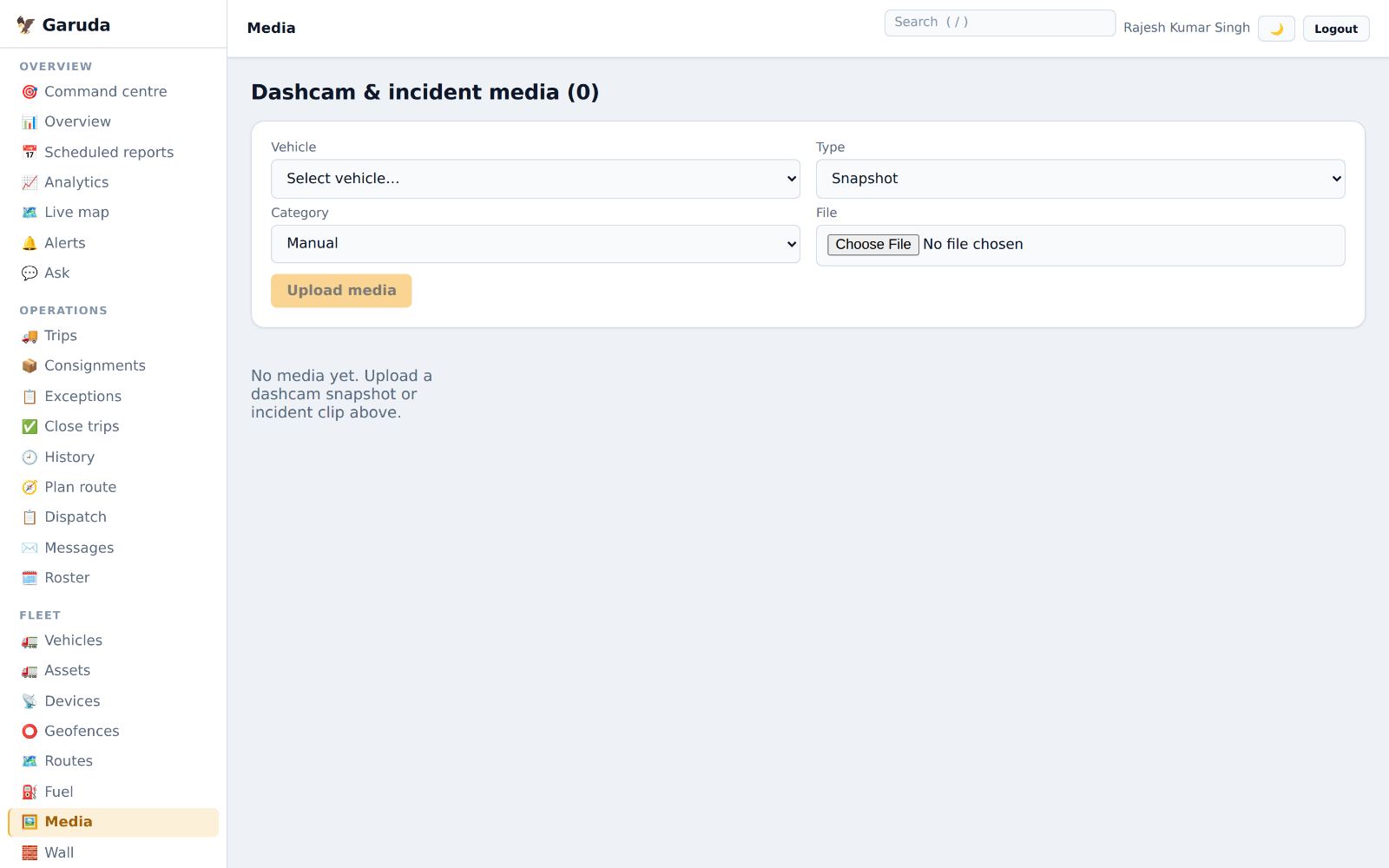
Keep dashcam snapshots and incident clips against each truck. The Wall shows the latest picture of every truck on one screen.
- Choose the Vehicle, the type (snapshot or clip) and the category.
- Pick the file and press Upload media.
- Open Wall for all trucks at once; it refreshes every 20 seconds.
These are uploaded pictures, not a live camera feed.
Upkeep, papers and safety
Keep trucks legal and on the road: documents, servicing, workshop jobs, checks, tyres, parts, breakdowns and safety.
Keep papers valid
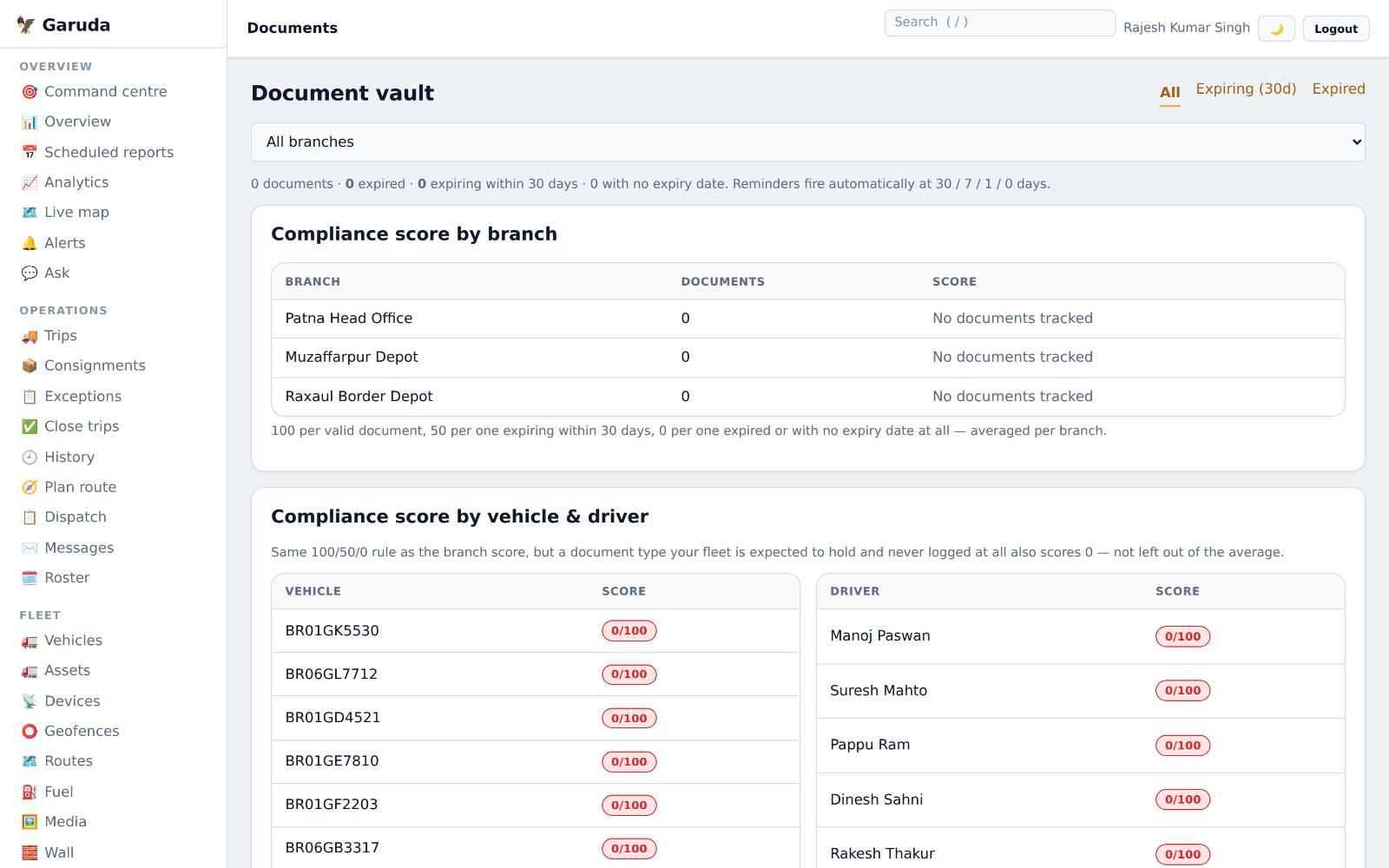
Registration, insurance, permit, fitness, PUC and licences for every truck and driver, with automatic reminders at 30, 7, 1 and 0 days.
- Under Add a document, choose the truck or driver, the type and the expiry date, then Add document. Attach the scan with the 📎 button on its row.
- Use the tabs Expiring (30d) and Expired to see what needs renewing.
- Press Assign renewal to give the job to someone, and Mark done when renewed.
- The compliance score per branch, truck and driver shows who is missing papers.
A truck with expired papers cannot be given a job on the dispatch board.
Plan servicing
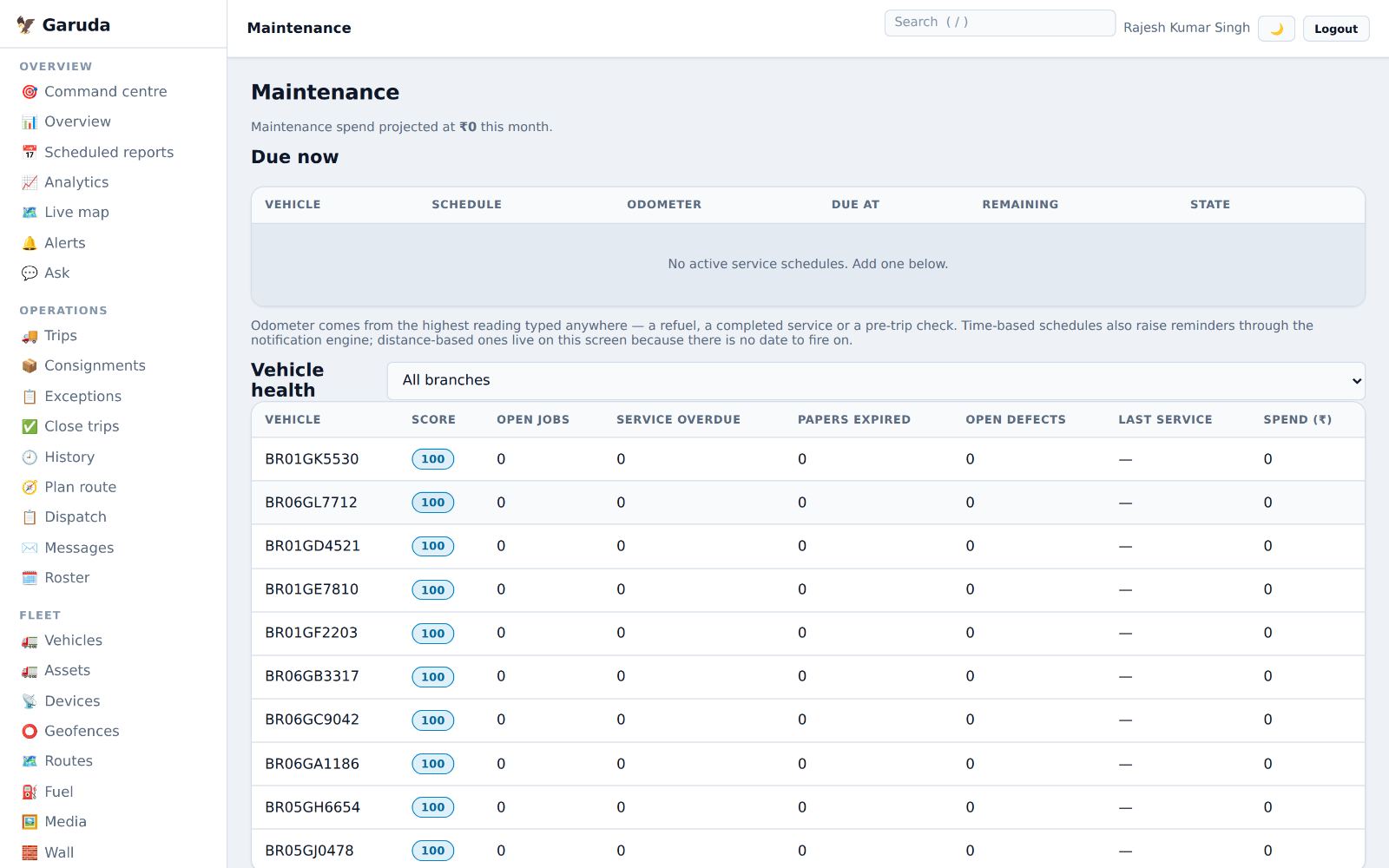
Service schedules by date or kilometres, what is due now, and a health score for every truck.
- Under Add a schedule, choose the truck, name the service and set the interval in days or kilometres, then Add schedule.
- Due now lists services that are due or overdue.
- Vehicle health starts at 100 and drops for expired papers, overdue service and open defects.
Odometer readings come from refuels, services and pre-trip checks, so distance-based schedules stay current.
Workshop jobs
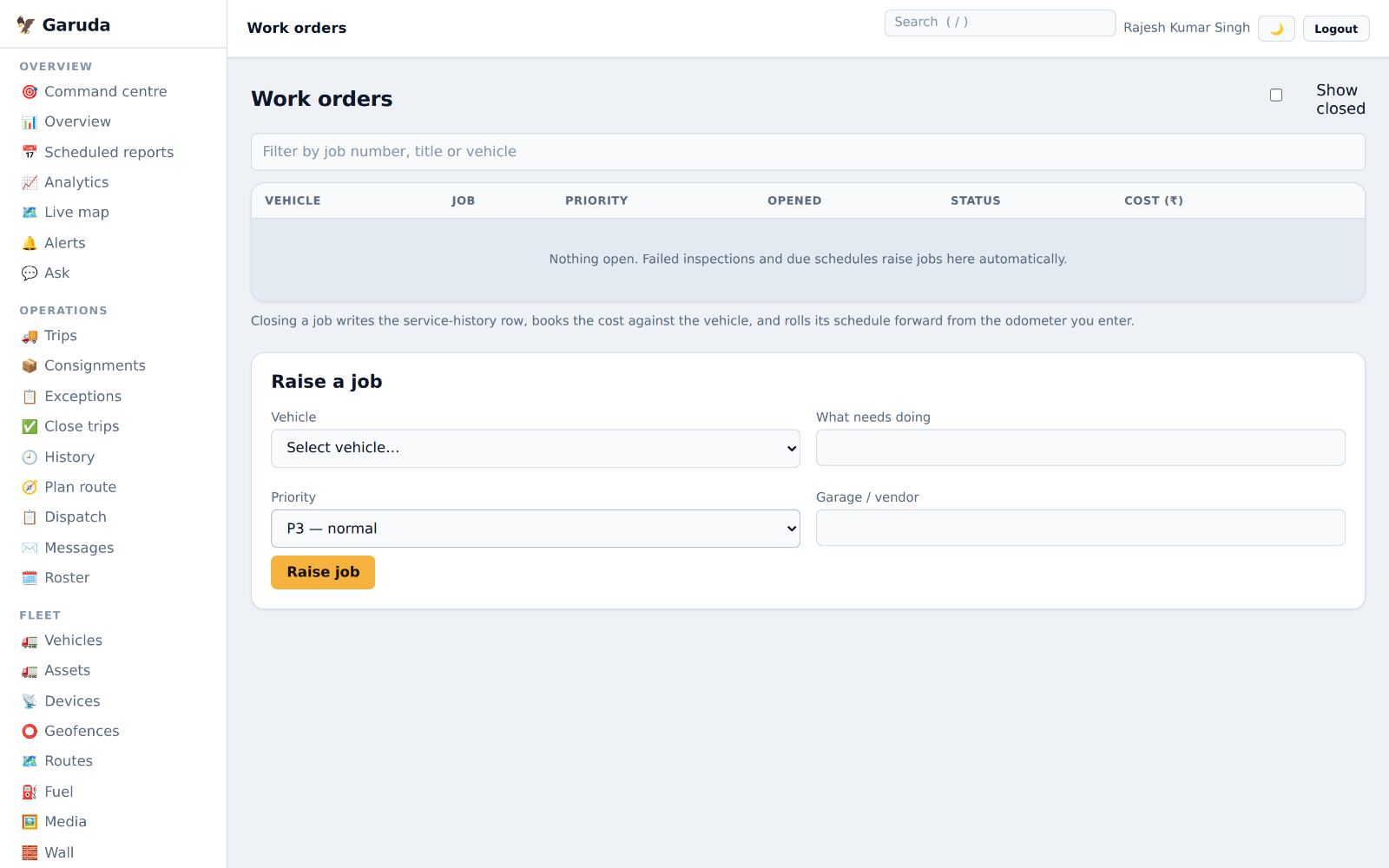
A work order is a repair job. Failed checks and due services open one automatically; you can raise one yourself too.
- Under Raise a job, choose the vehicle, write what needs doing, pick a priority (P1 off the road to P4 when convenient) and the garage.
- Press Raise job.
- When it is done, close it with the cost and odometer. Garuda writes the service history and books the cost to the truck.
Pre-trip checks from drivers
Drivers check the truck in the app before a trip. A problem opens a work order and tells the managers at once.
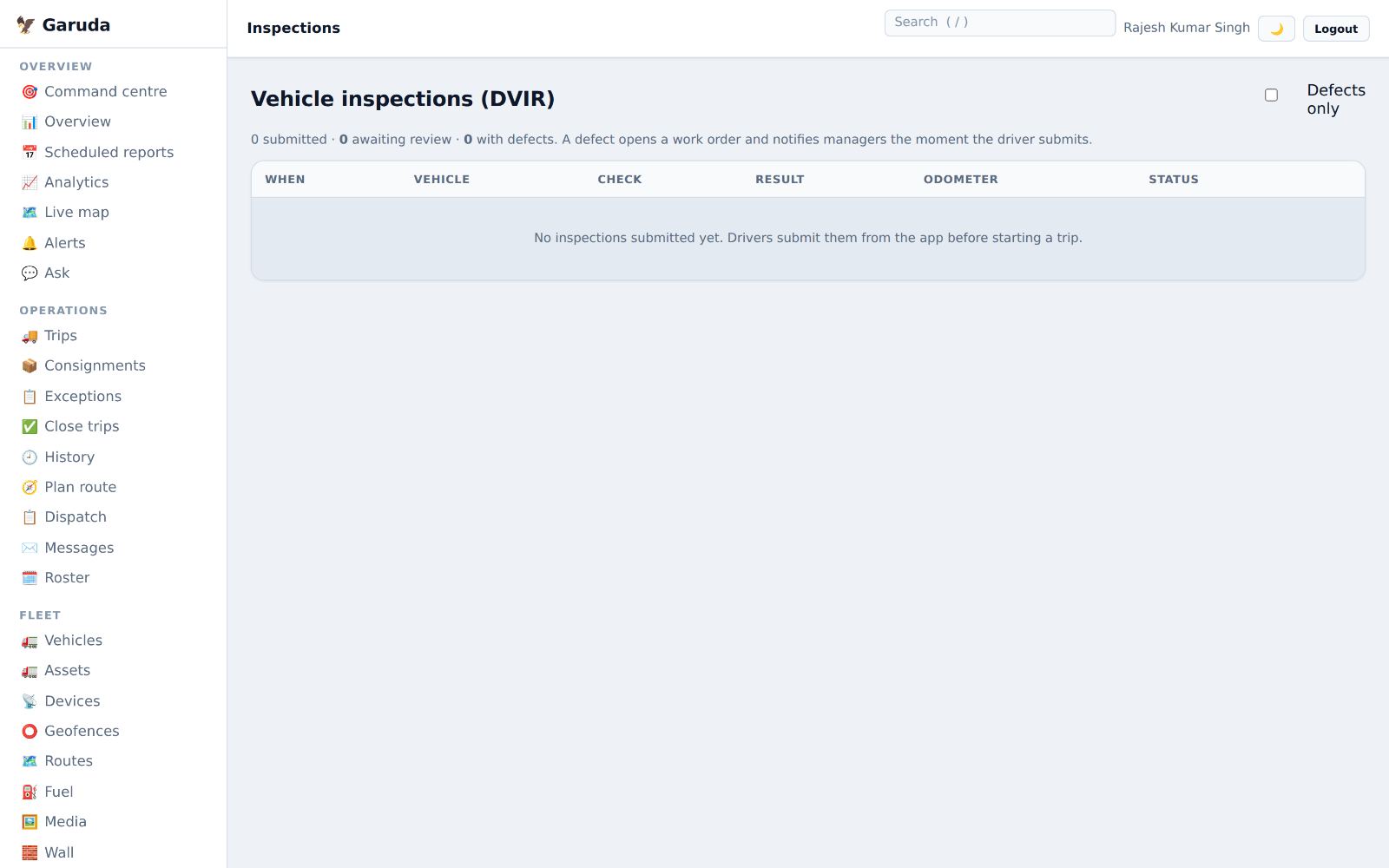
- See every check with the truck, result and odometer.
- Tick Defects only to see just the problems.
- Open a check to review it.
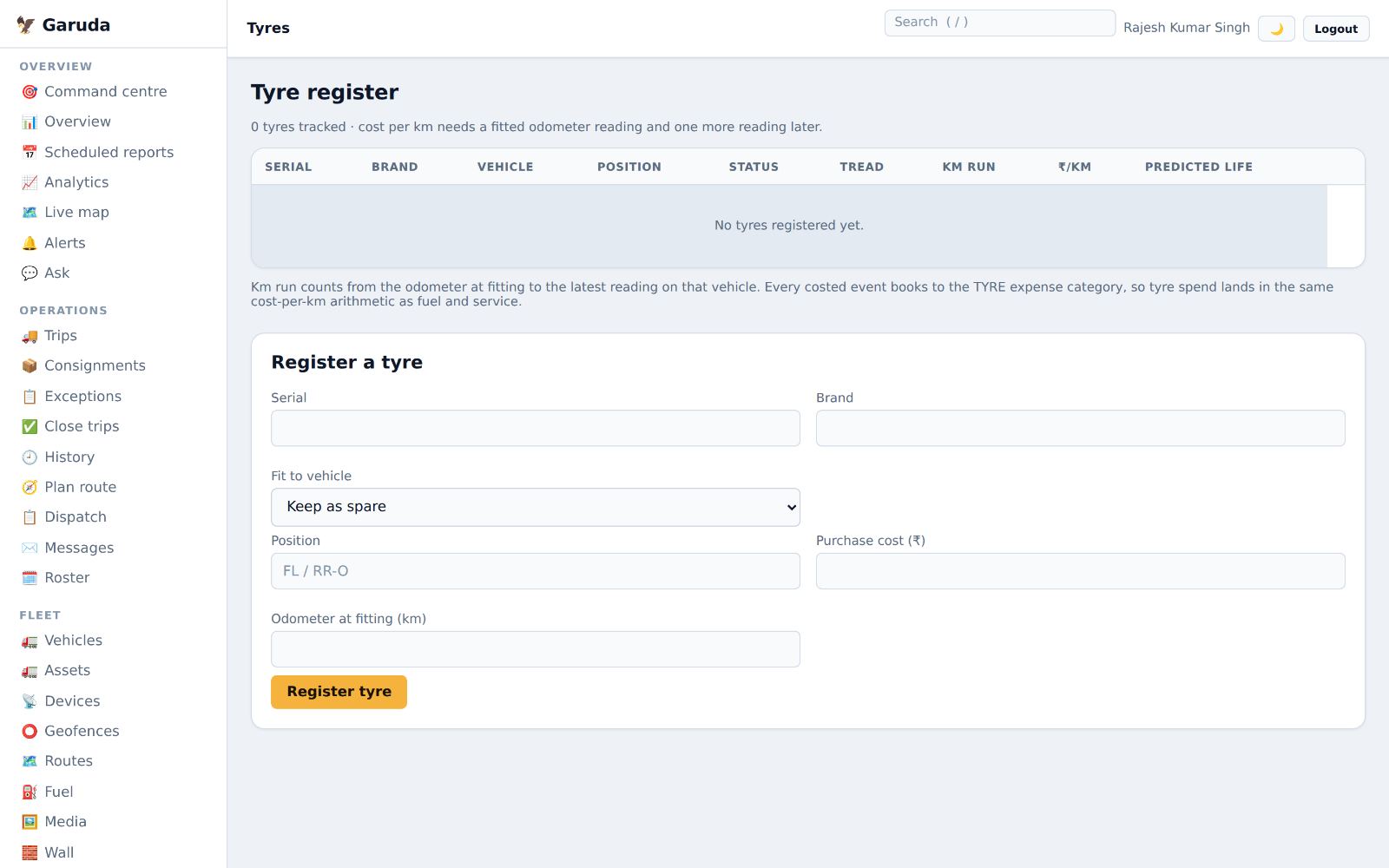
Tyre register
Track each tyre by serial number: where it is fitted, kilometres run, cost per km and predicted life.
- Under Register a tyre, type the serial and brand.
- Fit it to a truck and position, or keep it as a spare; add the cost and the odometer at fitting.
- Press Register tyre.
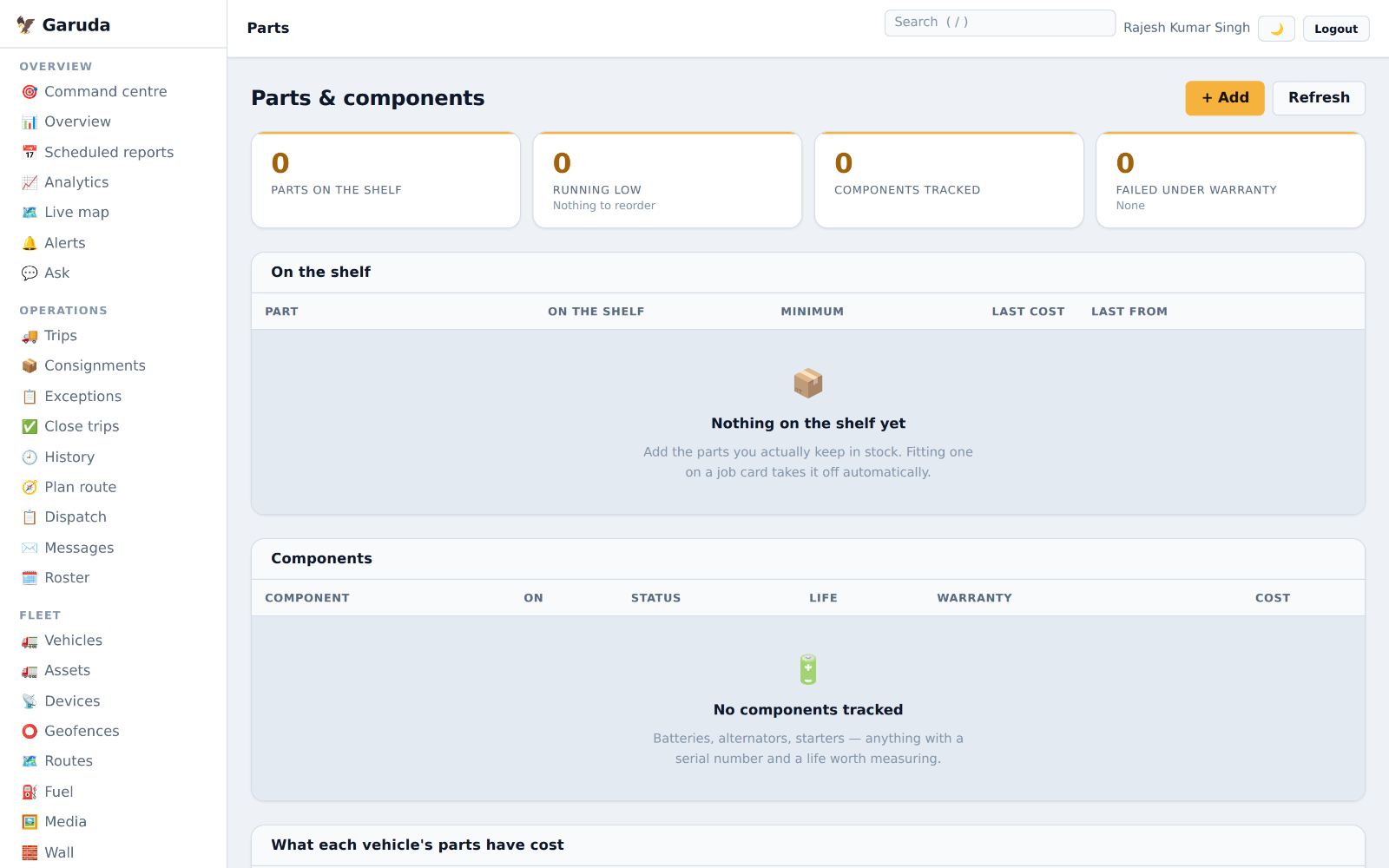
Spare parts and components
Parts on the shelf, what is running low, and parts with a serial number such as batteries, with their life and warranty.
- Press + Add to add a part you keep in stock, with its minimum level.
- Using a part on a work order takes it off the shelf automatically.
- What each vehicle's parts have cost shows which trucks cost the most.
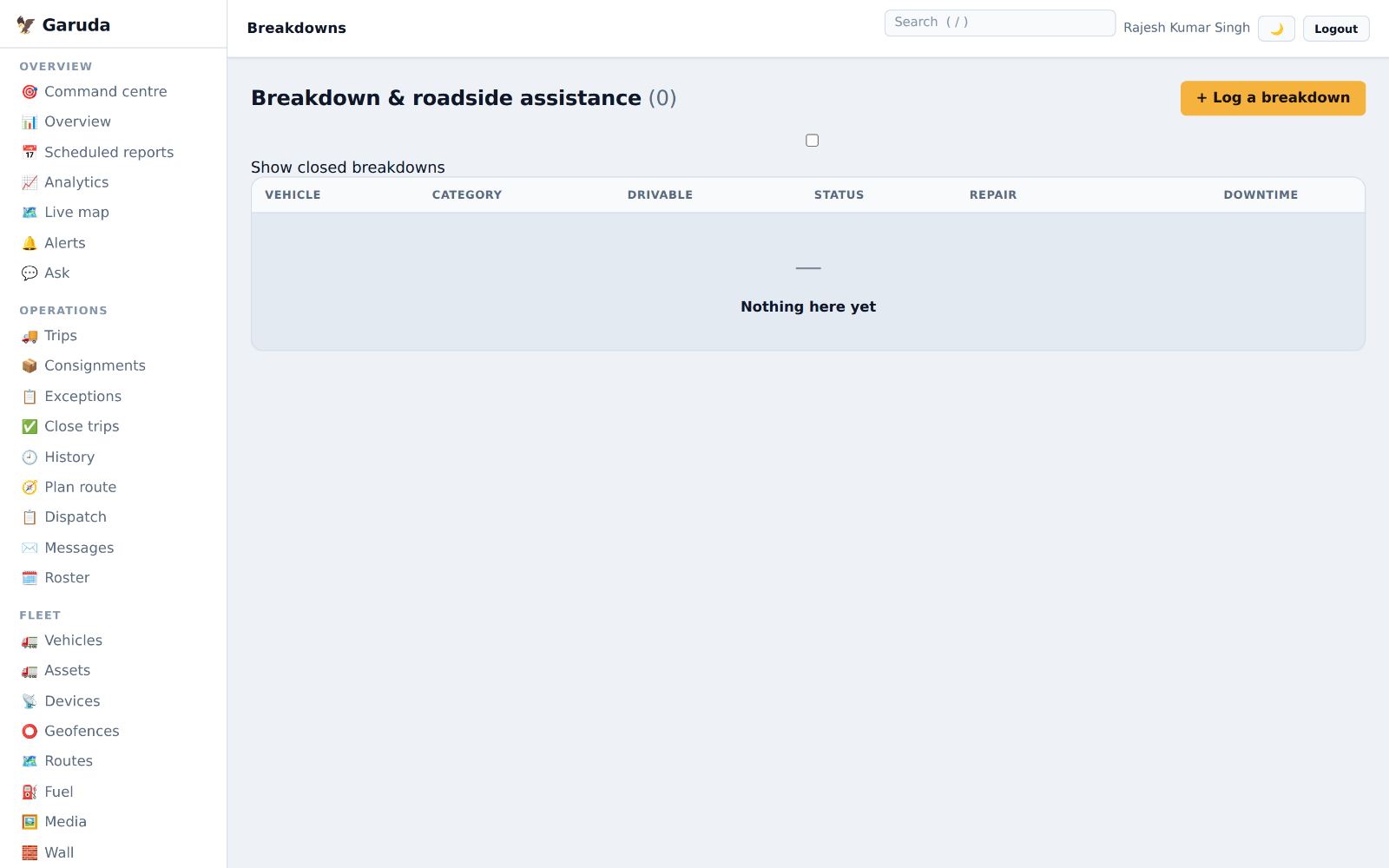
Breakdowns on the road
Log a breakdown, whether the truck can still be driven, and follow the repair and downtime.
- Press + Log a breakdown, choose the truck and the kind of failure.
- Update it as help arrives and the repair is done.
- Each breakdown has a Communication log: type in Add an update… after every call with the driver, mechanic or customer.
- Tick Show closed breakdowns for past ones.
Drivers can report a breakdown from the app with "Report a problem".
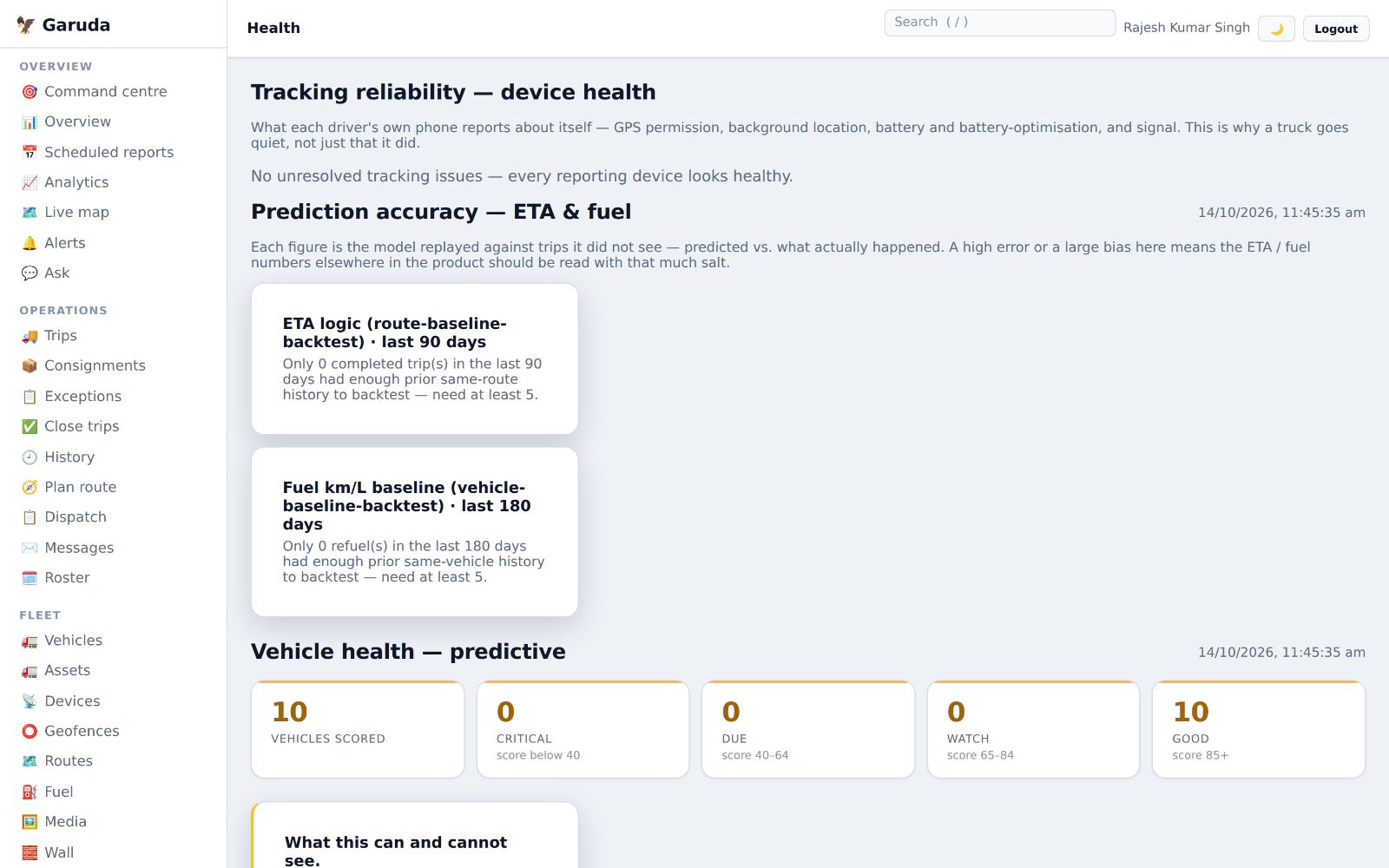
Tracking and prediction health
Why a truck went quiet: each driver's phone reports its location permission, battery settings and signal. Also shows how accurate arrival and fuel predictions have been.
- The top box lists phones with a tracking problem and what to fix, for example "Location off".
- Call the driver and walk them through the fix in the app's phone setup.
- Phones that need extra battery settings lists drivers whose phone brand (Xiaomi, Realme, Oppo and others) stops apps in the background; walk them through those settings.
- Prediction accuracy — ETA & fuel replays Garuda's arrival and fuel predictions against finished trips, so you know how far to trust them. It needs at least five similar past trips.
- Vehicle health — predictive groups trucks into critical, due, watch and good.
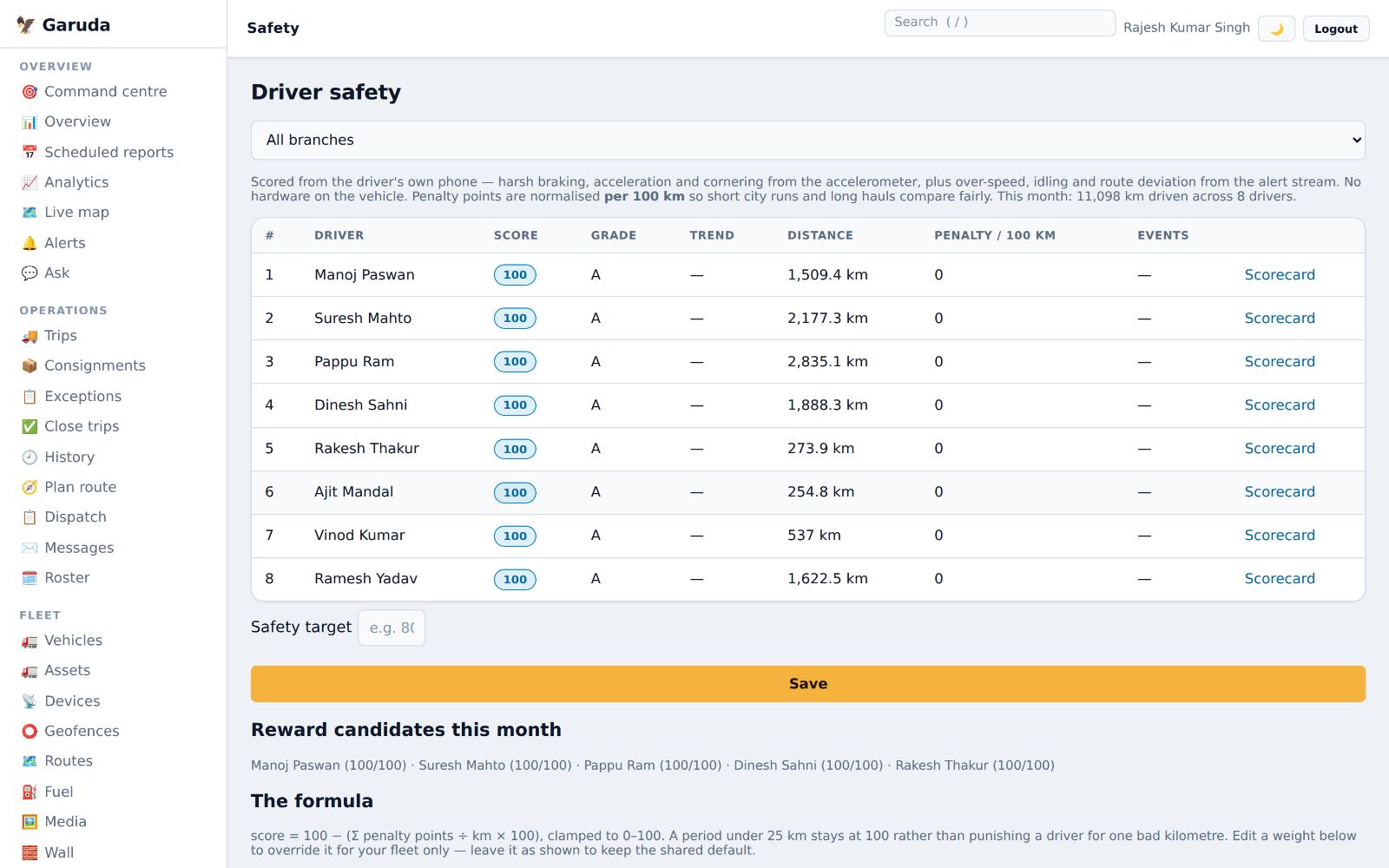
Driver safety scores
Scores from the driver's own phone: harsh braking, acceleration and cornering, speeding, idling and leaving the route, counted per 100 km so short and long runs compare fairly.
- Drivers are ranked with a score and grade A to F.
- Press Scorecard to see a driver's events and leave them a note; they read it in the app.
- Set a Safety target; Reward candidates lists drivers above it.
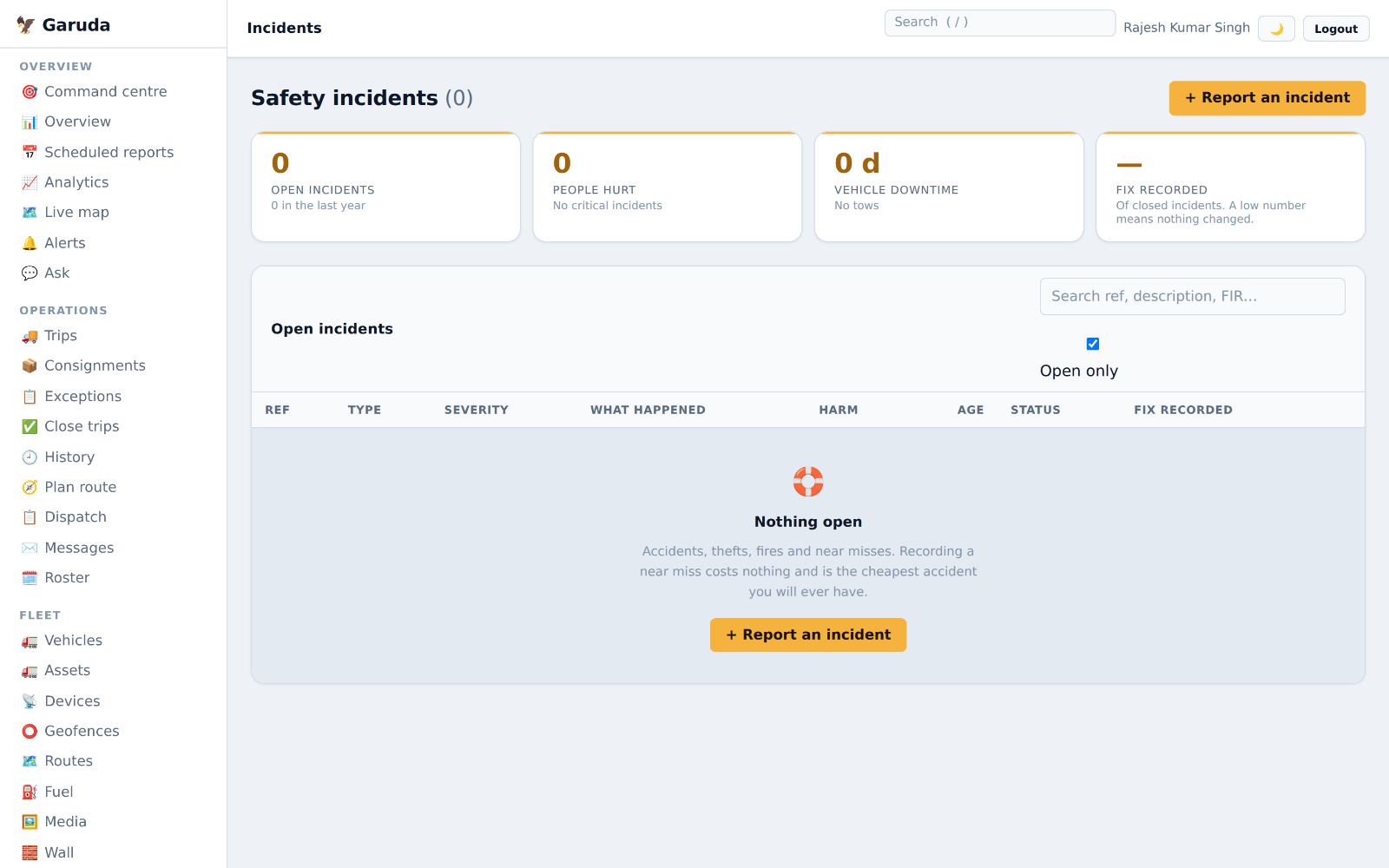
Accidents, incidents and insurance claims
Incidents records accidents, thefts, fires and near misses. Claims follows the insurance money.
- Press + Report an incident, choose type and severity, and describe what happened and any harm.
- When you close it, record the fix so it does not happen again.
- For insurance, open Claims, log the insurer, policy and amount, then record what was settled.
Recording a near miss costs nothing and is the cheapest accident you will ever have.
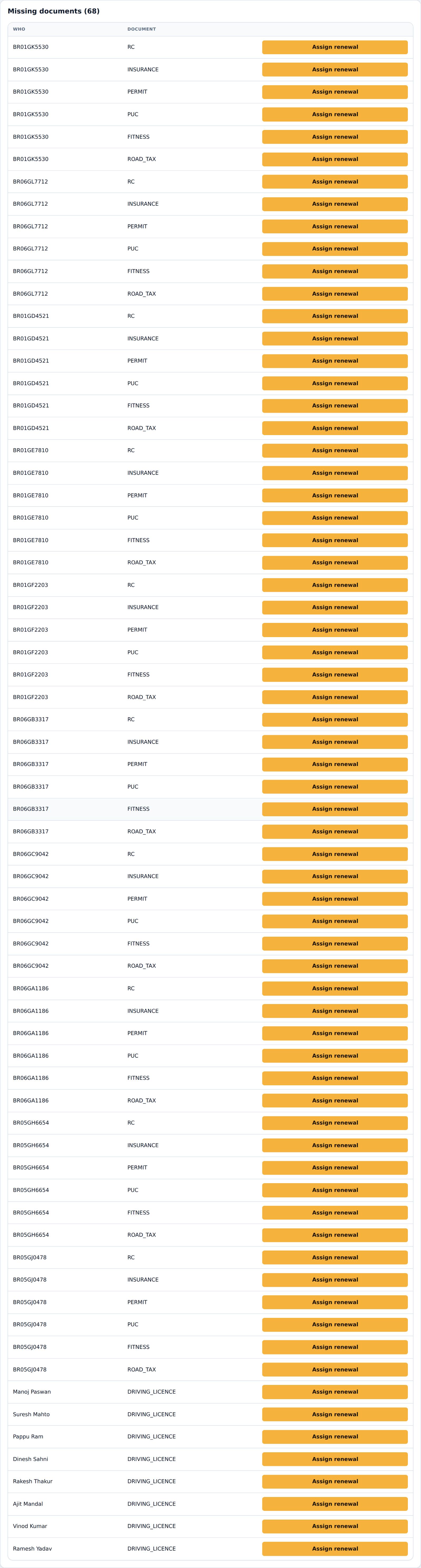
Missing papers and renewals
Garuda knows which papers each truck and driver should hold and lists the ones never added.
- Missing documents lists each truck or driver and the paper that is missing.
- Press Assign renewal to give the job to a person; it appears under Renewal tasks.
- When the paper is renewed and added, press Mark done.
- Away from home lists trucks now in another country (Nepal or Bhutan), with whether each has a Cross-border permit and Insurance valid there.
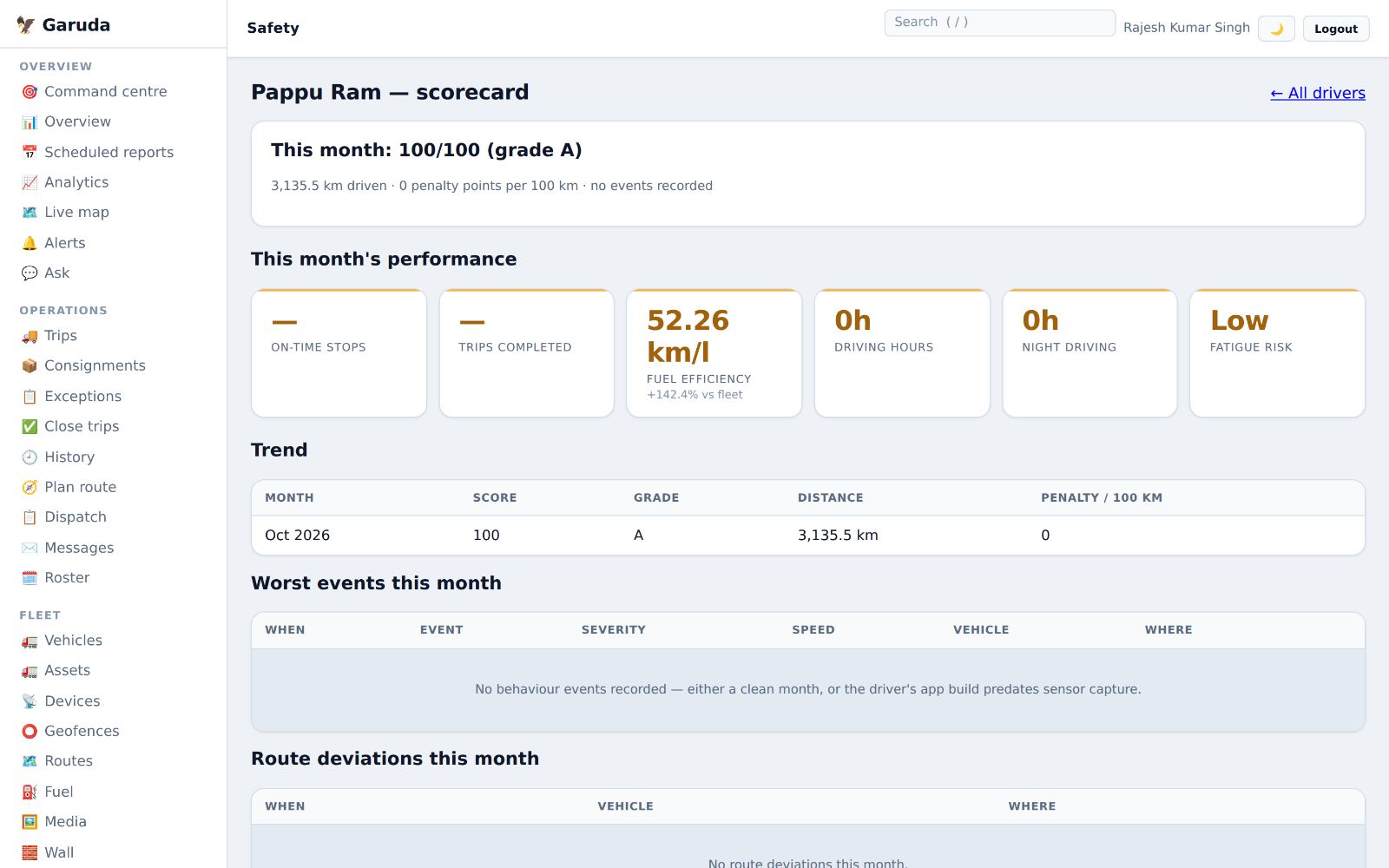
One driver's scorecard
Everything about one driver's driving in one place, for a fair coaching talk.
- Open Safety and press Scorecard next to a driver.
- This month's performance: on-time stops, trips, fuel efficiency against the fleet, driving hours, night driving and fatigue risk.
- Worst events this month and Route deviations this month show what happened, where and when. What to fix first suggests training.
- Risk by route (last 90 days) shows events per 100 km on each route the driver ran, so you can tell a hard road from a careless driver.
- Under Coaching & recognition, leave a note; the driver reads it in the app. Score around each coaching note shows whether it helped.
Money
From a finished trip to money in the bank: settlement, driver cash, costs, profit, invoices and customers.
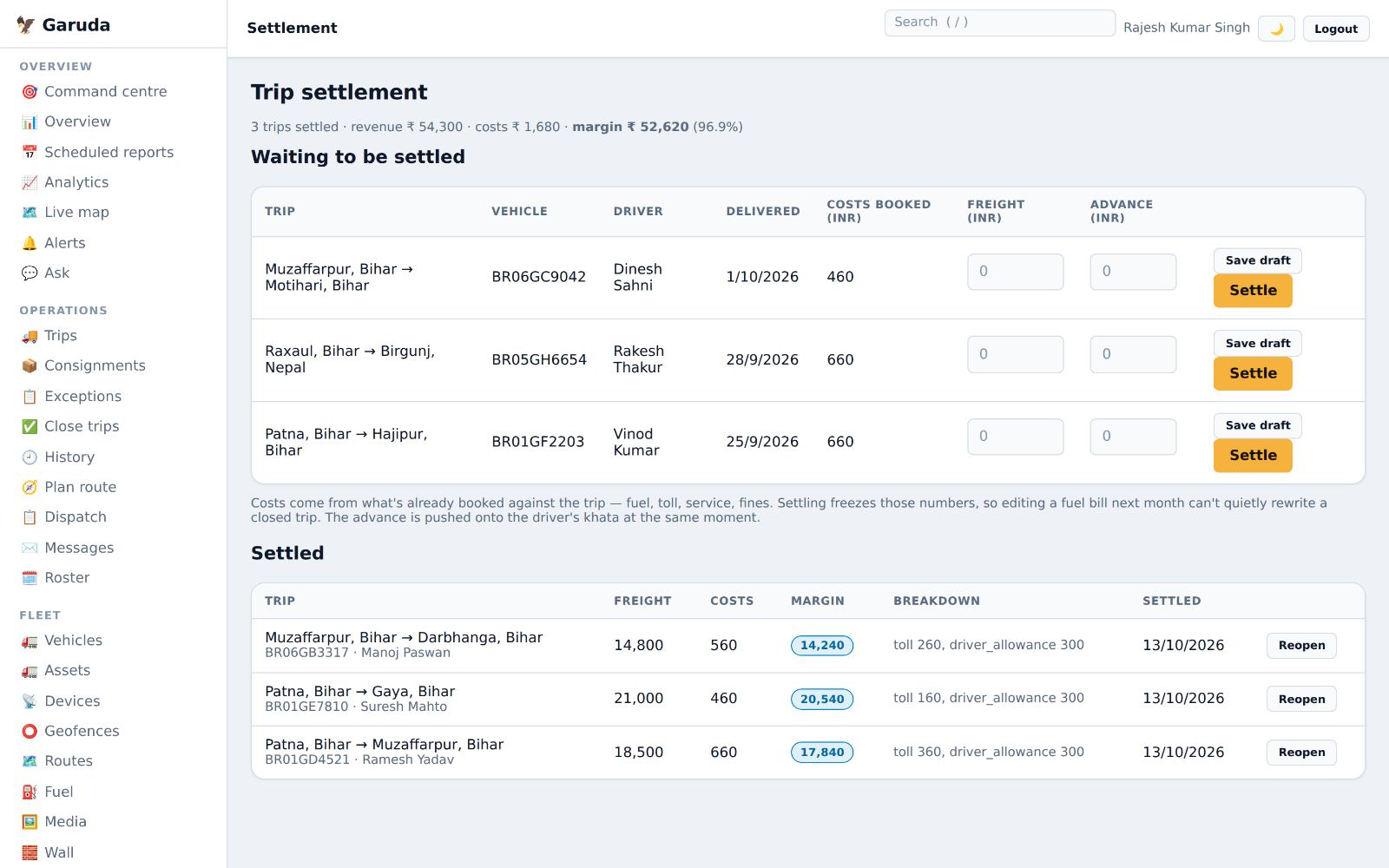
Settle trips
Settling a trip records its freight and costs and freezes them, so a bill edited next month cannot change a closed trip.
- Waiting to be settled lists delivered trips with the costs already booked.
- Type the Freight and any Advance paid to the driver.
- Press Settle, or Save draft to finish later. The advance goes onto the driver's khata.
- A mistake? Press Reopen on a settled trip.
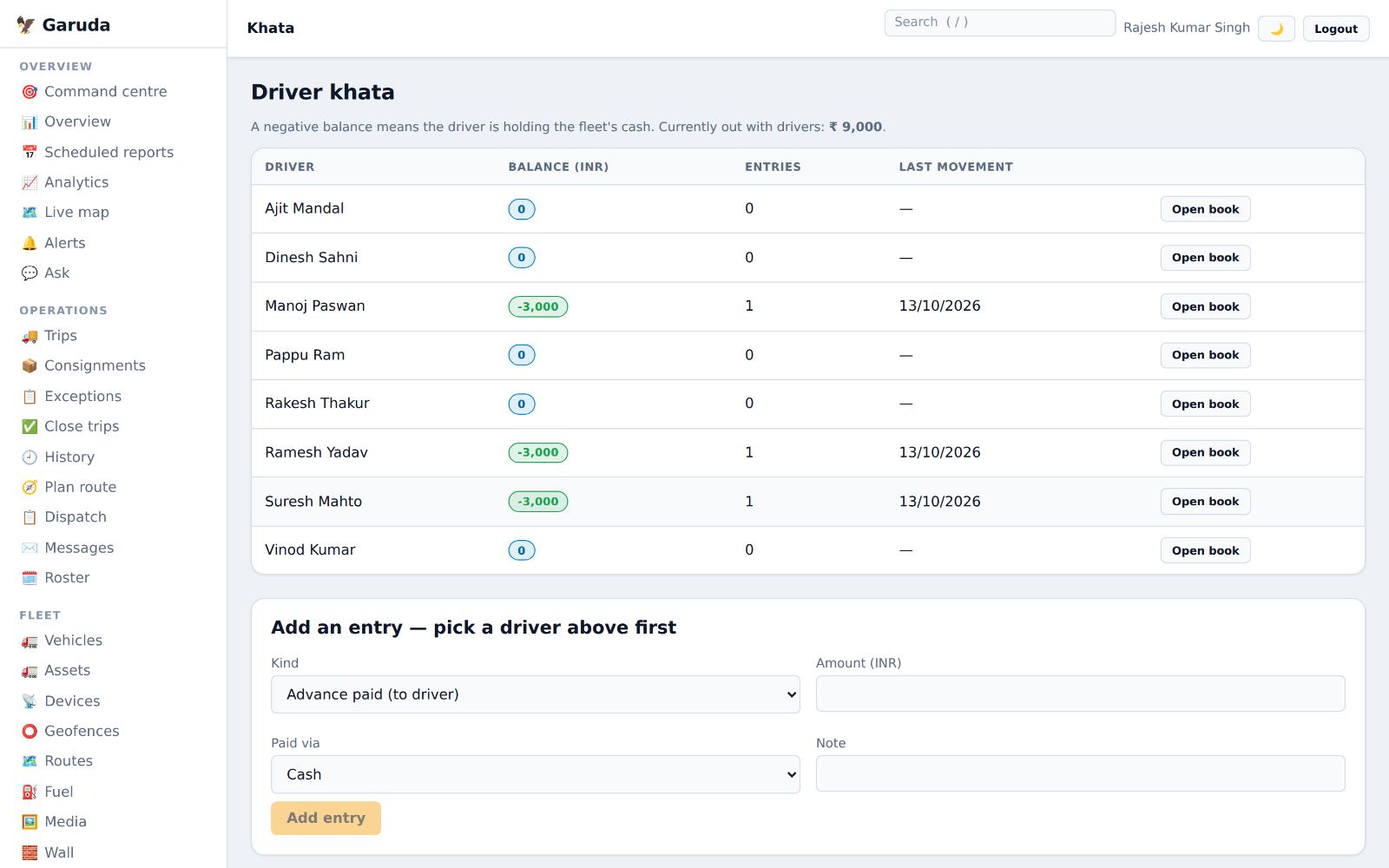
Driver cash book (khata)
Every rupee given to or returned by each driver. A negative balance means the driver is holding the company's cash.
- Press Open book next to a driver.
- Choose the Kind: advance, bhatta, trip cash, expense claim, salary, cash returned, deduction or adjustment.
- Type the amount, how it was paid (cash, UPI, bank) and a note, then Add entry.
Drivers see their own balance and send expense claims from the app.
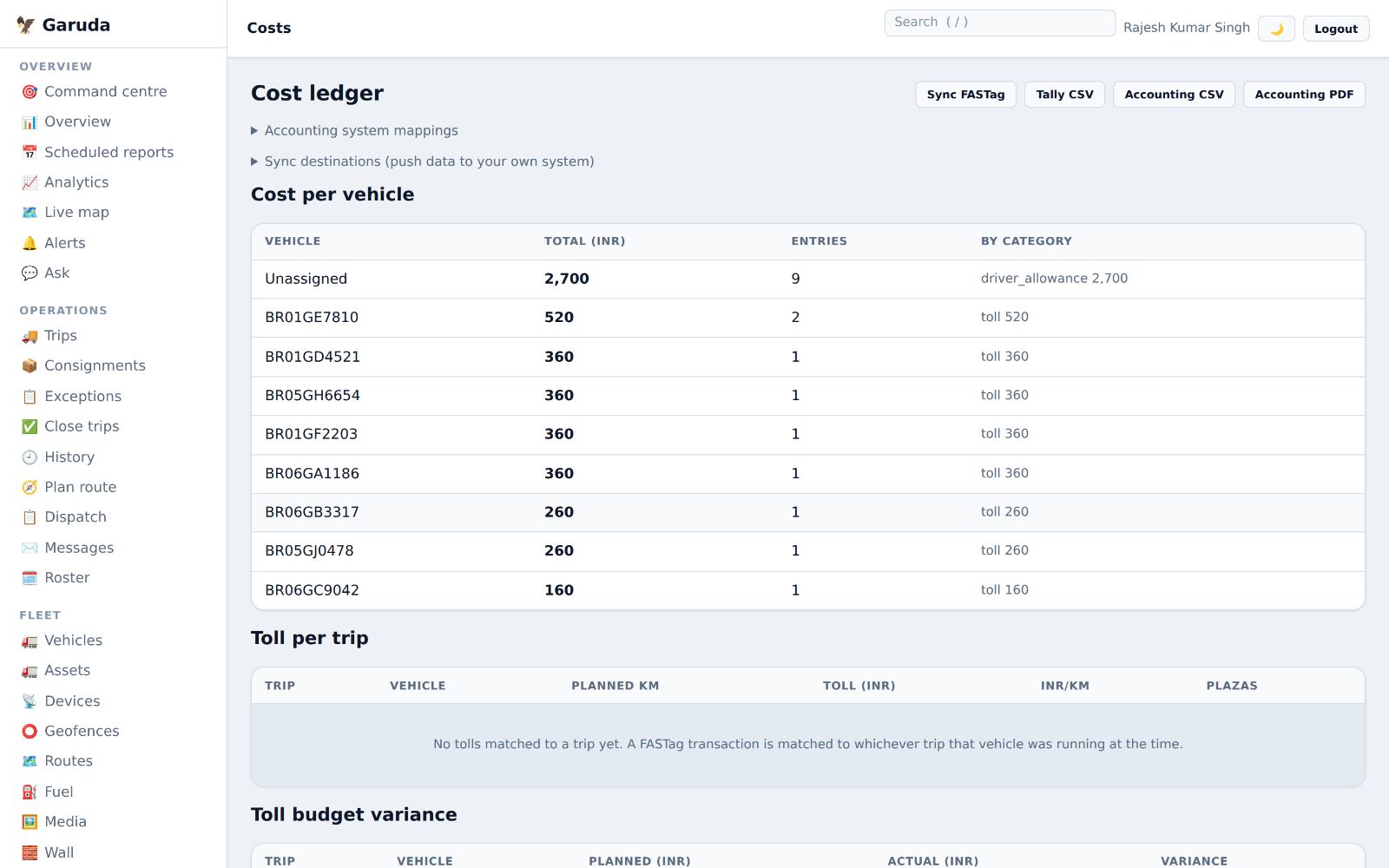
Cost ledger
Every cost per truck by category (toll, fuel, allowance, service), FASTag tolls matched to trips, and exports for your accountant.
- Cost per vehicle shows the total and the split by category.
- Press Sync FASTag to pull toll payments and match them to trips.
- Export with Tally CSV, Accounting CSV or Accounting PDF.
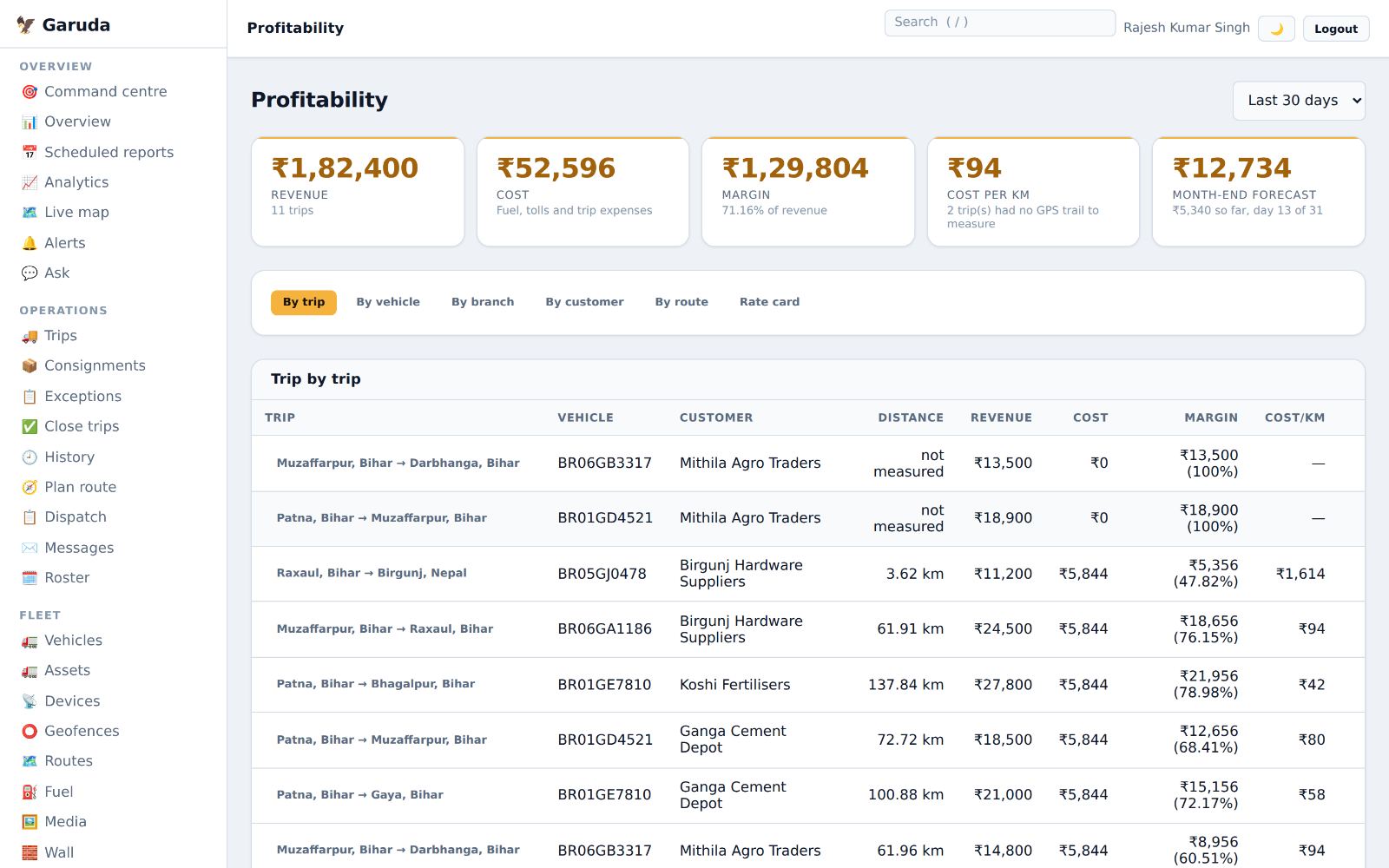
Which trips make money
Revenue, cost, margin and cost per km, by trip, truck, branch, customer or route, with a month-end forecast.
- Choose the period: last 7, 30 or 90 days, or the last year.
- Switch the view: By trip, By vehicle, By branch, By customer, By route.
- Rate card keeps your standard rates for quoting.
Only people with the "sensitive finance" permission see this page.
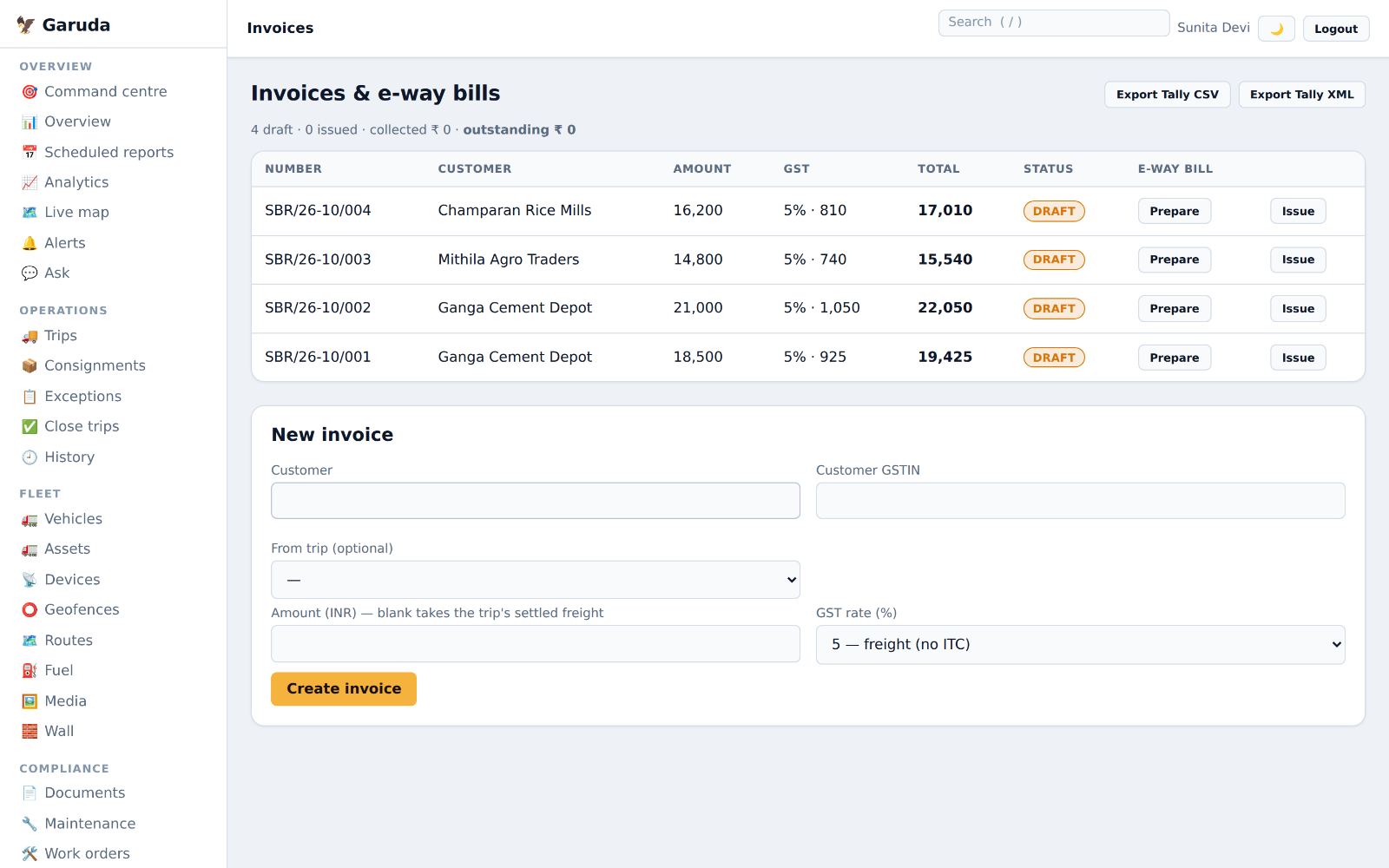
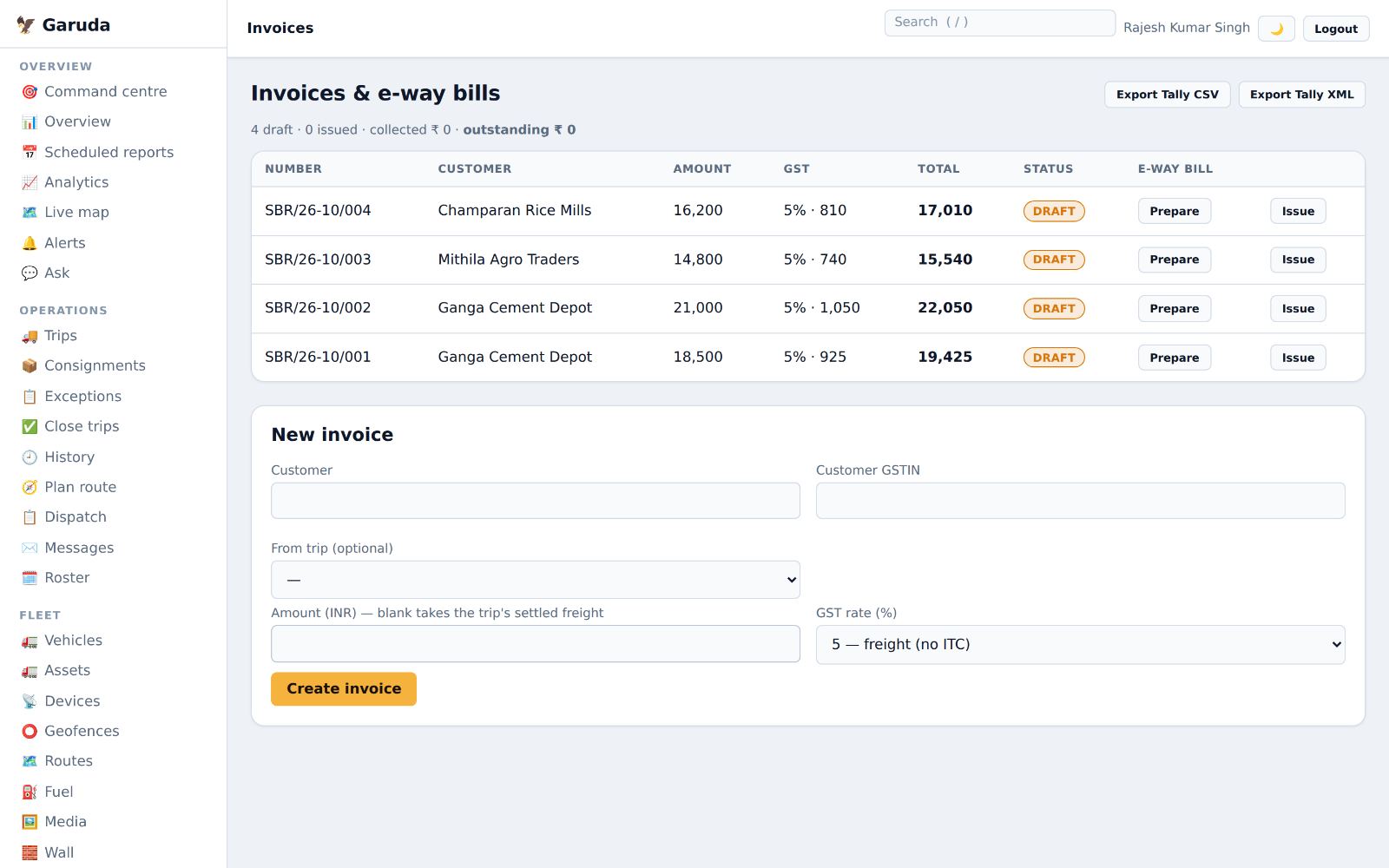
Invoices and e-way bills
Raise GST invoices from trips, issue them, prepare e-way bills and export to Tally.
- Under New invoice, choose the customer and the trip. Leave the amount blank to use the settled freight.
- Pick the GST rate (5% freight without ITC, 12% with ITC, or exempt) and press Create invoice.
- A new invoice is a draft. Press Issue to finalise it and Prepare for its e-way bill.
- Export with Export Tally CSV or Export Tally XML.
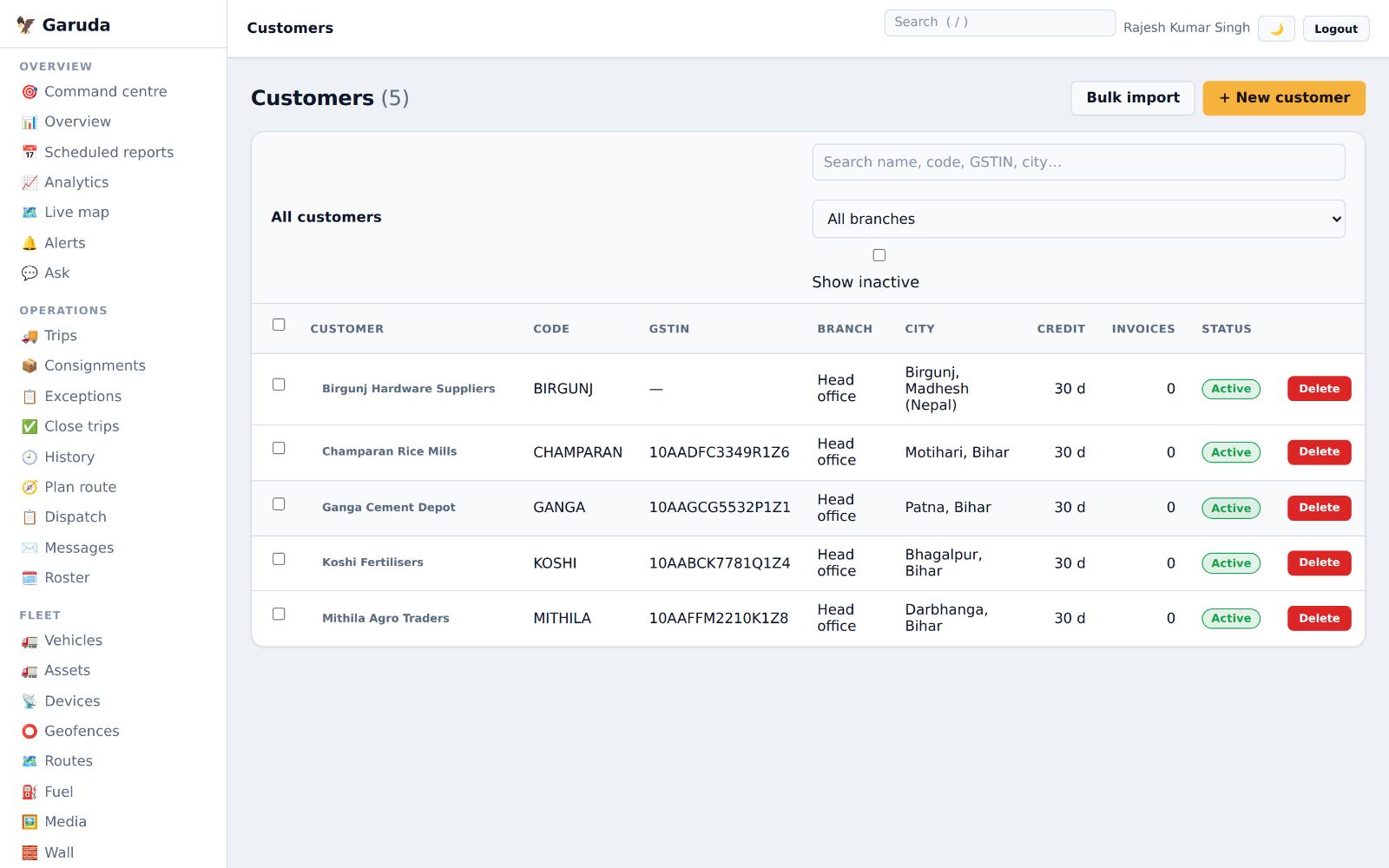
Customers
Your customers with GSTIN, branch, city and credit days. Each can have a portal login to follow their own consignments.
- Press + New customer, or Bulk import for a list.
- Fill in the code, GSTIN, city and credit days.
- To give a customer a portal login, the owner adds a user with the Customer role in Users.
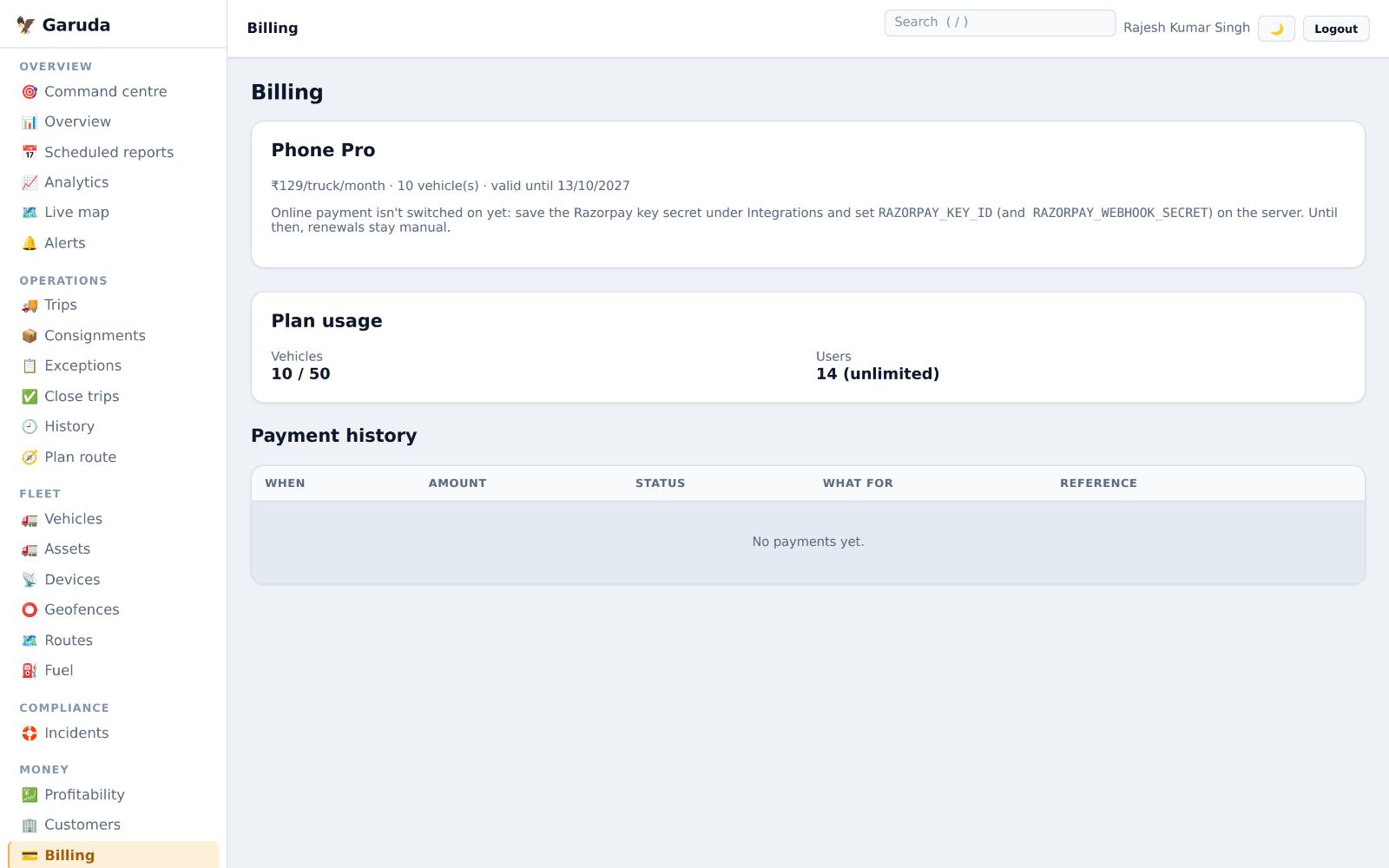
Your Garuda plan
Your plan, price per truck, how long it is valid, how many trucks and users you use, and your payments.
- Check Plan usage before adding more trucks.
- Your payments appear in Payment history.
- To renew or upgrade, raise a ticket in Support.
FASTag tolls
Toll payments matched to the trip each truck was running, with checks for mistakes.
- Press Sync FASTag to bring in toll payments. Each is matched to the trip that truck was on at that time.
- Toll per trip shows tolls per trip and per km; Toll budget variance compares the planned toll with what was paid.
- Check Unmatched tolls (no trip at that time) and Possible duplicate tolls (same truck, same amount, close together). Dispute a wrong one.
Cash tolls paid by drivers come in from the driver app and count the same way.
Reports and questions
Fleet summaries, reports by email, your own analysis, and plain-language questions.
Fleet overview
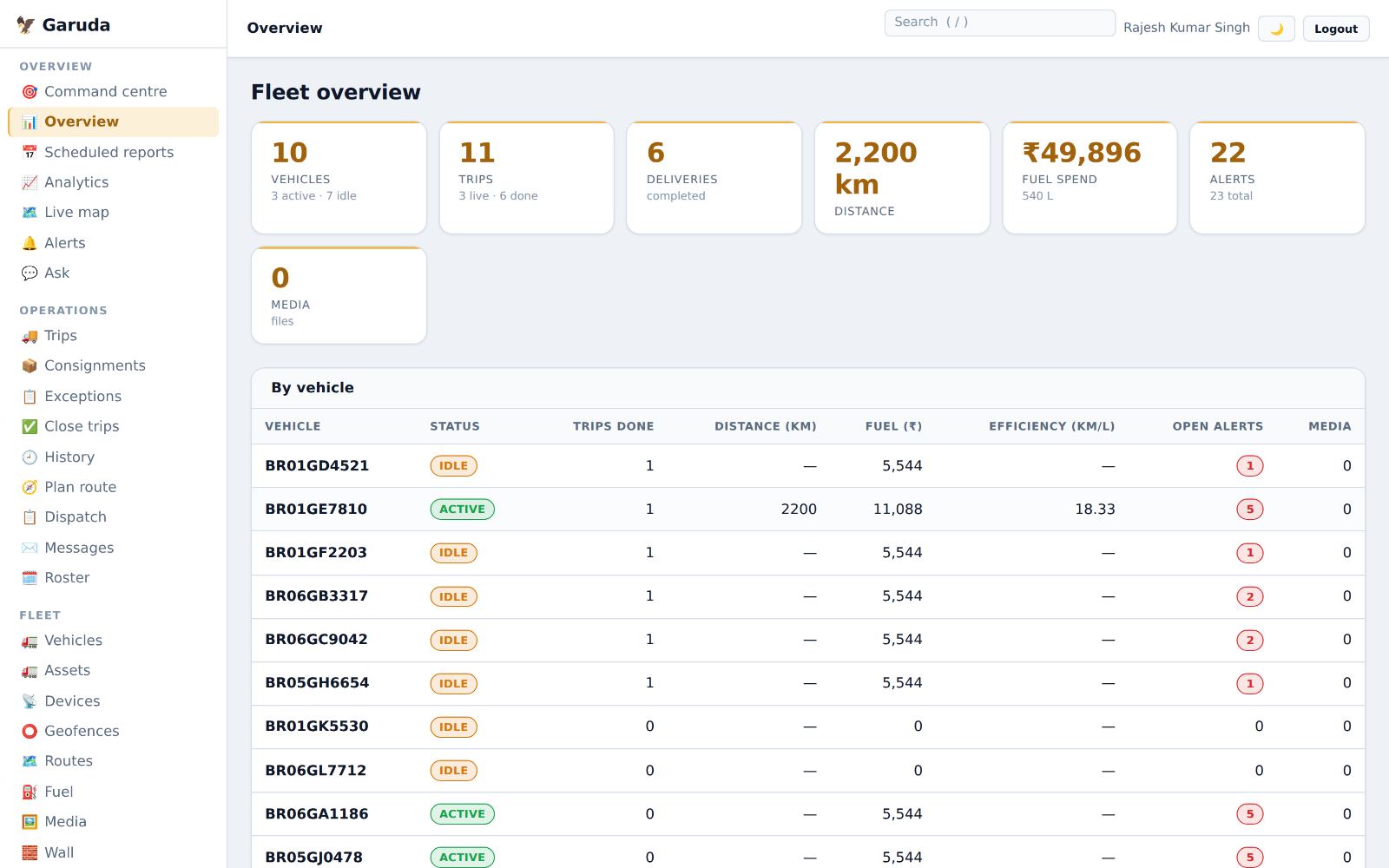
One page of totals: trucks active, trips, deliveries, distance, fuel spend and alerts, then the same per truck.
- Read the tiles at the top for the whole fleet.
- By vehicle shows each truck's trips, distance, fuel, mileage and open alerts.
Reports by email
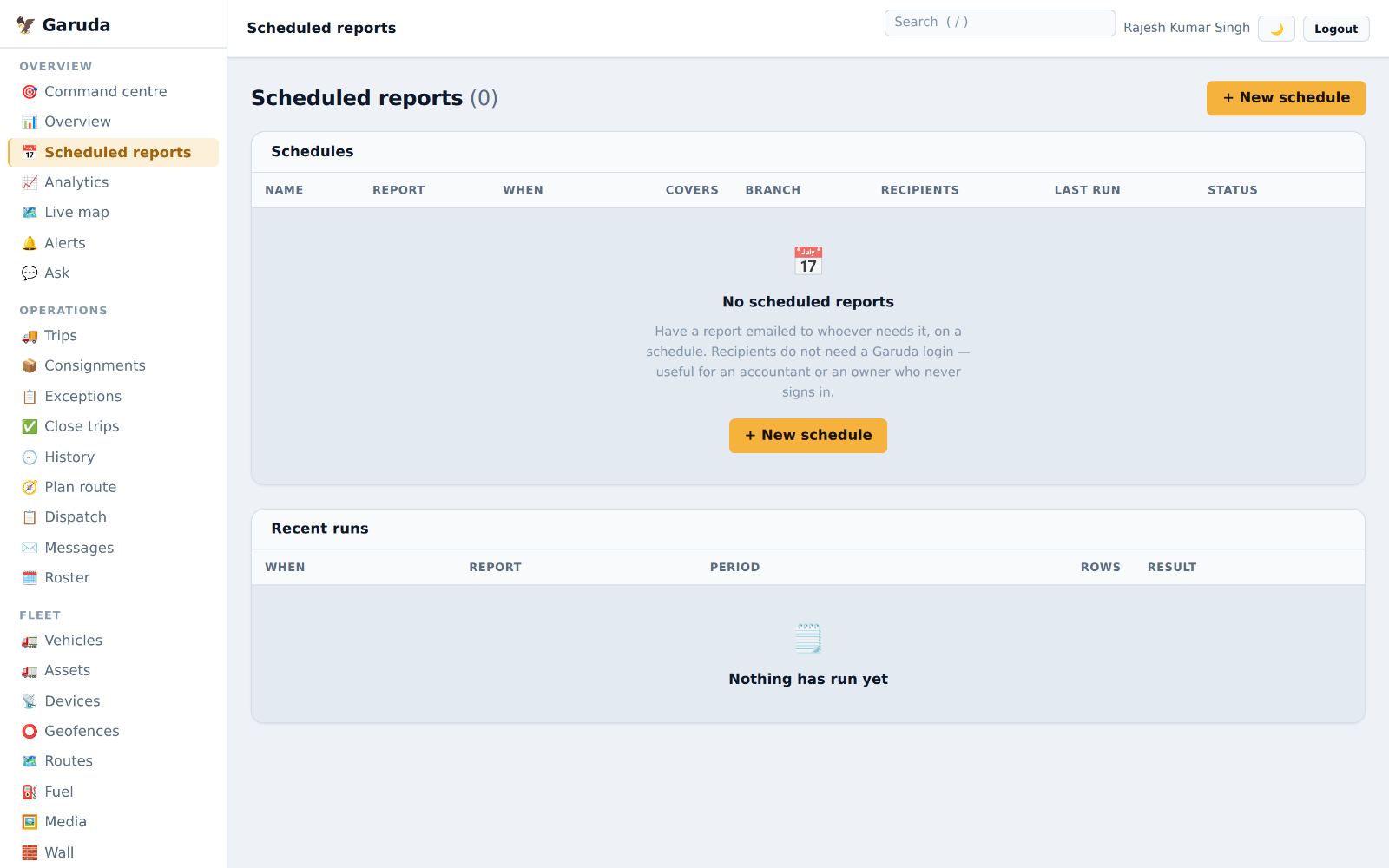
Have a report emailed on a schedule. Recipients do not need a Garuda login, which suits an accountant or a partner.
- Press + New schedule.
- Choose the report, when it runs, the period it covers, the branch and the recipients' email addresses.
- Recent runs shows what was sent and whether it worked.
Build your own analysis
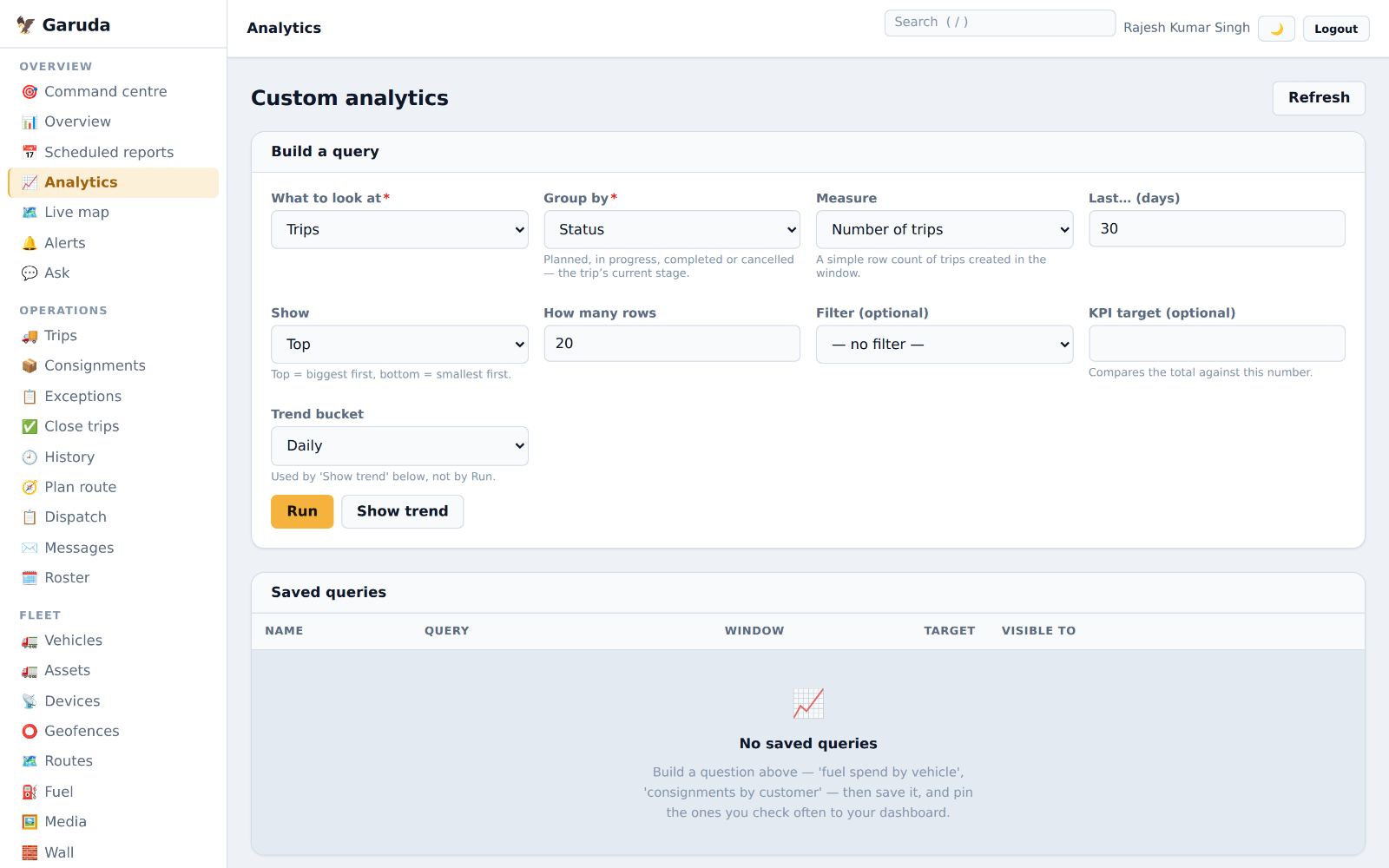
Answer questions like "fuel spend by vehicle" or "consignments by customer" without a spreadsheet.
- Choose What to look at (trips, fuel, expenses, alerts, consignments…) and Group by.
- Pick the measure and how many days back, then Run. Show trend draws it over time.
- Save the query and pin the ones you check often.
Ask your fleet a question
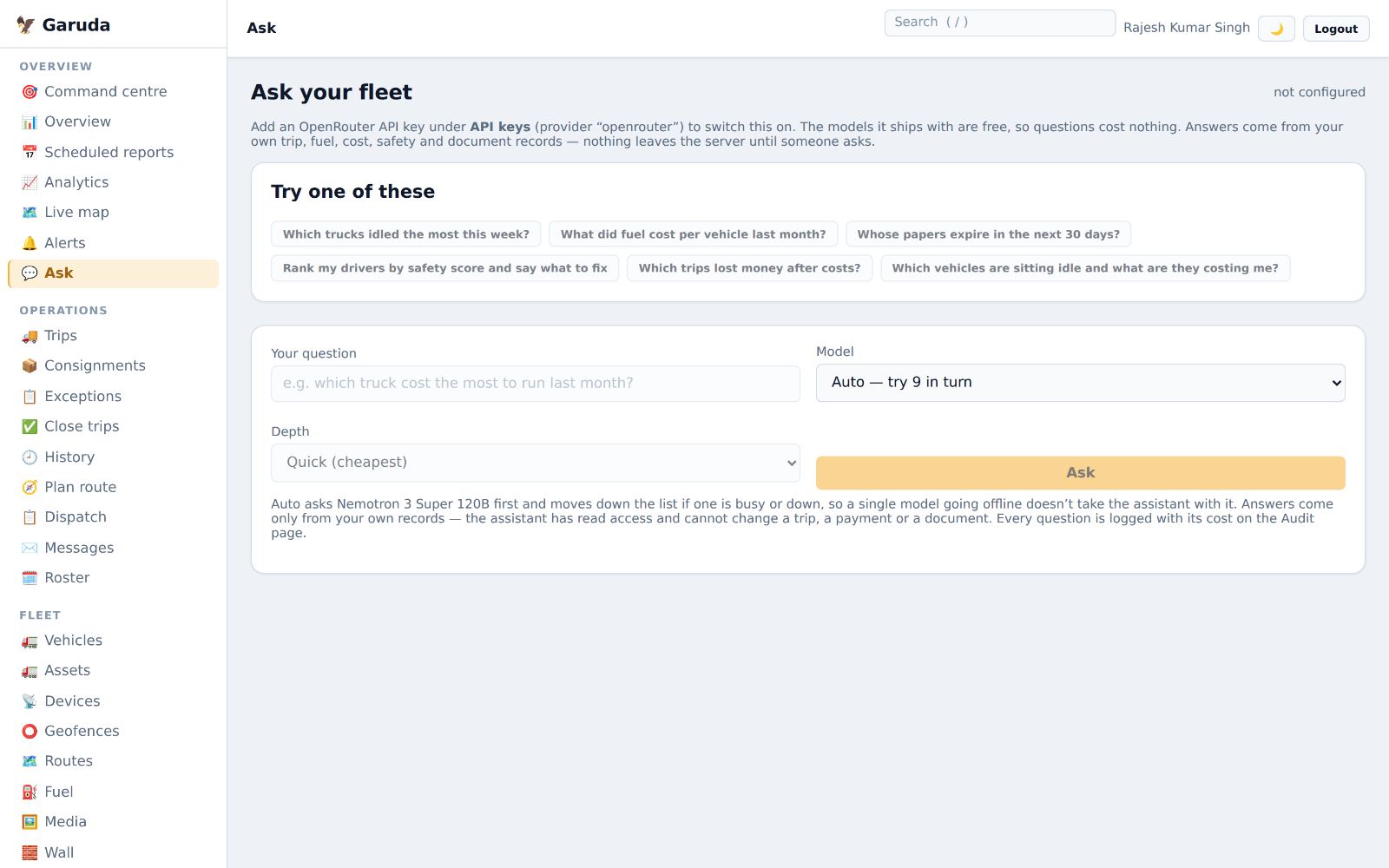
Type a question in plain words, such as "Which trucks idled the most this week?". Answers come only from your own records.
- Pick one of the suggested questions, or type your own under Your question.
- Leave Model on Auto and press Ask.
- The assistant can only read; it cannot change a trip, payment or document.
If it says "not configured", the owner adds an OpenRouter key under API keys.
Settings and administration
Alert limits, approvals, your own notifications, branding, branches, people and access, and getting help.
Alert limits and lists
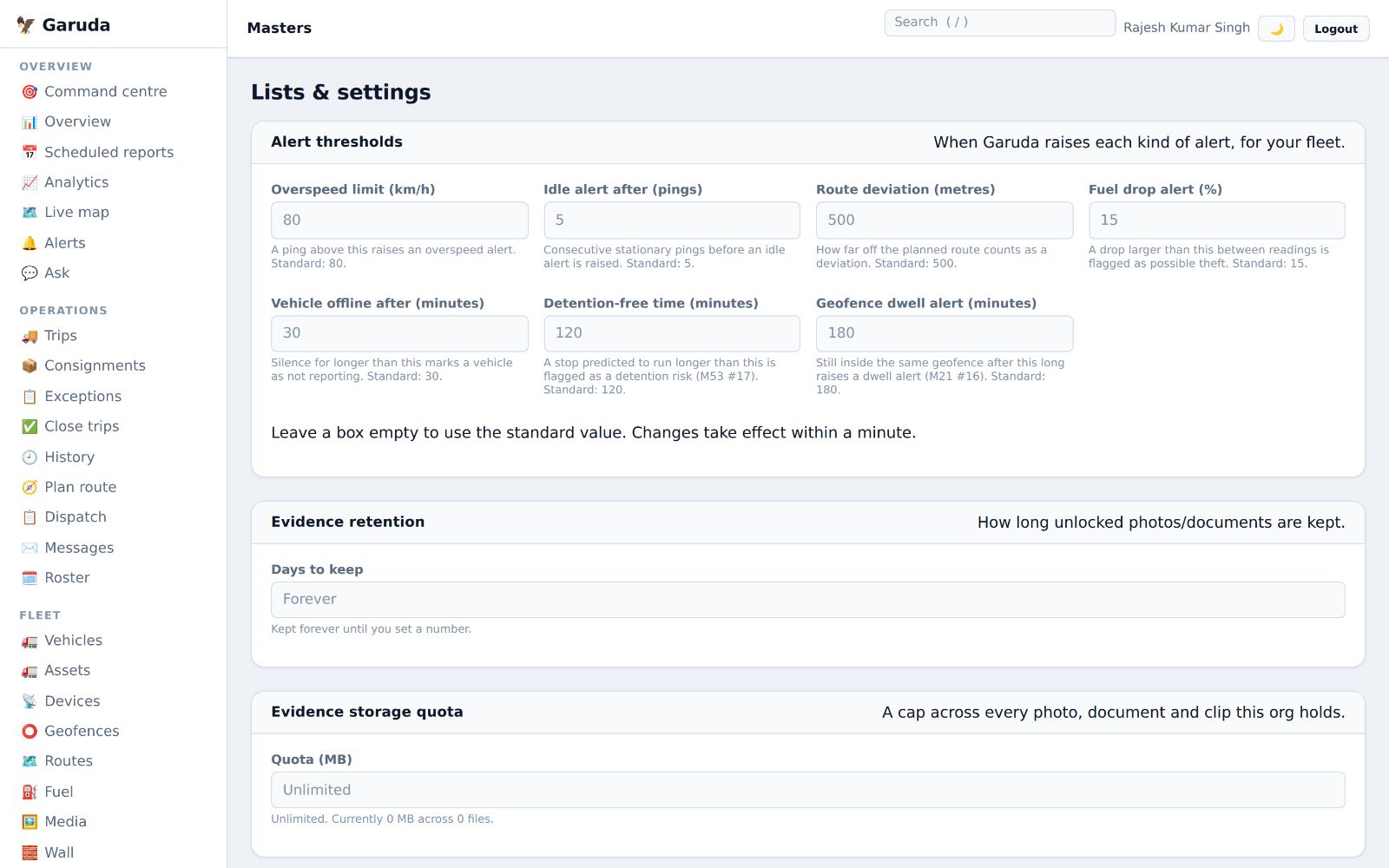
Decide when Garuda raises each alert for your fleet, and how long photos and documents are kept.
- Under Alert thresholds, set the overspeed limit, idle time, route deviation, fuel drop %, offline time and geofence dwell time.
- Leave a box empty to use the standard value. Changes apply within a minute.
- Set Evidence retention for how long photos and documents are kept.
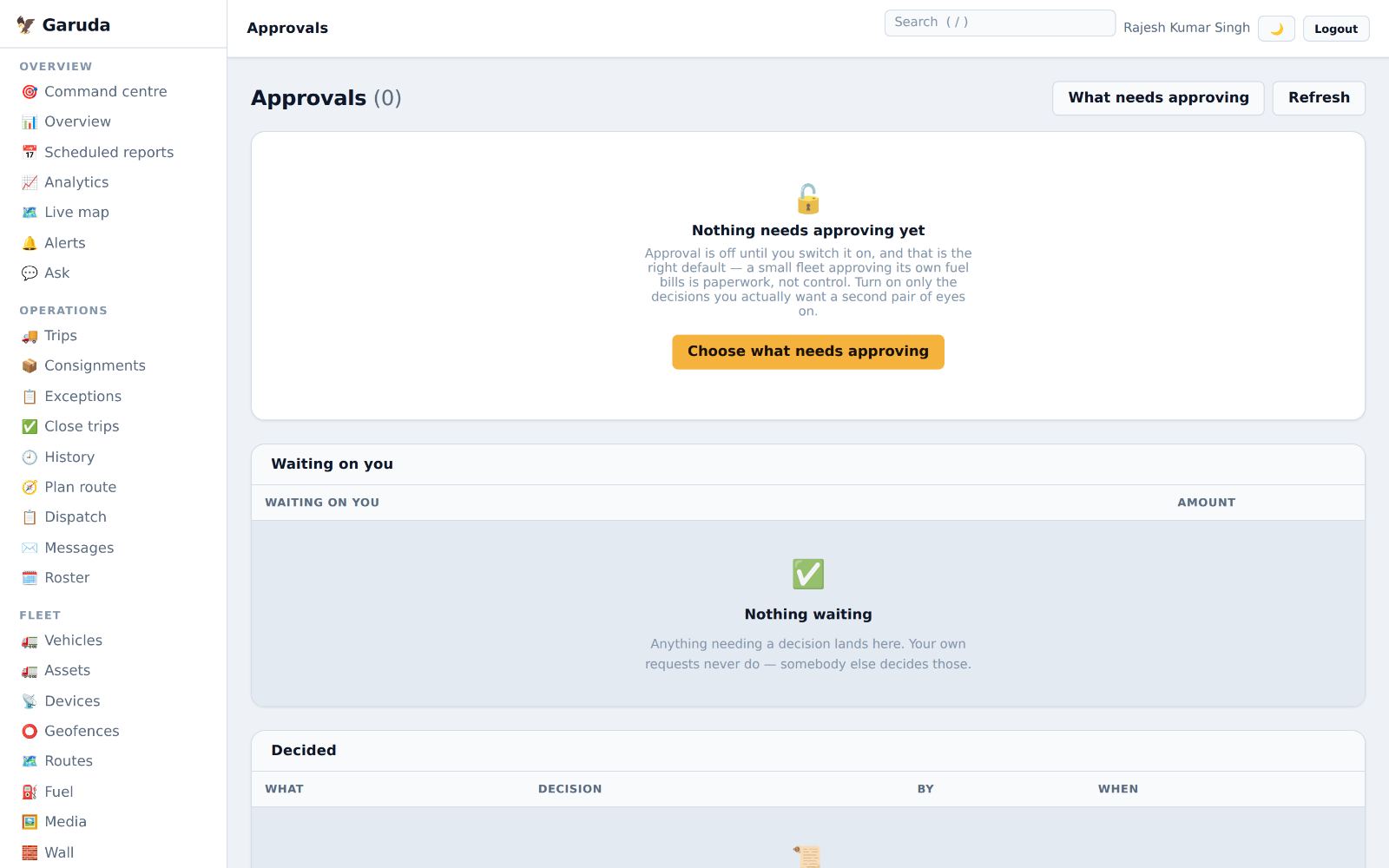
Approvals
Turn on a second check only for decisions that need one, such as large fuel bills. It is off until you switch it on.
- Under Choose what needs approving, switch on the decisions you want checked.
- Waiting on you lists requests for your decision. Your own requests go to someone else.
- Decided keeps every decision with who made it and why.
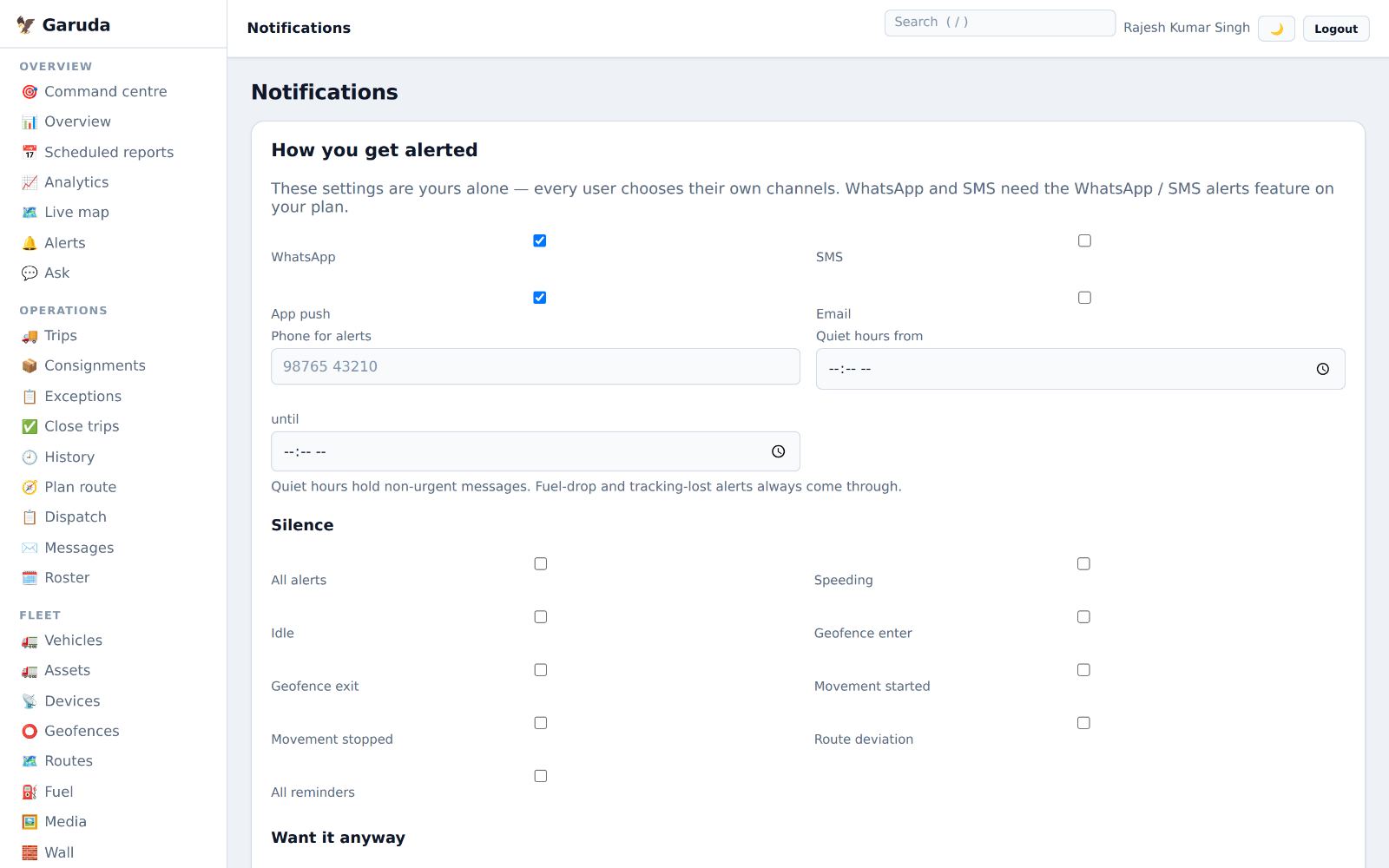
How you get alerted
These settings are yours alone: each person chooses WhatsApp, SMS, app push or email, and quiet hours.
- Tick the channels you want and type your Phone for alerts.
- Set Quiet hours. Fuel-drop and tracking-lost alerts always come through.
- Use Silence to stop alert types you do not need, and Want it anyway to get ones your role does not get by default.
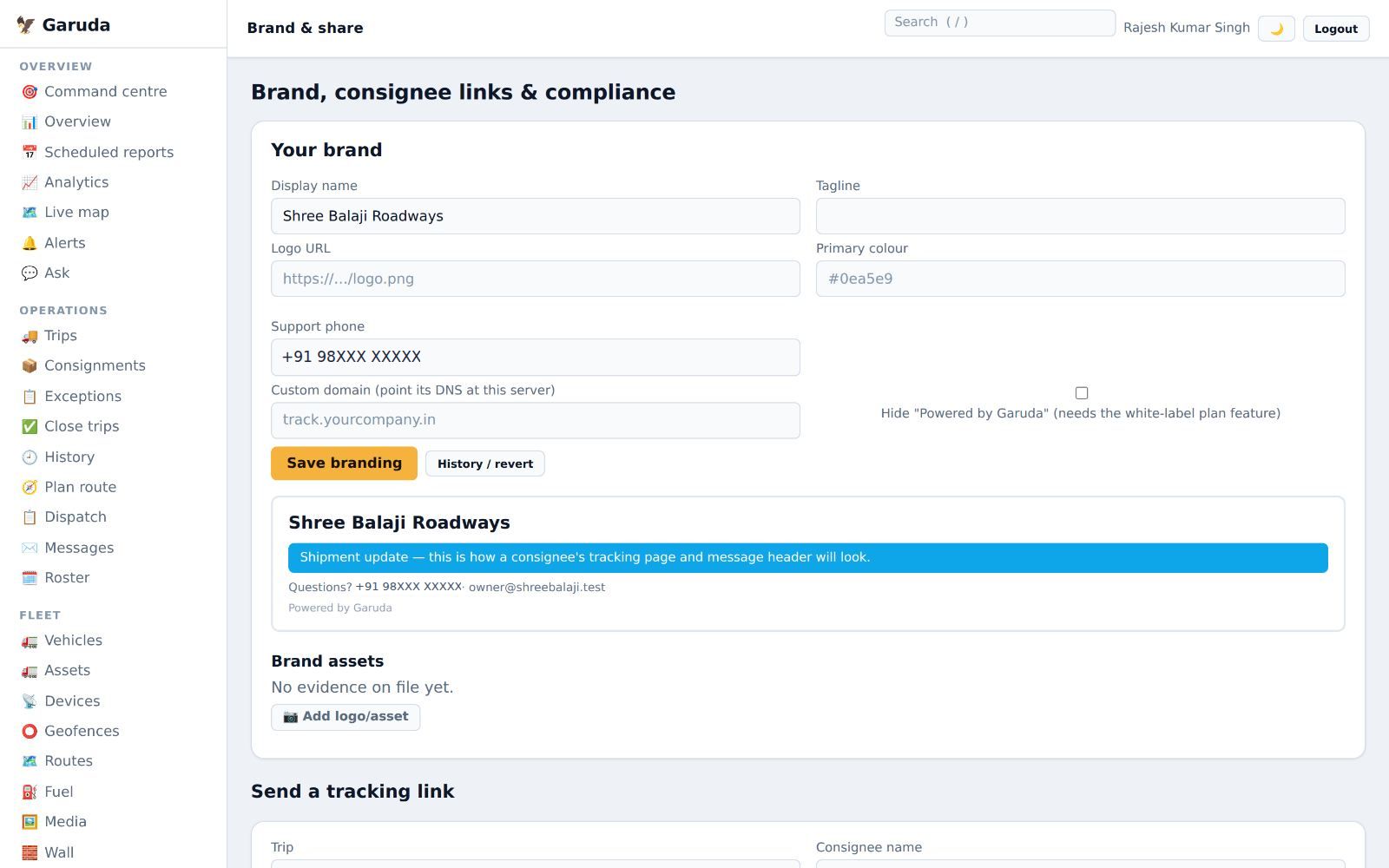
Your brand and tracking links
Put your company name, logo and colour on the pages customers see, and send a customer a live tracking link.
- Fill in the display name, tagline, logo, colour and support phone, then Save branding. The preview shows how it looks.
- History / revert shows earlier versions of your branding and lets you go back to one.
- Under Brand assets, press Add logo/asset to upload your logo and other brand files.
- Under Send a tracking link, choose a trip and send the link to the customer. It opens without a login and stops working after the delivery.
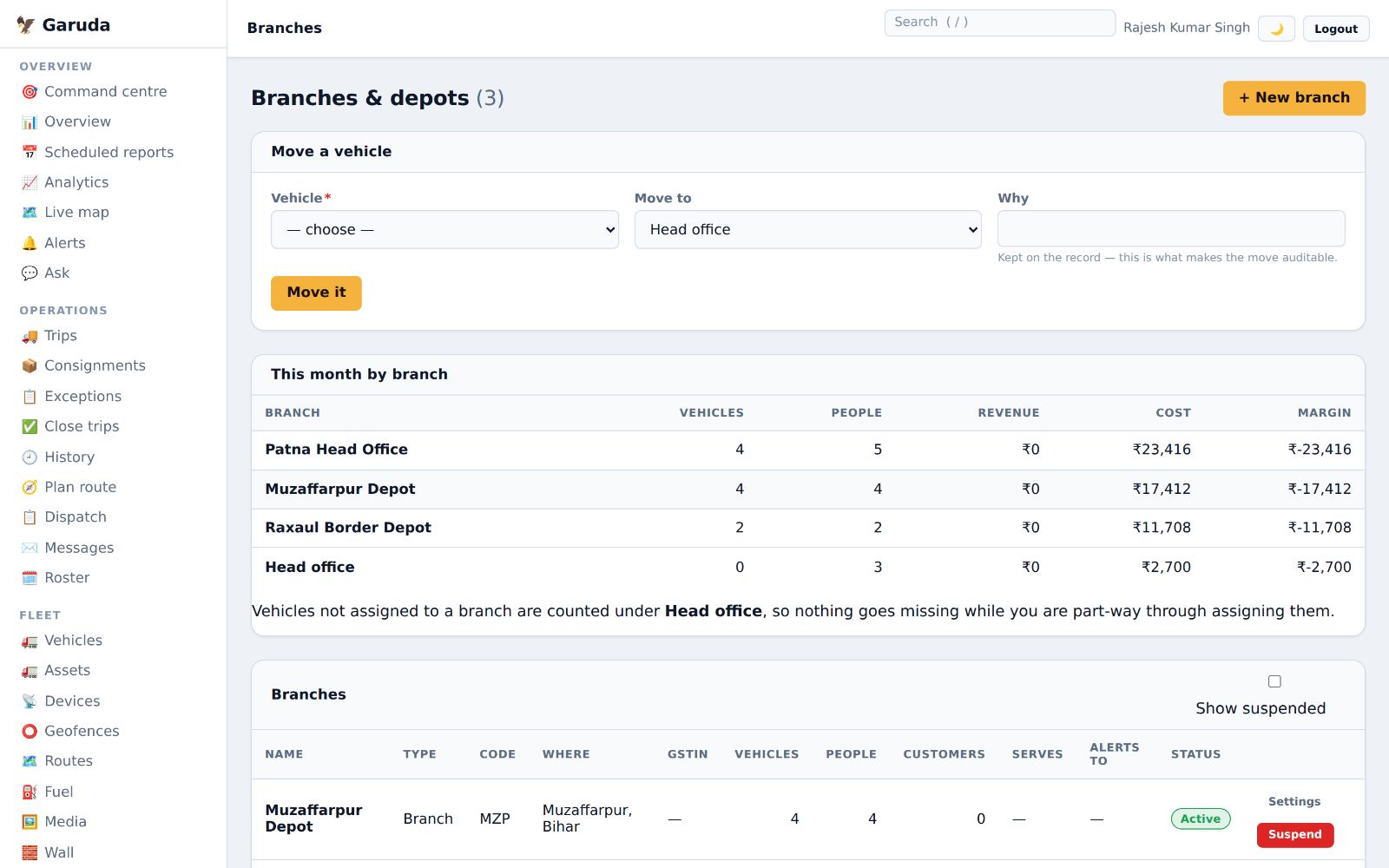
Branches and depots
Your depots, how many trucks and people each has, and this month's revenue, cost and margin by branch.
- Press + New branch to add a depot.
- To move a truck, choose it under Move a vehicle, pick the new branch, write why, and press Move it.
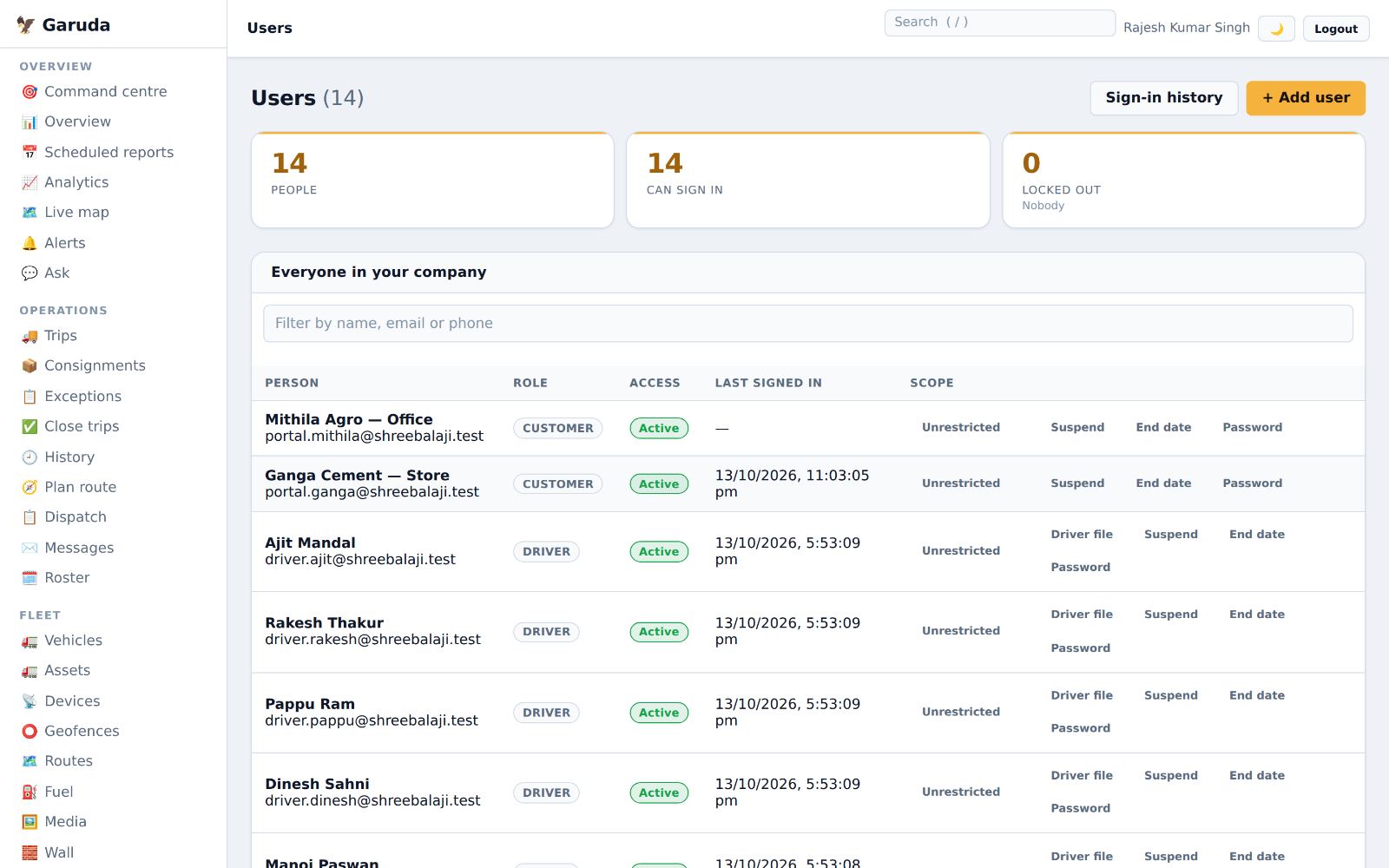
People and logins
Everyone who can sign in: staff, drivers and customers, with their role, access and last sign-in.
- Press + Add user, fill in the name, email or mobile number (with country), and the role.
- Use Password on a row to reset someone's password, Suspend to stop a login, and End date for temporary access.
- For a driver, Driver file holds their licence and personal details.
- Sign-in history shows who signed in and when.
Suspend a login the day someone leaves.
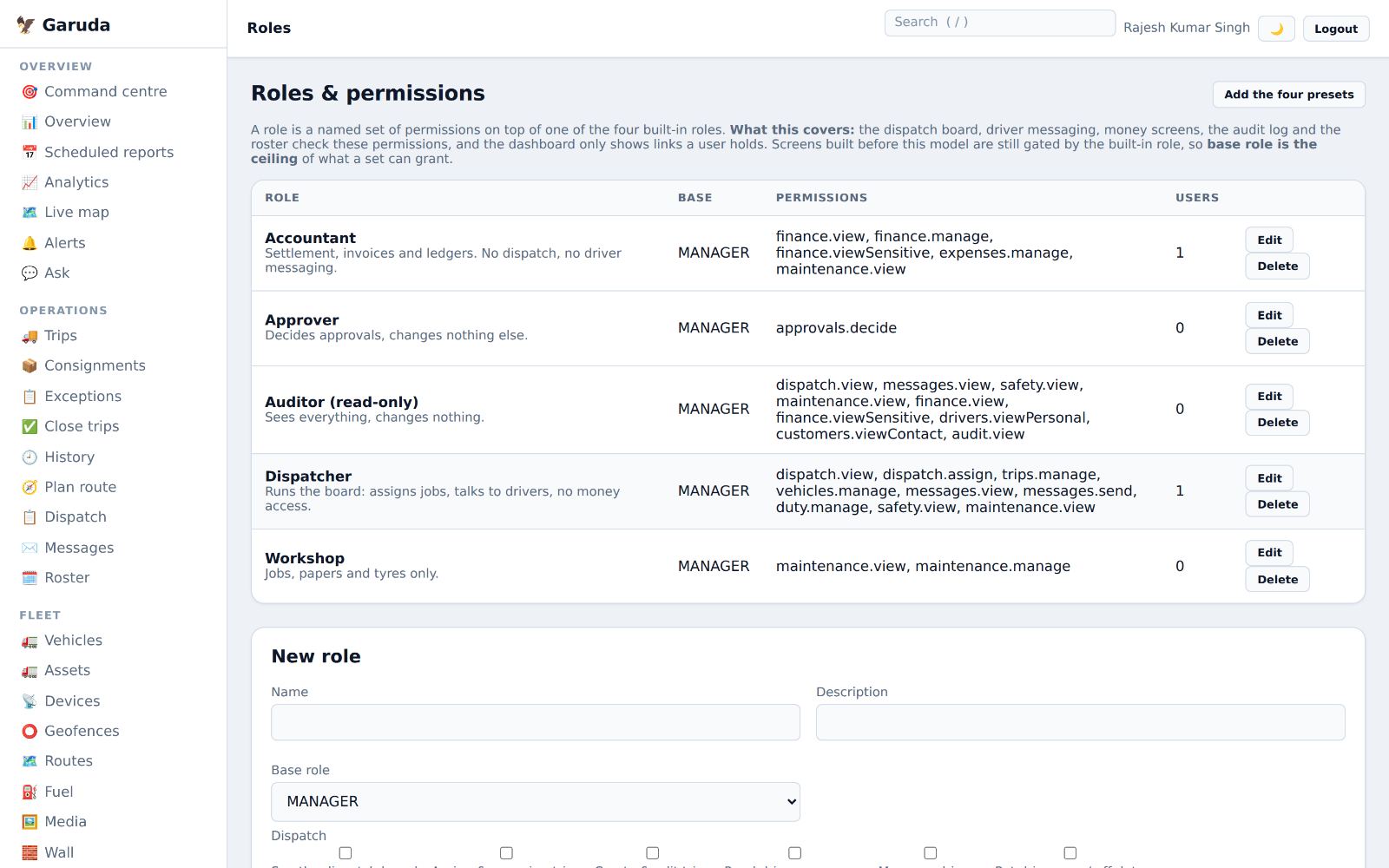
Roles and permissions
A role is a named set of permissions, such as Accountant, Dispatcher, Approver or Auditor. People see only the menu items their role allows.
- Press Add the four presets to create the standard roles.
- Press Edit to change a role's permissions, or create your own.
- Give a person a role from this page; the change applies at their next page load.
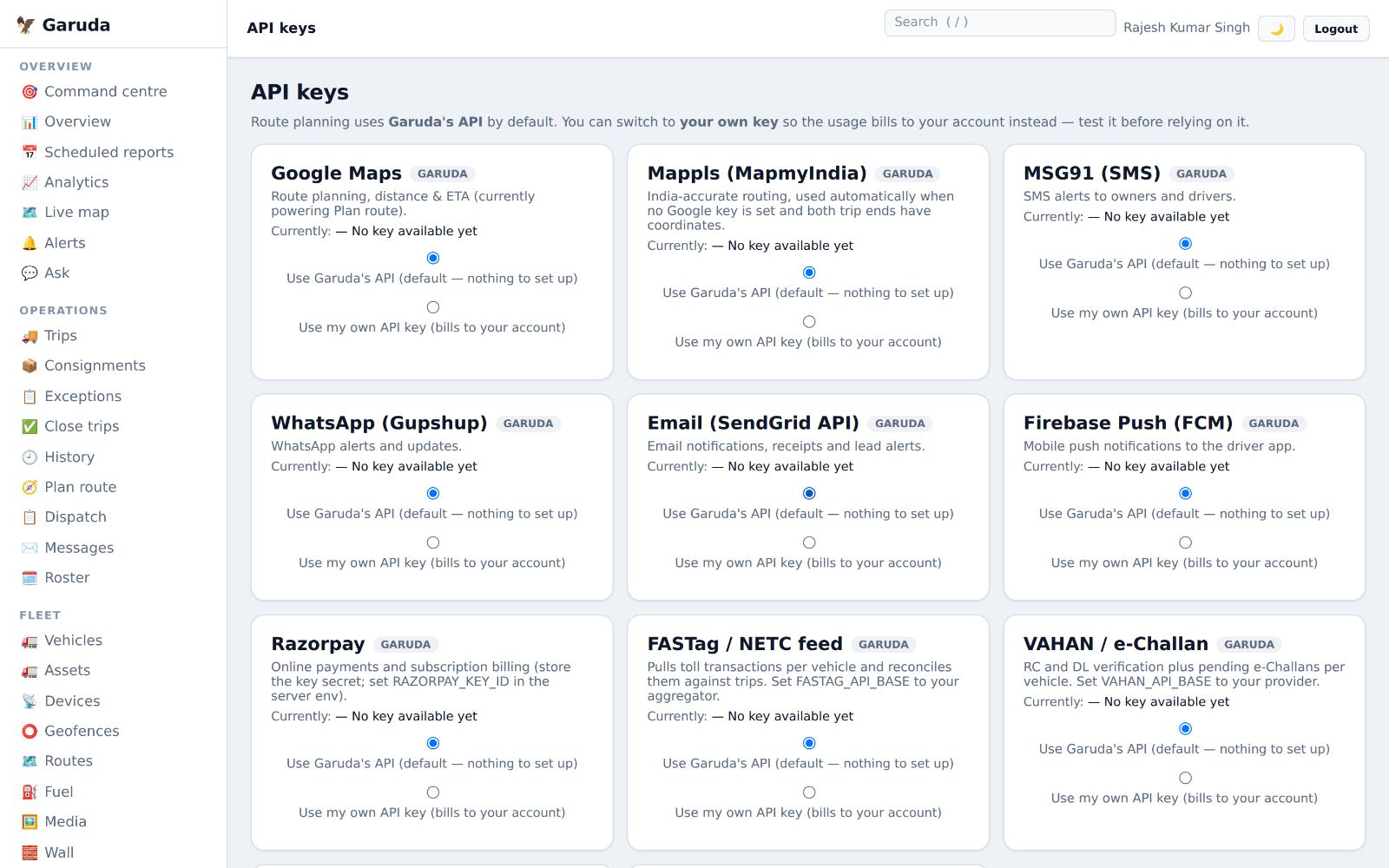
Maps, SMS and WhatsApp keys
By default Garuda's own accounts are used for maps, SMS and WhatsApp. You can switch any of them to your own key so the usage is billed to you.
- Choose Use my own API key for the service and paste your key.
- Test it before relying on it.
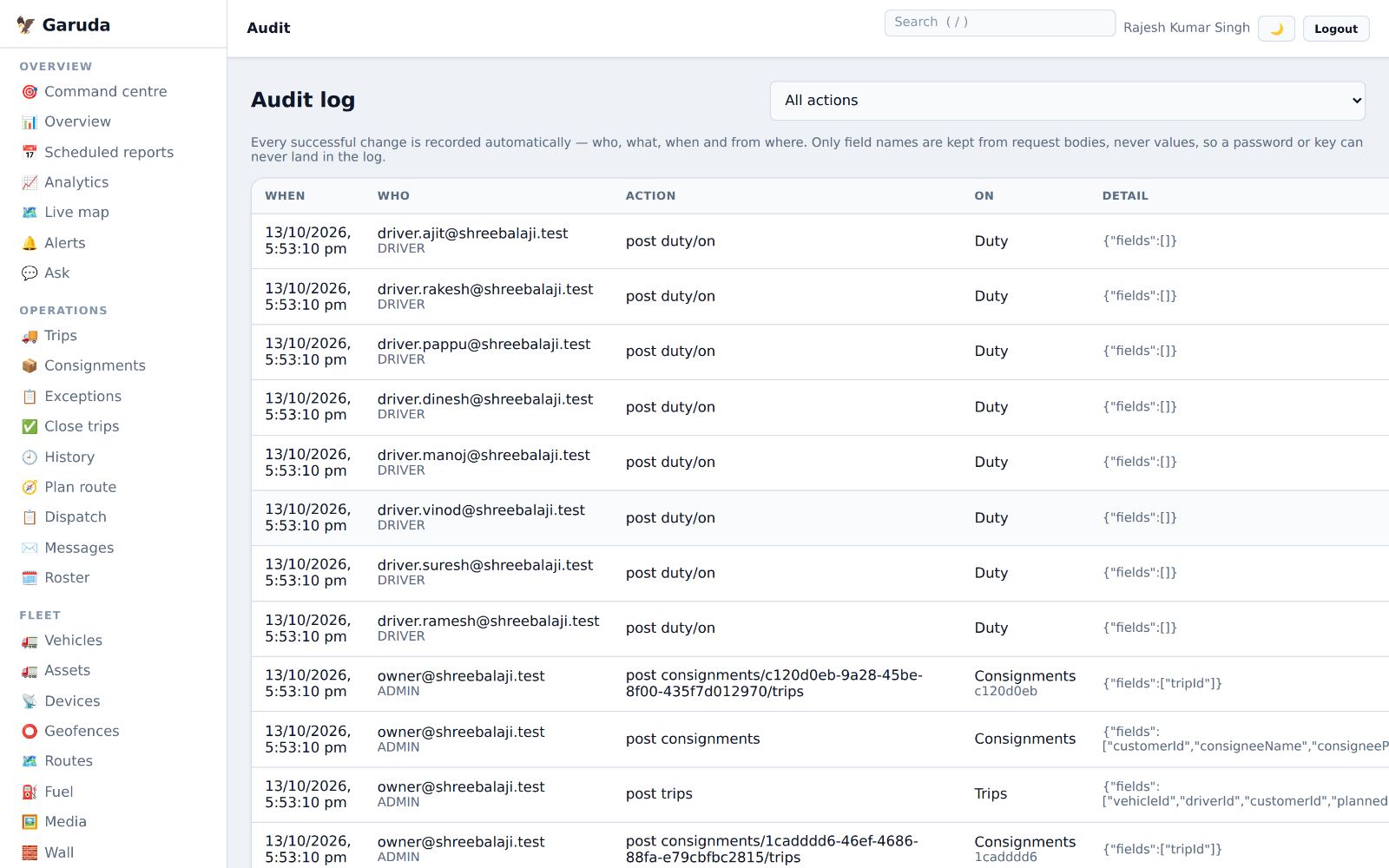
Audit log
Every change made in your company: who did what, and when.
- Choose an action type in All actions to narrow the list.
- Assistant questions & spend lists every question asked in Ask, who asked it and what it cost.
- Each entry shows the person, the time and what changed.
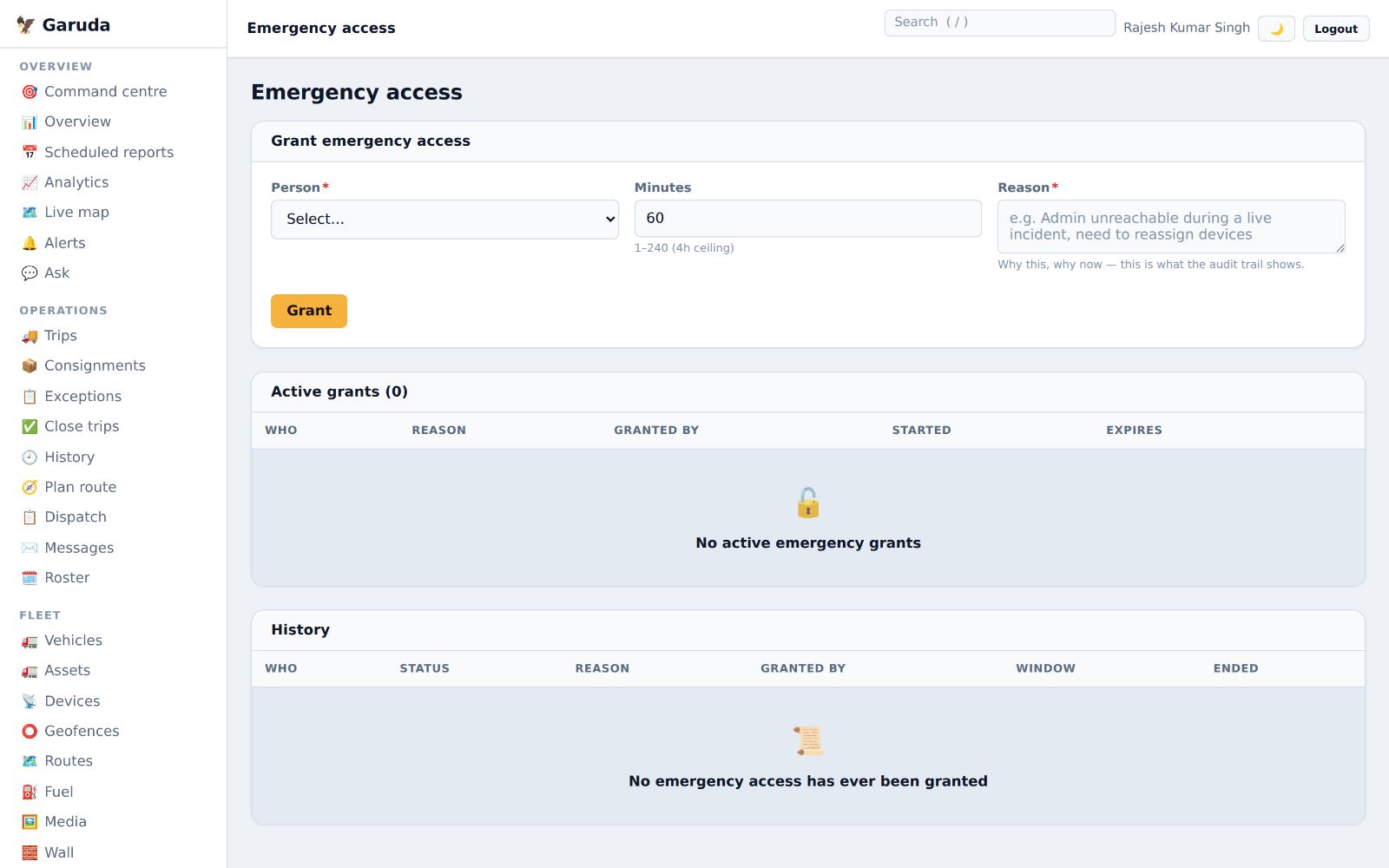
Emergency access and data erasure
Emergency access gives a person full access for up to 4 hours, with a reason on record. Erasure requests handles a request to delete someone's personal data.
- To grant access, choose the person, the minutes (1 to 240) and the reason, then Grant.
- In Erasure requests, start a request for a user, a customer or someone unregistered. Nothing is erased for 30 days.
- You can also erase your own account there; it asks for your password.
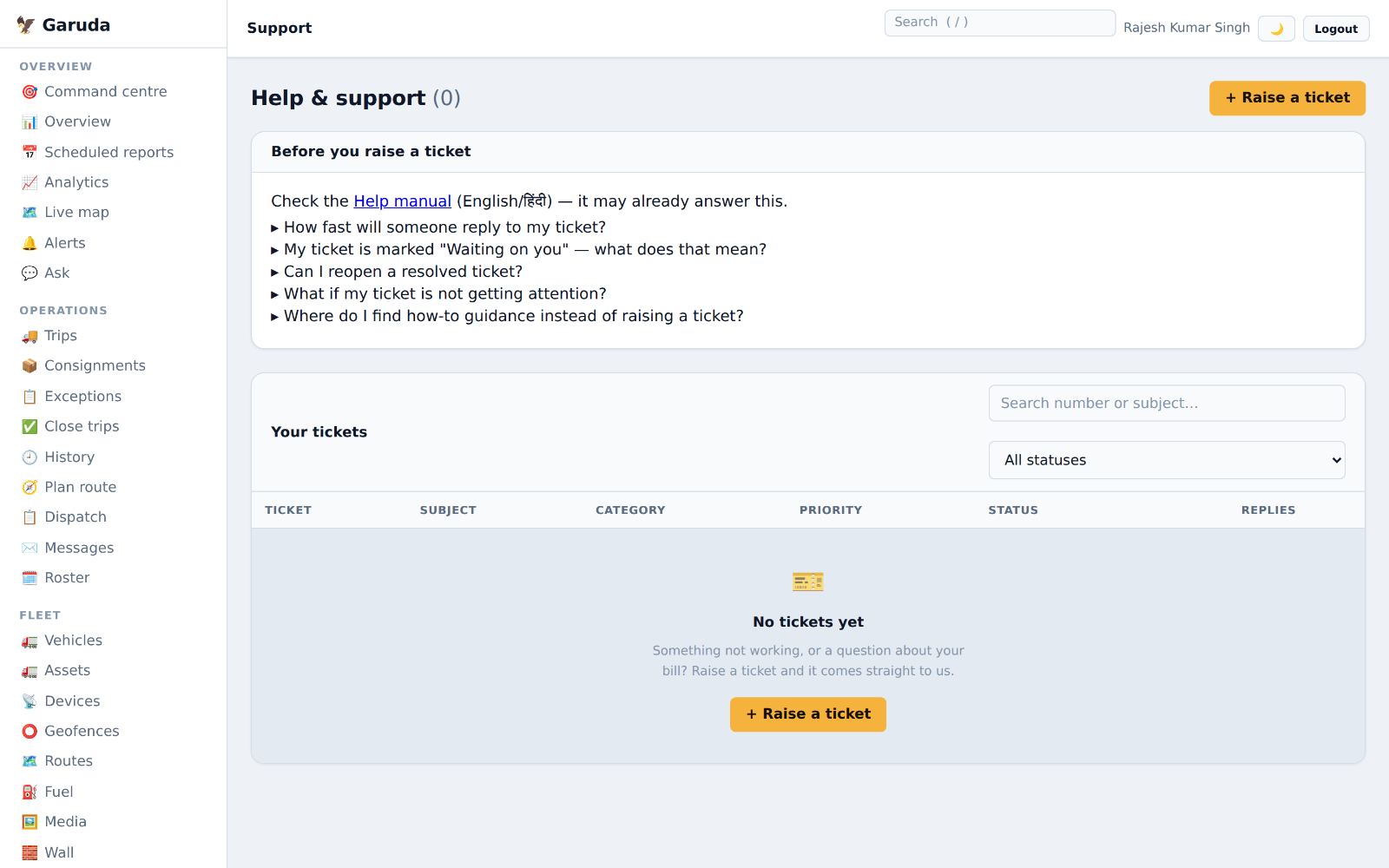
Get help
Raise a ticket with the Garuda team for a problem or a billing question, and follow its replies.
- Read Before you raise a ticket; the answer may already be there.
- Press + Raise a ticket, choose the category and describe the problem.
- "Waiting on you" means the team needs an answer from you.
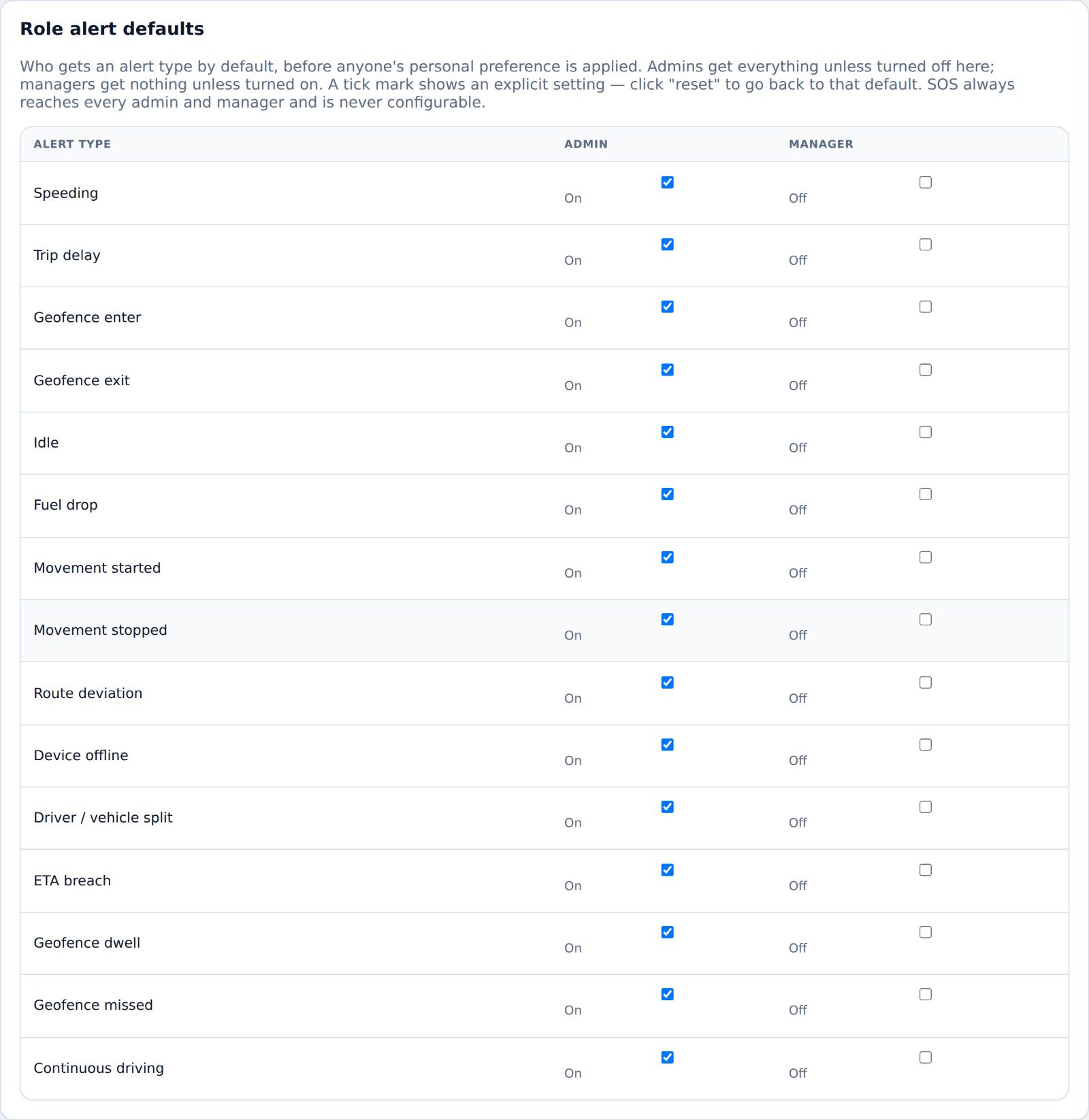
Who gets which alert, and what was sent
Set the starting rule for each role, and check every message Garuda sent.
- Under Role alert defaults, switch each alert type on or off for admins and managers. Admins get everything unless turned off; managers get nothing unless turned on.
- Each person's own settings still win over these defaults.
- Delivery log lists every WhatsApp, SMS, push and email: sent, failed or skipped, and why. Use it when someone says "I never got the alert".
Your own trip, LR and invoice numbers
Choose how trips, LRs, job cards and invoices are numbered, for example SBR-T-2610-012.
- Under Numbering sequences, each document shows its template and Next will be.
- Use Add / update a sequence to set a prefix with {YY}, {MM} and {SEQ}, and whether the count restarts daily, monthly, yearly or never.
- Change it before the financial year starts; numbers already issued stay as they are.
Garuda Manager app
The office on your phone: fleet status, live map, trips, alerts and money, for owners, managers and supervisors.
Install Garuda Manager
A separate Android app for office staff. Drivers use the driver app instead.
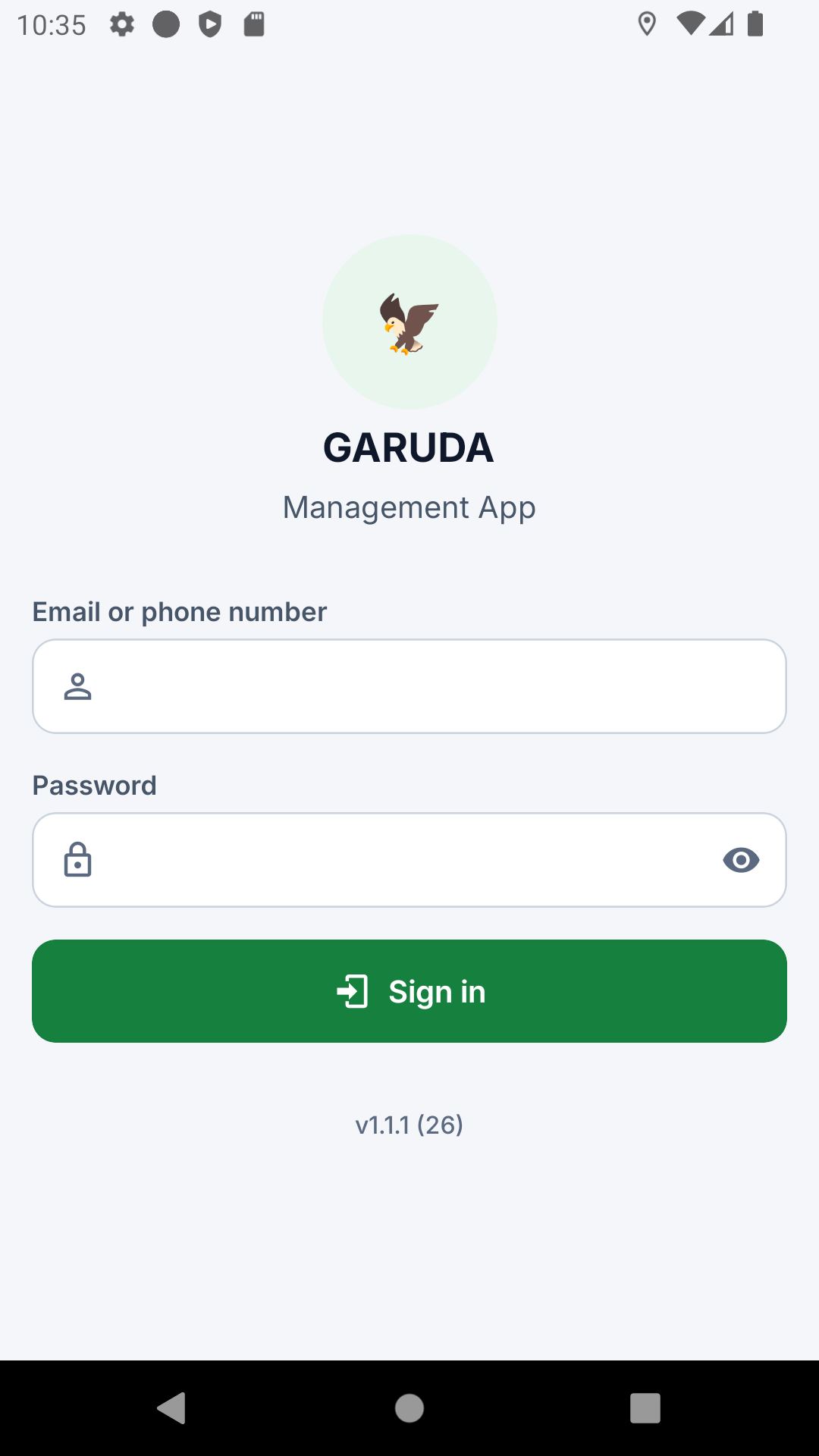
- Open garuda.anamay.org/download on the phone and download Garuda Manager. Install it as for the driver app.
- Sign in with the same email or mobile number and password as the dashboard. You see the same things your role sees there.
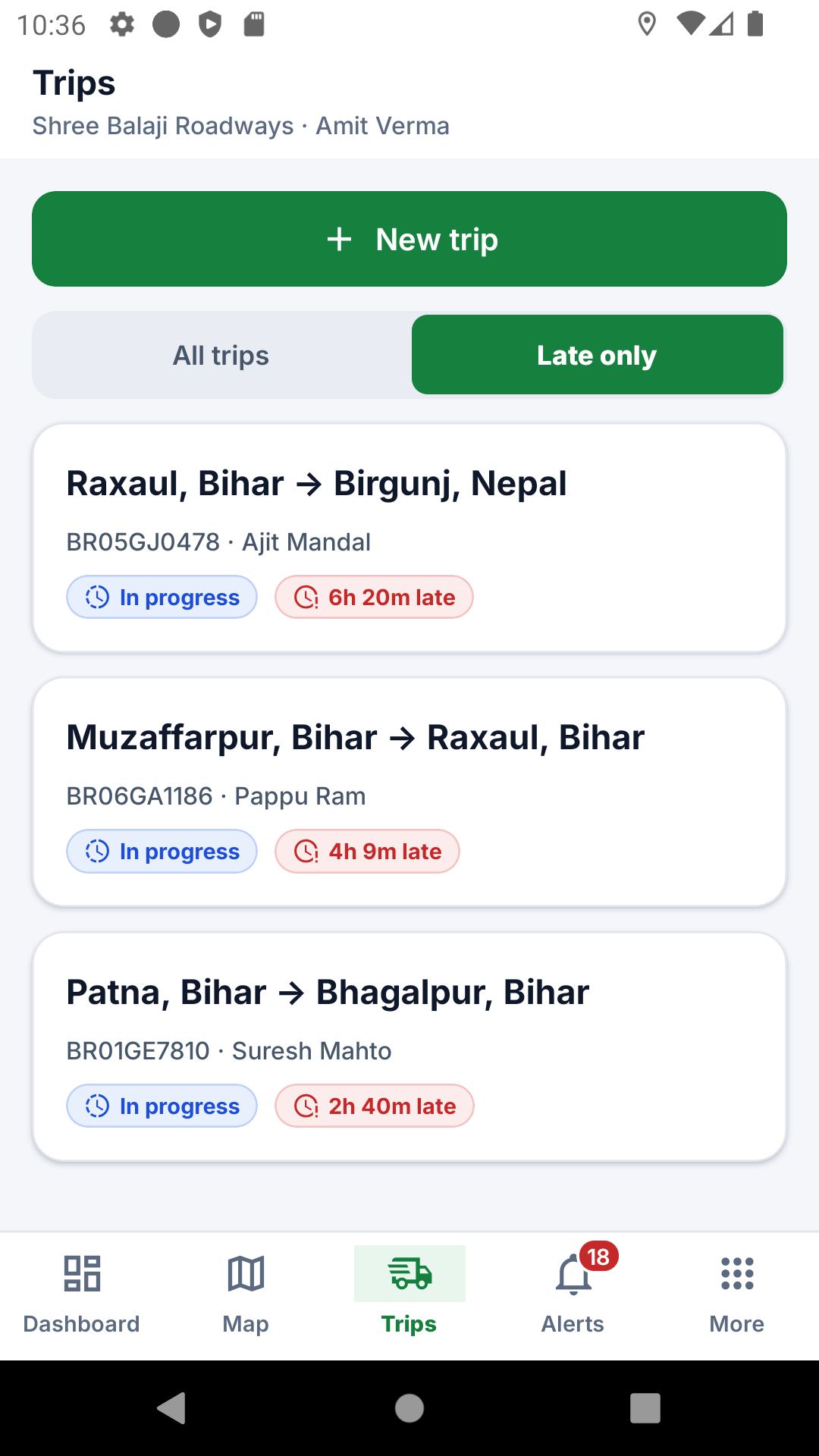
- The app has five tabs: Dashboard, Map, Trips, Alerts and More.
Dashboard, Map, Trips and Alerts
The four tabs you will open most, all with an All branches filter.
- Dashboard: fleet now, late trips, approvals waiting, expiring documents, drivers' phones and fleet health. Tap a card to open it.
- Map: every truck live; search a registration or driver.
- Trips: filter by status or Late only; tap New trip to plan one with customer and stops.
- Alerts: filter by severity, hide alert types you do not need, and tap Acknowledge when done.
More: money, papers and phones
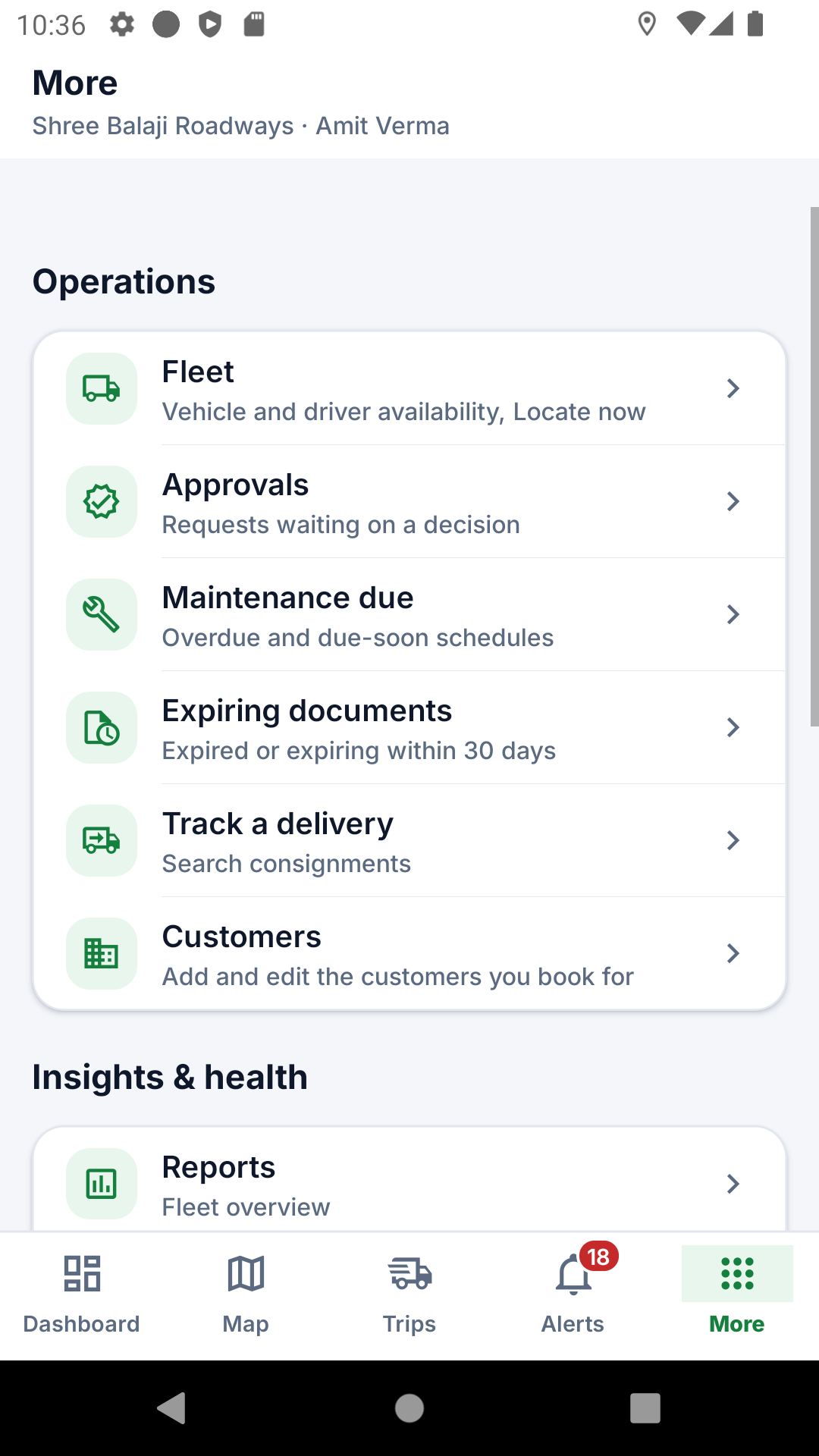
The rest of the office in the More tab.
- Search consignments and Customers: find a load, add or edit a customer.
- Driver expenses: each driver's advances, bhatta, claims and balance; add an entry on the spot.
- Device health: drivers' phones, their location and battery settings, and Locate now to ask a phone where it is.
- Approvals, expiring Documents, Maintenance due and Reports are here too. Log out is at the bottom.
Driver app
Everything a driver does on the phone: install, set up once, start the day, drive, deliver, and get help.
Install the app and sign in
The Garuda driver app is for Android phones. Your office gives you your login.
- Open garuda.anamay.org/download in Chrome and tap the driver app download.
- Open the downloaded file and tap Install. If the phone warns about an unknown app, choose to install anyway; if Play Protect asks, tap Install anyway.
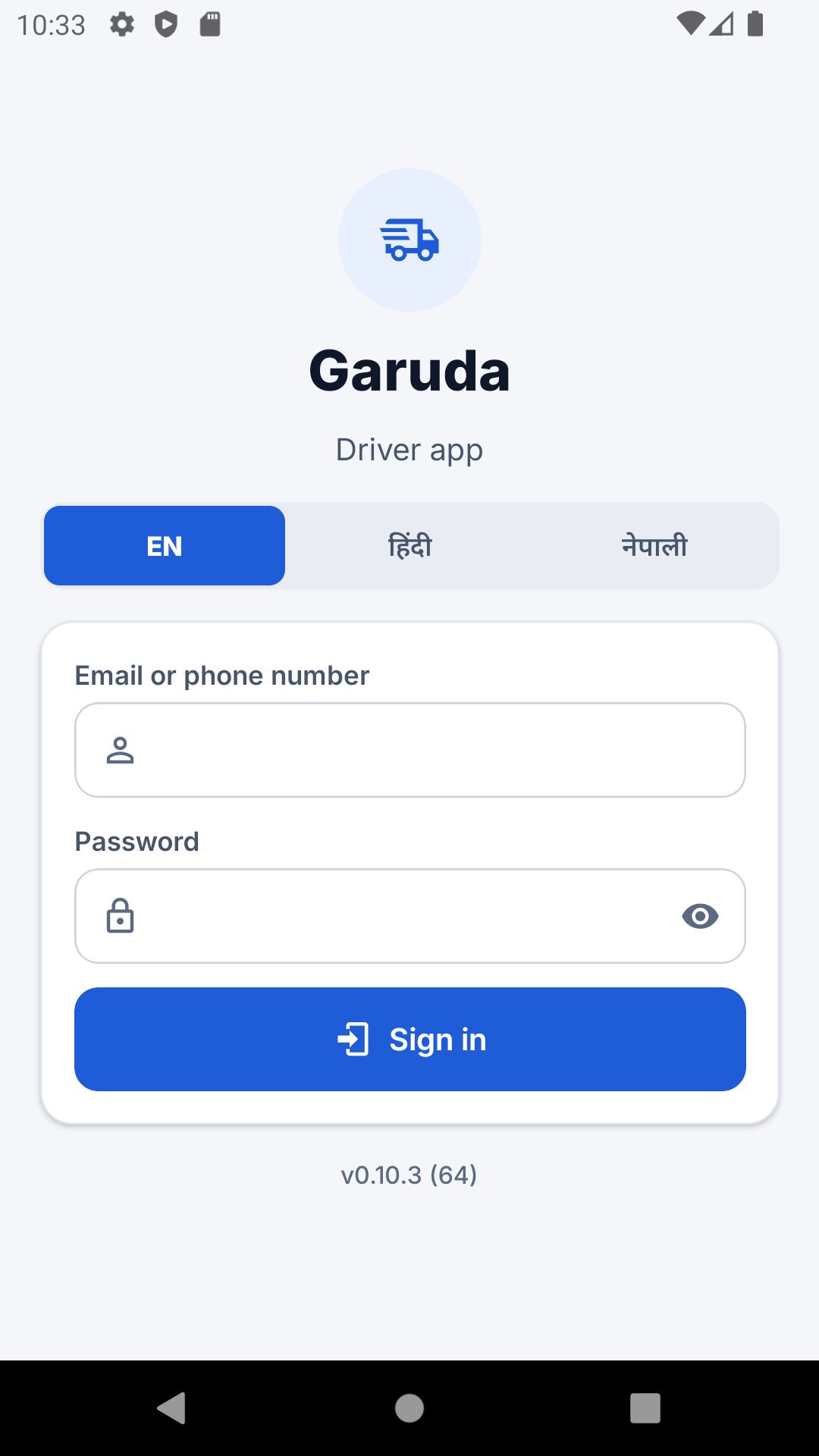
- Open Garuda, pick your language (English, हिंदी, नेपाली), type your mobile number or email and password, and tap Sign in.
When an update is ready the app shows "Update available". Tap Install update.
Set up the phone once
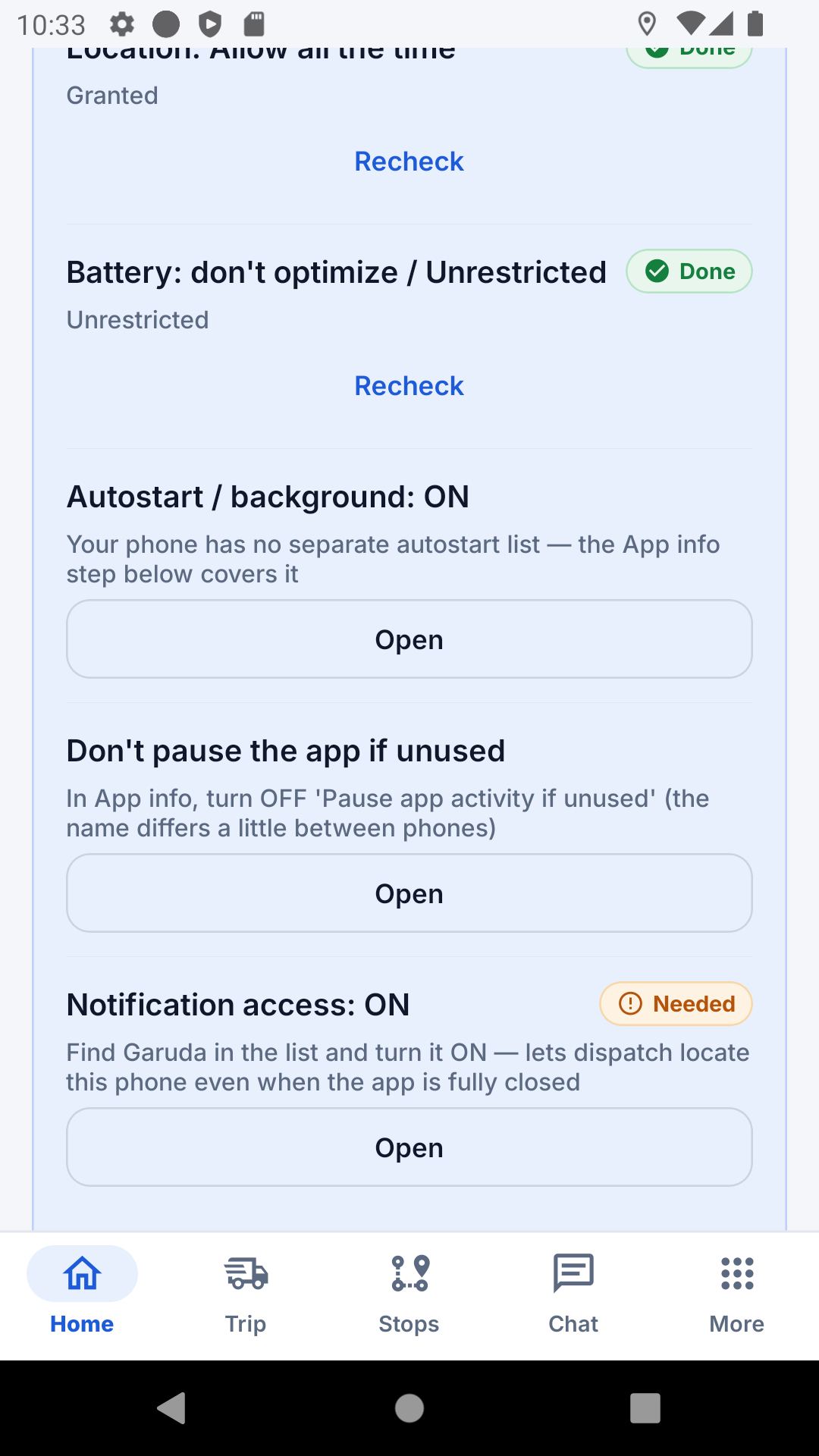
So your location keeps sending with the screen off, the app asks for a few settings the first time. Do them all once.
- Location: choose Allow all the time.
- Battery: set Garuda to Unrestricted (not optimised).
- Turn off Pause app activity if unused in App info, and turn on autostart if your phone has it.
- Allow notifications and notification access, so the office can reach the phone even when the app is closed.
If a switch is greyed out: Settings → Apps → Garuda → ⋮ → "Allow restricted settings", then try again. If location is ever turned off, the app shows a red notice with a one-tap Turn on location, and the office is told within minutes.
Start your day
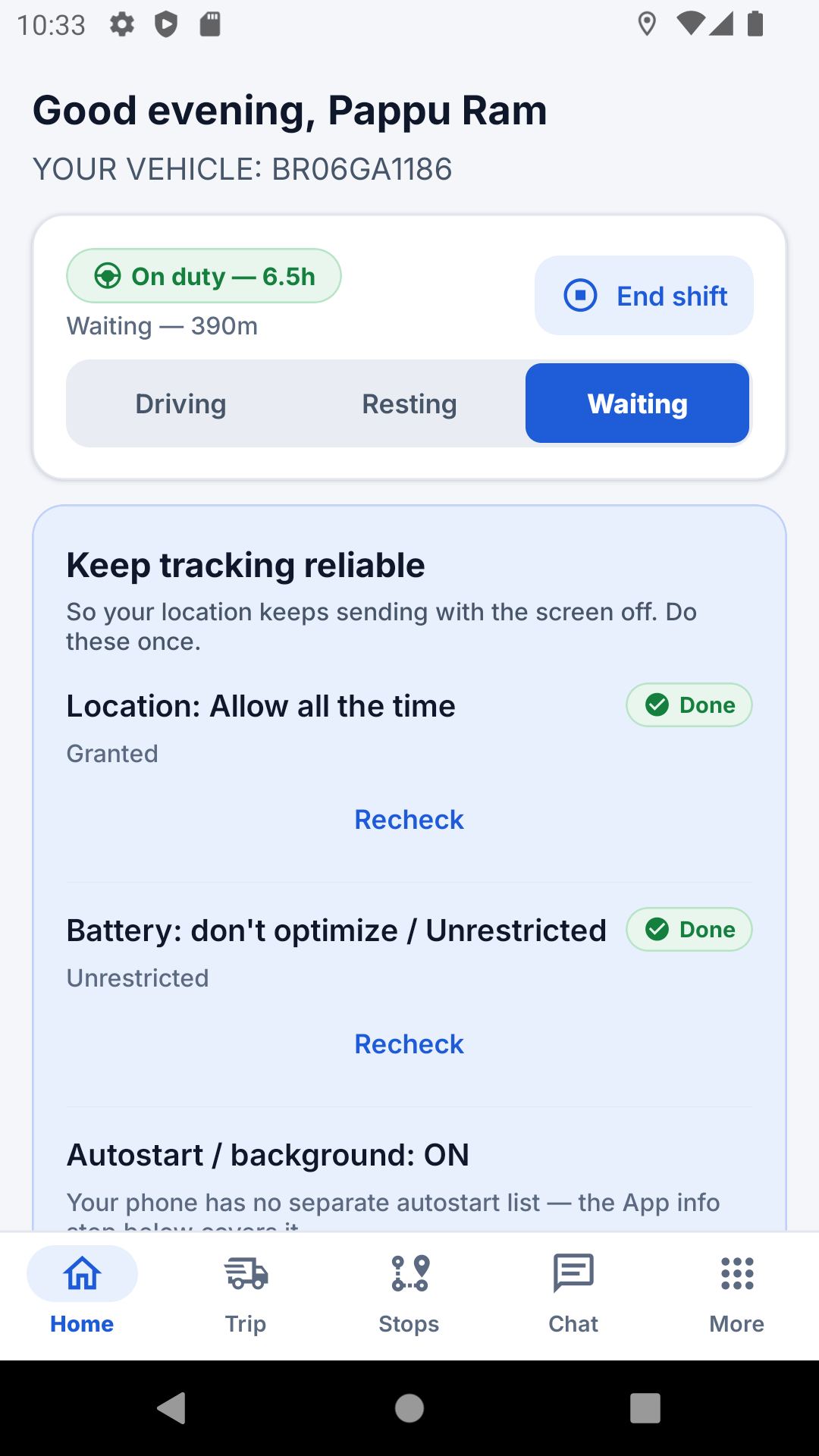
Start your shift, check the truck and accept your trip.
- Tap Start shift. During the day mark Driving, Waiting or Resting, and tap End shift when you finish.
- A new trip shows "New trip — respond to accept". Tap Accept trip, or Reject trip and give the reason.
- Do the Pre-trip check: mark each item OK, or Problem and write what is wrong. A problem goes straight to the workshop.
- Check the App status card: GPS recording, sending to office, and phone ready should all be green.
Drive the trip
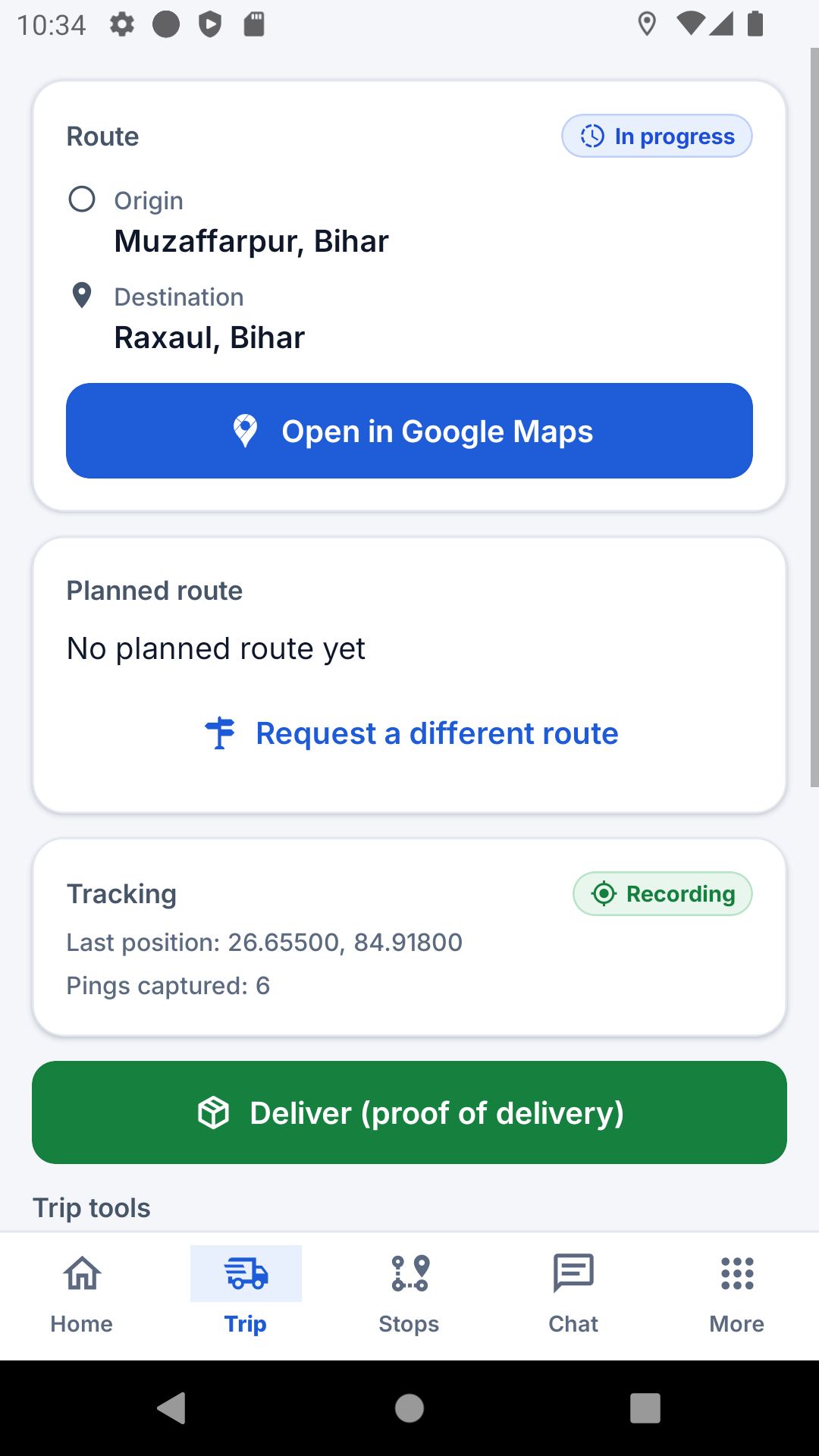
The Trip tab shows where to go; the Stops tab lists each stop in order.
- Tap Start trip when you leave. Tap Open in Google Maps for directions.
- At each stop tap Mark arrived, then Mark departed. If you cannot reach a stop, tap Skip and say why.
- If the office set a route, it shows under Planned route. Leave it and the app warns "You appear to be off the planned route."
- Road closed or the plan wrong? Tap Request a different route, write why, and wait for the manager.
- Crossing into Nepal or India? Tap 🛂 I crossed the border and choose the country.
- Message the office from the Chat tab.
No network? Locations are saved on the phone and sent when the signal returns. Keep location on: while it is off, the phone records nothing.
Deliver and collect proof
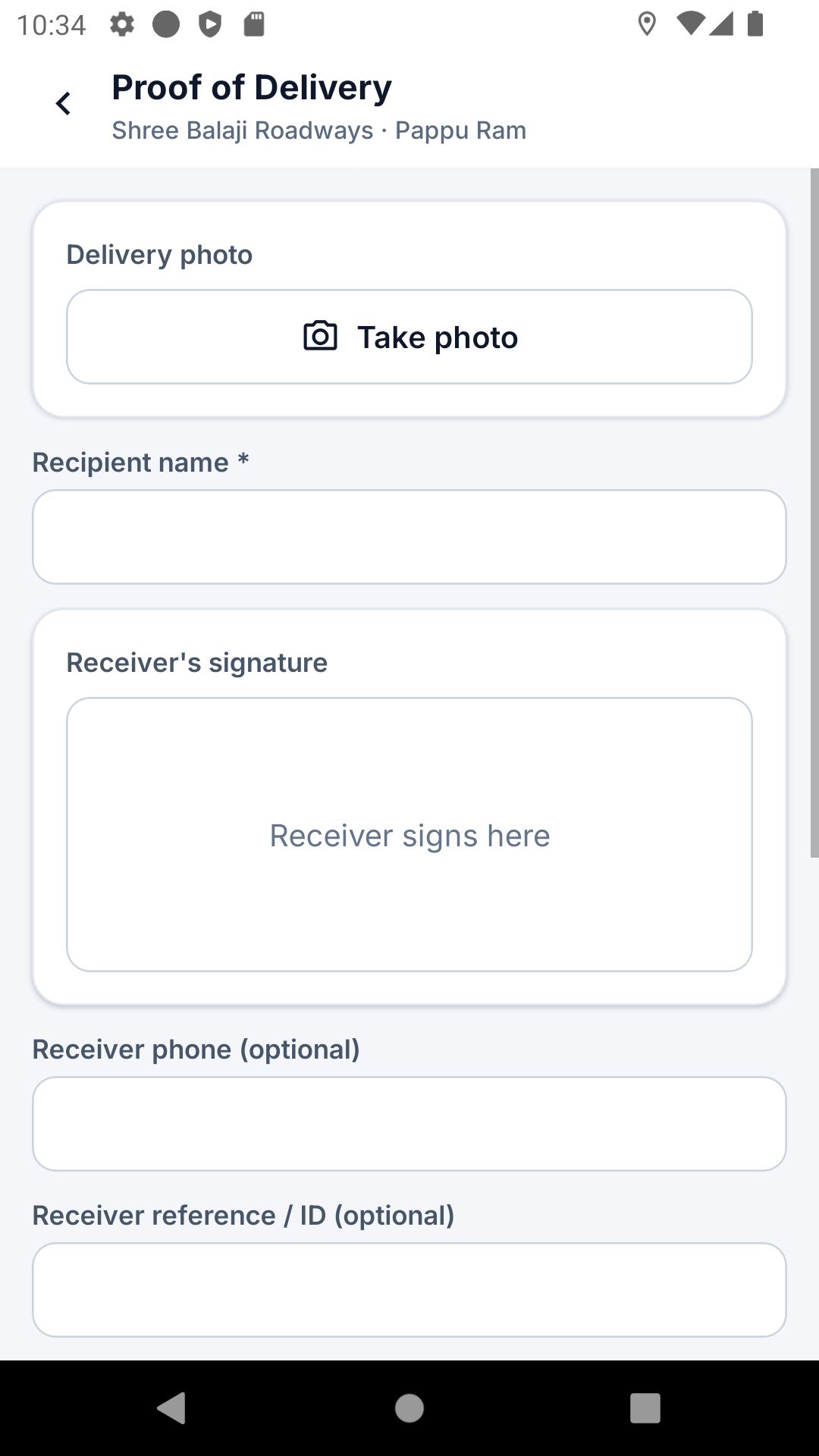
At the destination, record who received the goods. This is the proof of delivery the office and customer see.
- Tap Deliver (proof of delivery).
- Type the receiver's name, and their phone and ID if you have them. Enter the declared and delivered quantity.
- If the customer uses an OTP, tap Send OTP and type the code they read out.
- Tap Take photo of the goods, let the receiver sign on the screen, then tap Mark delivered.
No network at the gate? Everything is kept; tap Mark delivered again when you are back online.
Emergencies and problems
Get help fast, and tell the office about breakdowns, accidents or delivery problems.
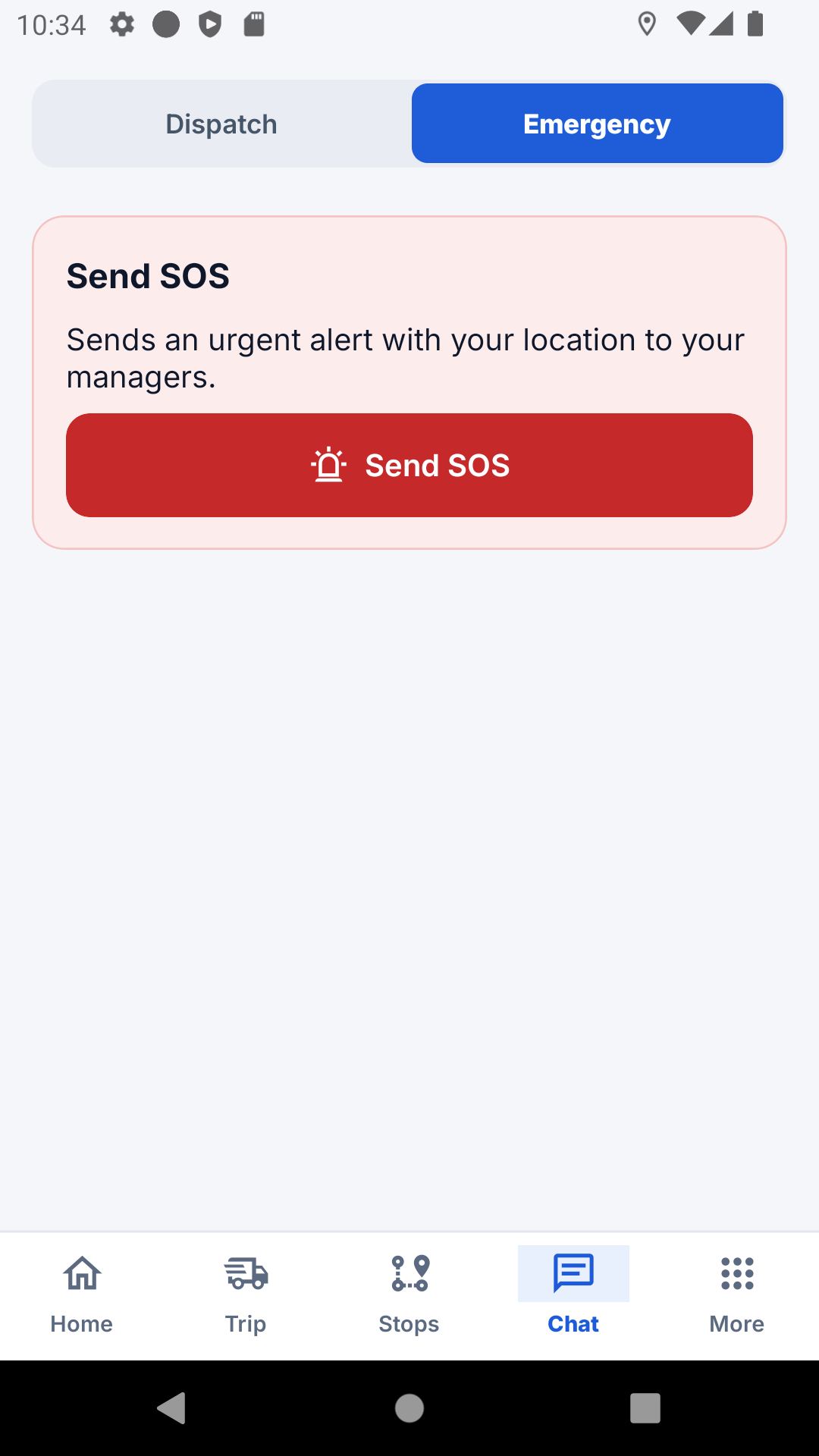
- In danger, tap Send SOS. Your manager is alerted at once with your location, even without a GPS fix.
- The emergency screen also has one-tap calls to police, ambulance and fire.
- For anything else, tap Report a problem, choose what happened and how serious it is, and send.
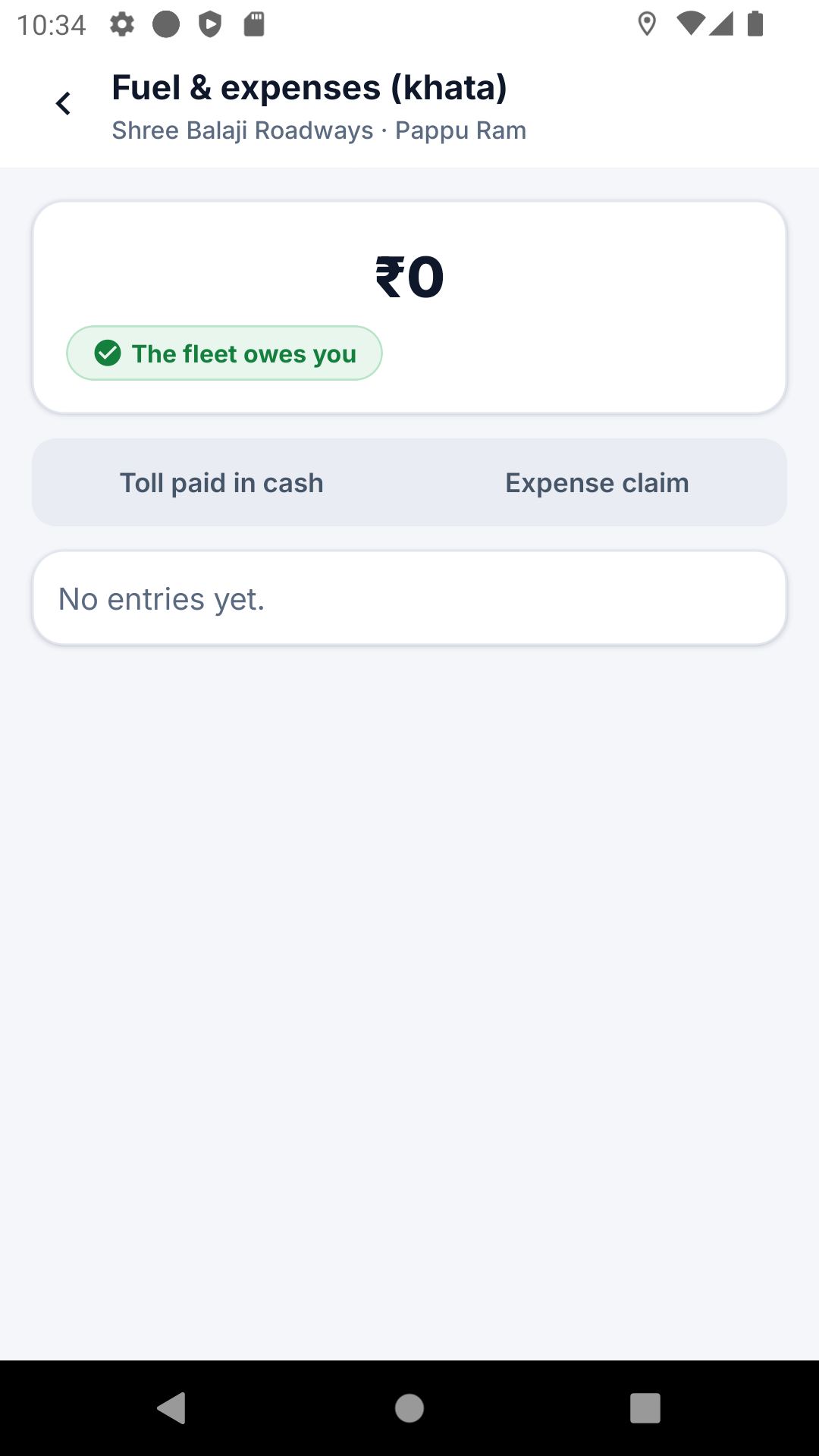
Your cash and your score
See the company cash you hold, claim expenses, and see your driving score.
- Open Fuel & expenses (khata) to see your balance.
- Paid a toll in cash? Log it with Toll paid in cash. For other spending, send an Expense claim.
- Open Driving score to see this month's score, the two things to improve, and your manager's notes.
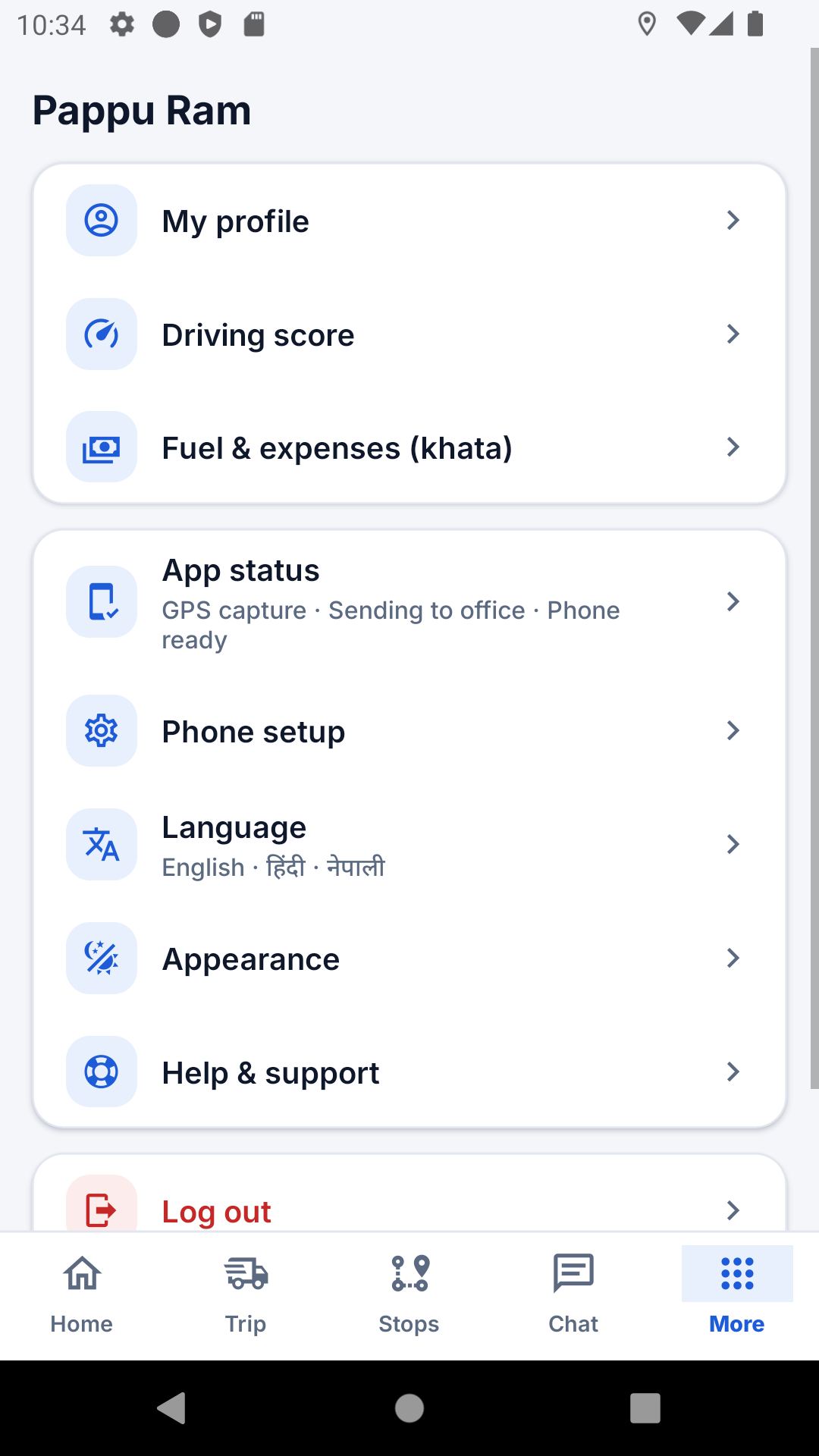
Cargo, continuous tracking and your profile
A few more things the app does.
- Cargo on this trip lists each consignment: who receives it, packages and weight. Tap Mark picked up when loaded and Mark in transit when you leave.
- If you pulled a Trailer / container, tap Hand back when you leave it at the yard.
- Driving on the owner's instructions without a planned trip? Tap Start continuous tracking; your location goes live until you tap Stop tracking.
- In More: My profile (phone, email, emergency contact), Appearance (light, dark or same as phone) and Language.
Customer portal
See your consignments, download proof of delivery, rate deliveries and follow a truck live.
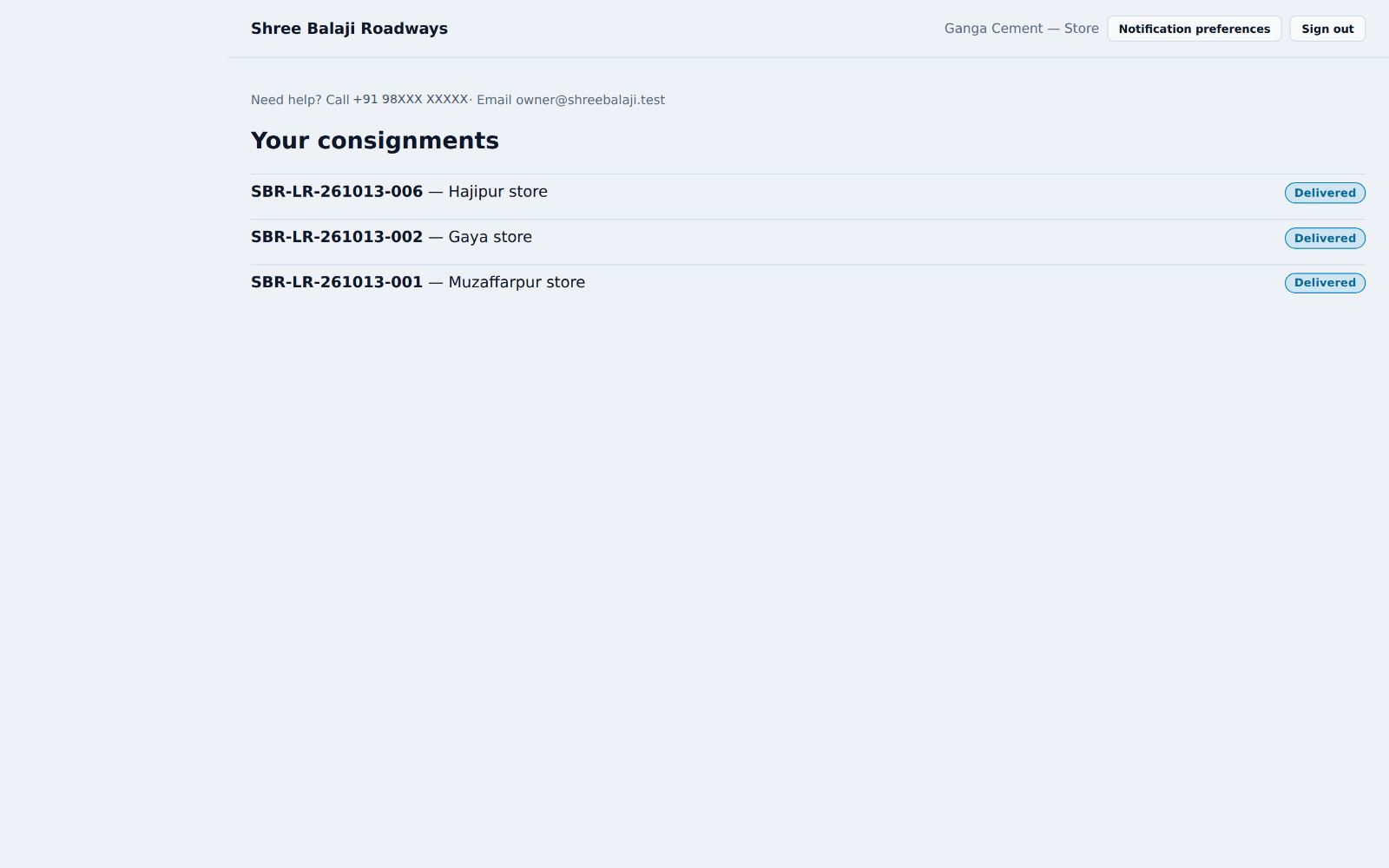
Your consignments
Your transporter gives you a login. After signing in you see every consignment they carry for you.
- Sign in at garuda.anamay.org/app with the email or phone and password you were given.
- Your consignments lists each LR number, where it is going and its status.
- Open a delivered one to see the Proof of delivery and its documents.
- Use Rate this delivery to tell the transporter how it went.
Choose how you hear about deliveries with Notification preferences at the top.
Follow a truck live
Your transporter can send you a tracking link by SMS, WhatsApp or email. It shows the truck on a map with the expected arrival.
- Open the link; no login is needed.
- The link stops working after the delivery.